Auto-reply with AI
Goodreviews can write replies to your new Google reviews. You choose what happens for each star rating: nothing, a saved draft, or a reply posted for you. Posted replies are public and you don't see them first, so set this up with care.
Before you start
- Google Business Profile should already be connected in Goodreviews. If it isn't, see Fix your Google connection.
- Have a contact ready that you're happy to show in public. You'll need it in Part 1.
Part 1. Set your AI voice
Set this first. It shapes every reply we write for you.
- Click Reply in the sidebar.
- Click AI voice.
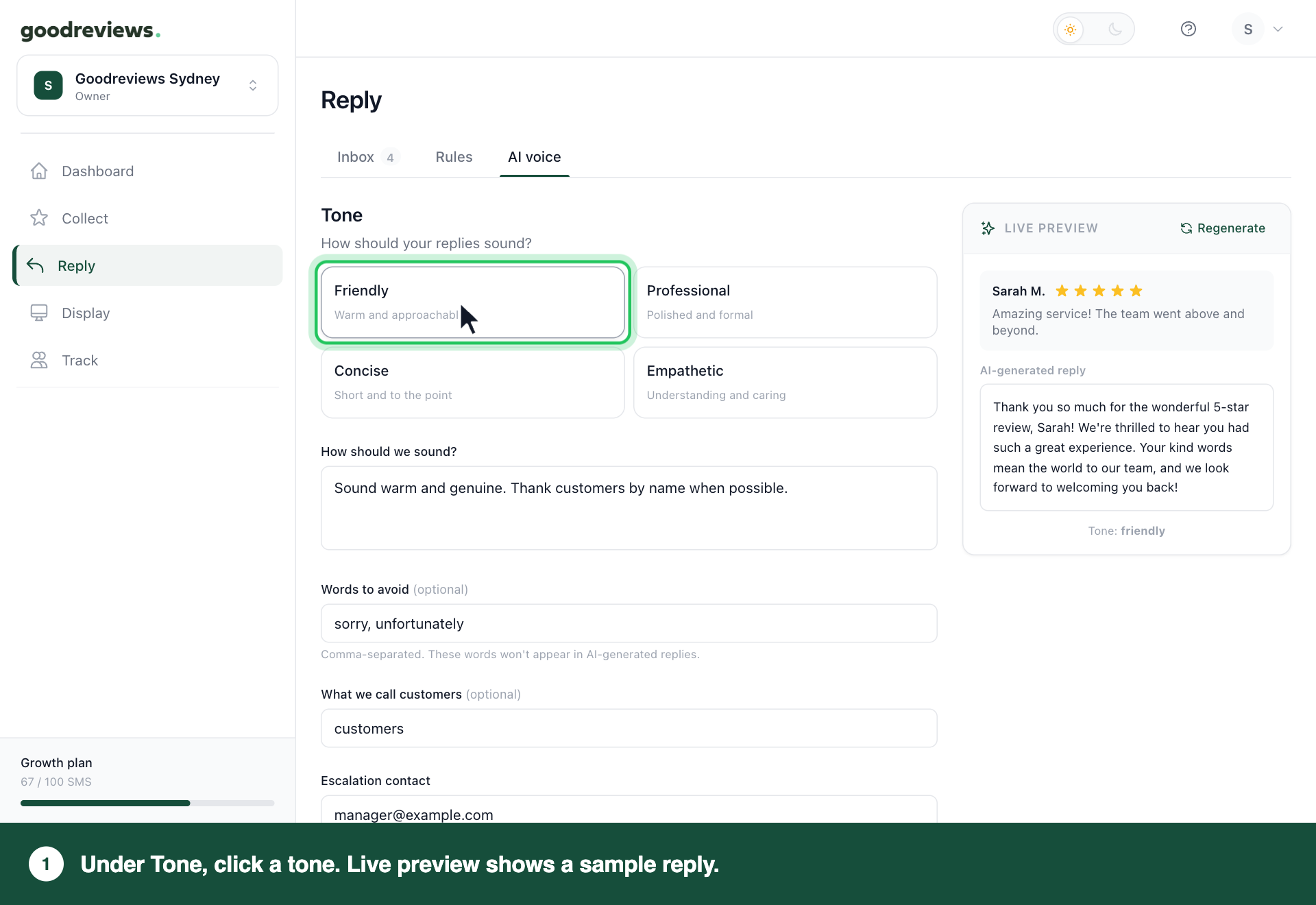
- Under Tone, click Friendly, Professional, Concise or Empathetic.
- Fill in any of the fields you want. See the table below.
- Scroll down to Escalation contact.
- Type a contact you're happy to show in public.
- Click Regenerate next to Live preview to see a sample reply.
- Click Save changes at the bottom of the screen.
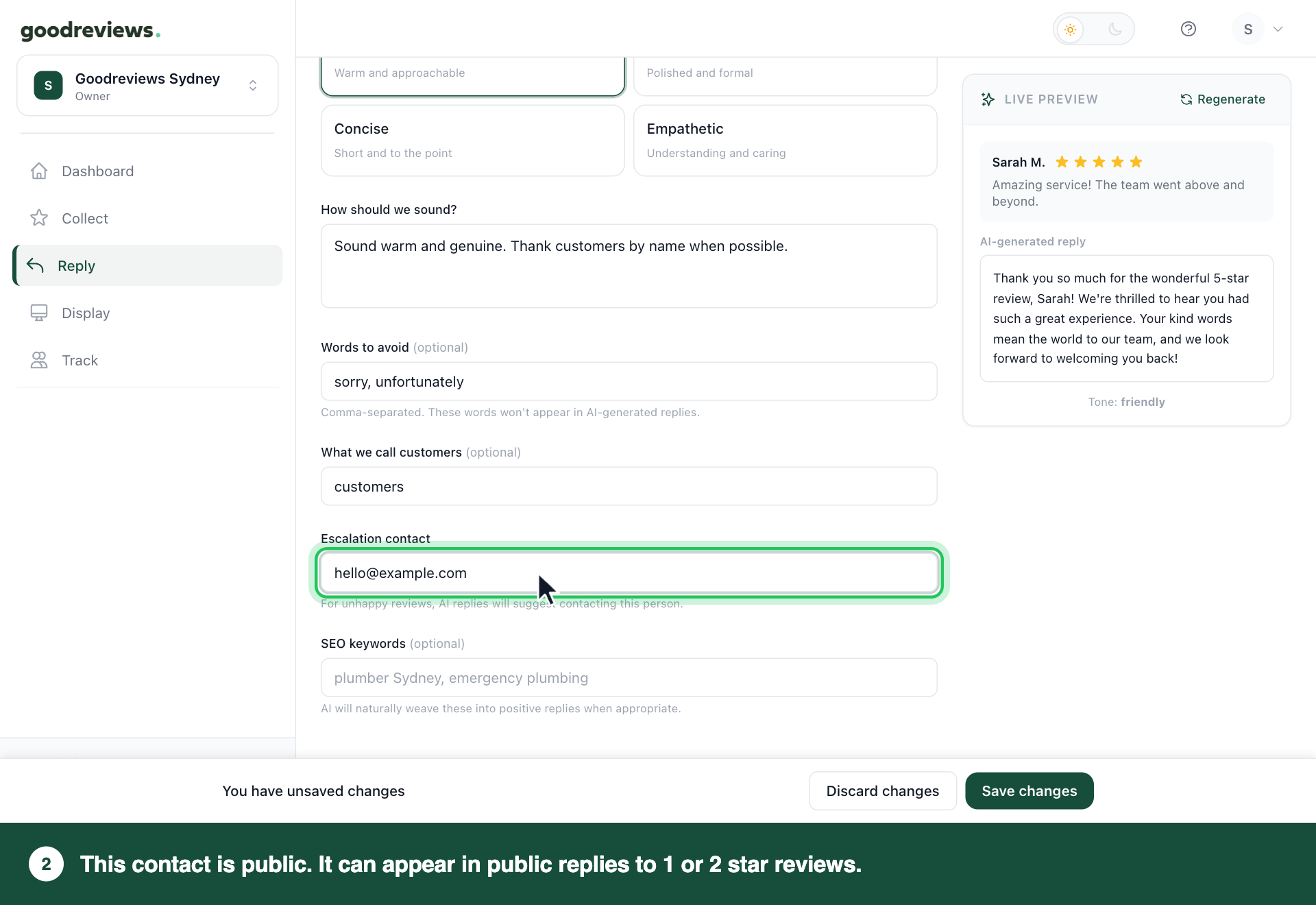
Escalation contact is public. It can appear in public replies to 1 or 2 star reviews, so anyone reading your reviews can see it. Only use a contact you're happy to share.
| Field | What it does |
|---|---|
| How should we sound? | Tell us how replies should sound, in your own words. |
| Words to avoid | Separate words with commas. These words won't appear in AI replies. |
| What we call customers | For example customers, clients, guests or patients. |
| SEO keywords | We work these into positive replies when appropriate. |
Live preview always uses a 5-star sample review. It won't show you how a reply to an unhappy customer reads.
Part 2. Choose when replies go out
Replies are only sent during your business hours. Set these before you turn on Auto-reply.
- Click Reply in the sidebar.
- Click Rules.
- Scroll down to the When should replies be sent? section.
- Choose your Timezone.
- Choose your Start time.
- Choose your End time.
These save as soon as you choose them. Saved appears next to the heading.
Part 3. Set a rule for each star rating
Read this first. Auto-reply posts a public reply on your behalf. Nobody at your business reads it before it goes out.
| Option | What happens when a new review arrives | Public? |
|---|---|---|
| Do nothing | We take no action. | No |
| Save draft | We write a reply and save it in Drafts. It stays private until you send it. | Not until you send it |
| Auto-reply | We write a reply and post it during your business hours. You don't see it first. | Yes |
Each rule decides what happens for its review type. Auto-reply status in Part 4 changes every rule at once.
Start with Save draft. Read a few drafts. Move a rating to Auto-reply only when you'd happily send those replies unchanged.
- Click Reply in the sidebar.
- Click Rules.
- Under Reply rules, find the review type, like 5-star review with a comment.
- Click Do nothing, Save draft or Auto-reply.
- Repeat for each review type you want to change.
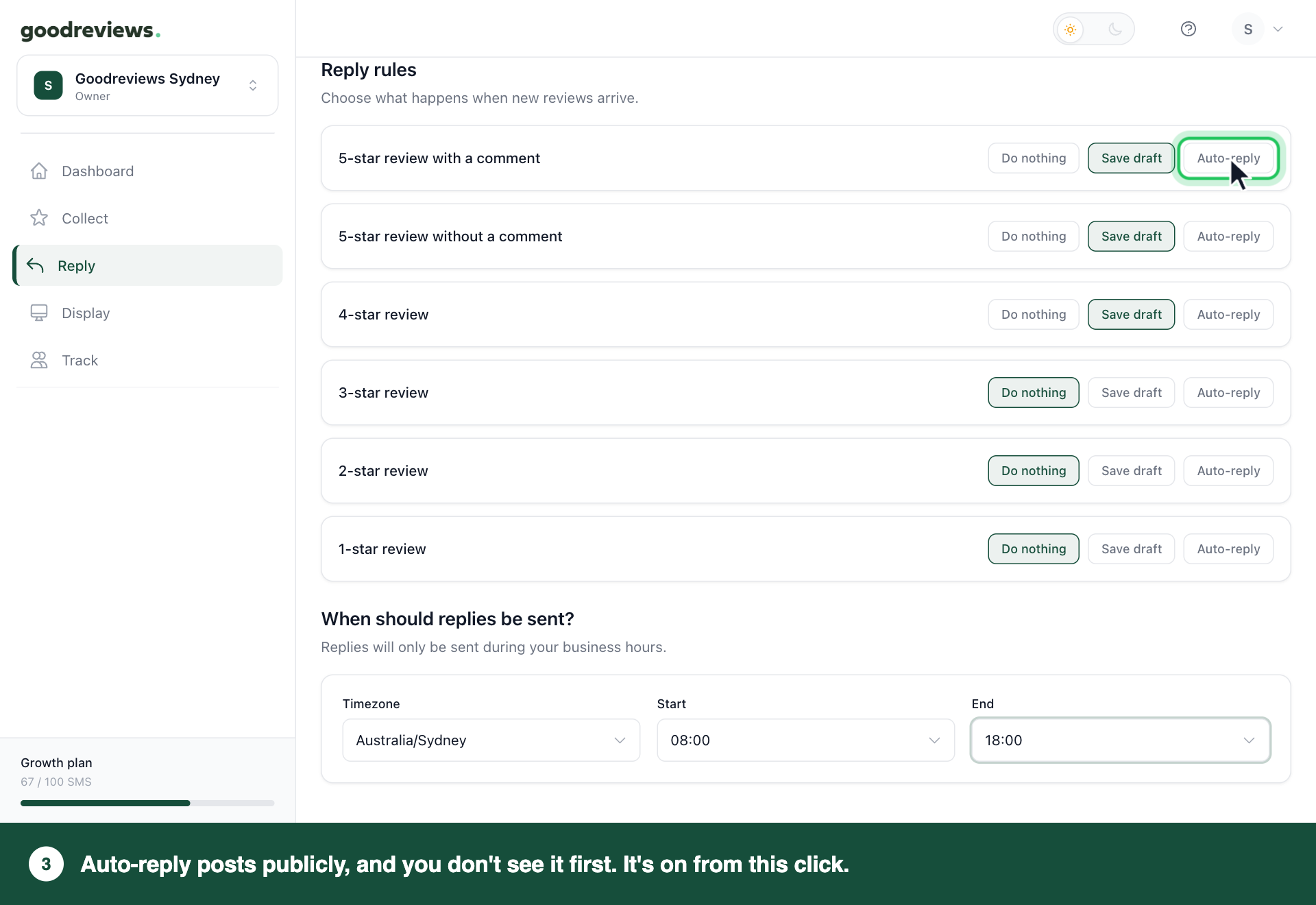
Each rule saves as soon as you click it. Saved appears next to the rule. There's no save button and no second check, so treat Auto-reply as on from that click.
We suggest keeping the 2-star review and 1-star review rules away from Auto-reply. Those replies can include your Escalation contact, which is public, and you won't see them before they post.
Check the highlighted option on every rule, including ones you haven't changed. Each rule acts on its own.
Part 4. Change every rule at once
Auto-reply status is a master setting. Applying it sets every rule to the same option, including your 1 and 2 star reviews. After that, each rule decides what happens for its review type.
| Apply | Every rule becomes |
|---|---|
| Off | Do nothing |
| Draft only | Save draft |
| Auto-send | Auto-reply |
Be careful with Auto-send. Every new review gets a public reply on your behalf, whatever the rating. Replies to 1 or 2 star reviews can show your Escalation contact, which is public, and you won't see them first.
- Click Reply in the sidebar.
- Click Rules.
- Click the menu next to Auto-reply status.
- Choose Off, Draft only or Auto-send.
- Read the message that asks if you want to apply it to all rules.
- Click Apply changes. Click Cancel if you've changed your mind.
- If you applied Auto-send, click Save draft on the 2-star review and 1-star review rules.
If the option you want is already showing, no message appears and no rules change. Follow Part 3 to change each rule.
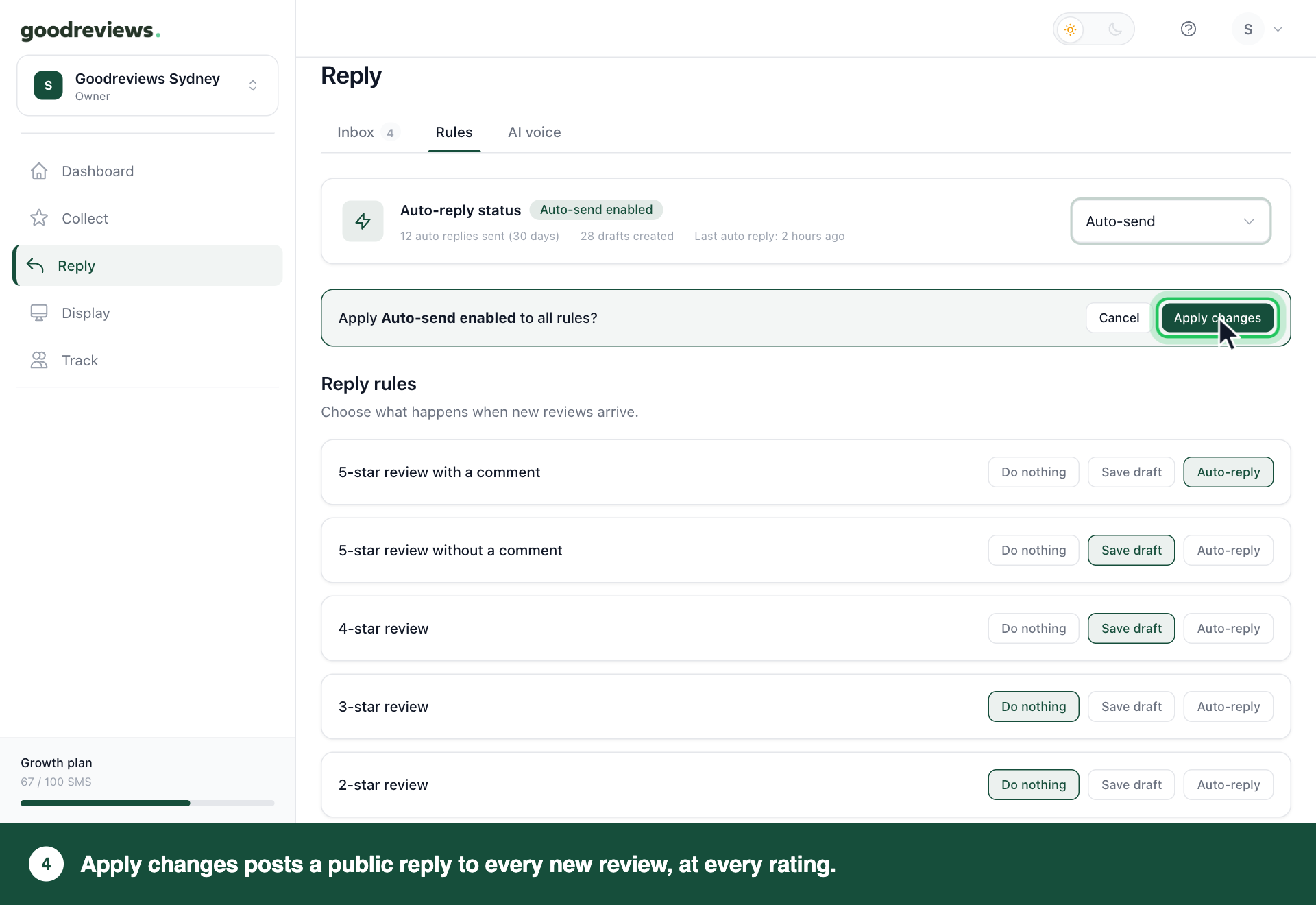
Nothing changes until you click Apply changes, even though the status label updates when you choose.
After you apply a status, you can change single rules one by one in Part 3. Each rule then does what it shows.
Auto-reply status doesn't change when you change a single rule, so it may not match every rule. Check the rules to see what will happen.
How to check it's working
- Click Reply in the sidebar.
- Click Rules.
- Check the highlighted option on each rule.
- Look under Auto-reply status for auto replies sent (30 days), drafts created and Last auto reply.
- Click Inbox.
- Click Drafts to see replies waiting for you.
To send a draft, see Reply to reviews.
Common questions
Can customers see auto-replies? Yes. Auto-replies are public, the same as replies you send yourself. Anyone reading your reviews can see them.
How do I stop auto-replies? Click Reply in the sidebar, then click Rules. Click Save draft or Do nothing on each rule that shows Auto-reply. Each one saves as soon as you click it, and that rule stops posting by itself.
To change every rule together, follow Part 4 and choose Draft only or Off. If that option is already showing, nothing changes. Click each rule instead, then check that none shows Auto-reply.
Will auto-reply answer reviews I already have? The rules are for new reviews. Reply rules says they choose what happens when new reviews arrive. To answer reviews already waiting in Needs reply, see Reply to reviews.
Will replies post in the middle of the night? No. Replies are only sent during the business hours you set in Part 2.
Still stuck? Email success@goodreviews.io.