Change your plan, card or invoices
Your plan, payment card, invoices and SMS top-ups all live on one page: Billing. Each job takes a few clicks from your dashboard. For plan details and credit numbers, see Plans, credits and limits.
Part 1. Change your plan
- Click your account menu at the top right.
- Click Billing.
- Click Change plan.
- Click the button for the plan you want, like Switch to Scale. Your current plan shows Current plan instead of a button.
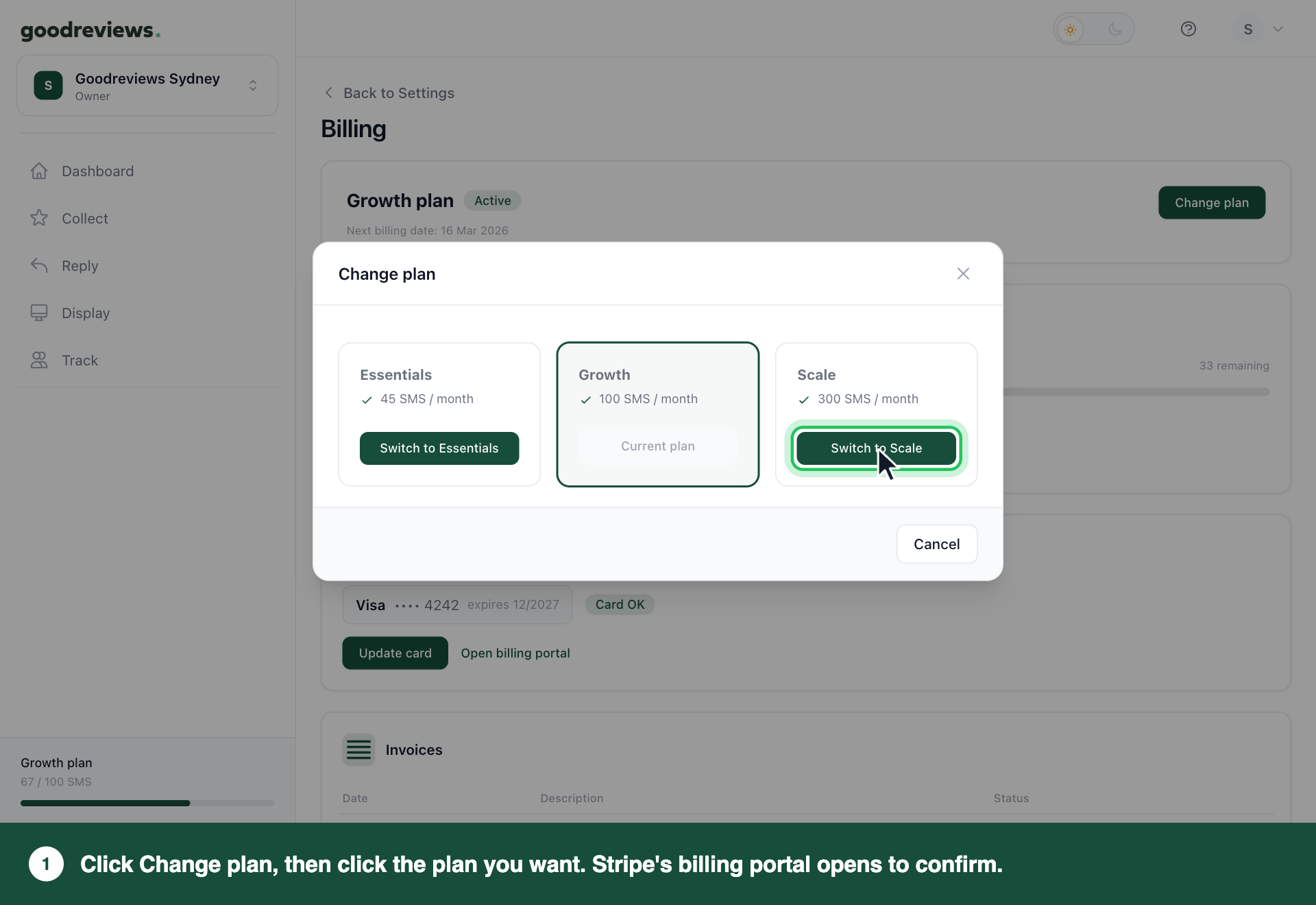
Stripe's billing portal opens. Follow its steps to confirm the change.
Your new plan starts straight away, and Stripe works out the difference for the rest of your current billing period. If you're on a free trial, changing plan ends the trial.
Part 2. Update your card
- Click your account menu at the top right.
- Click Billing.
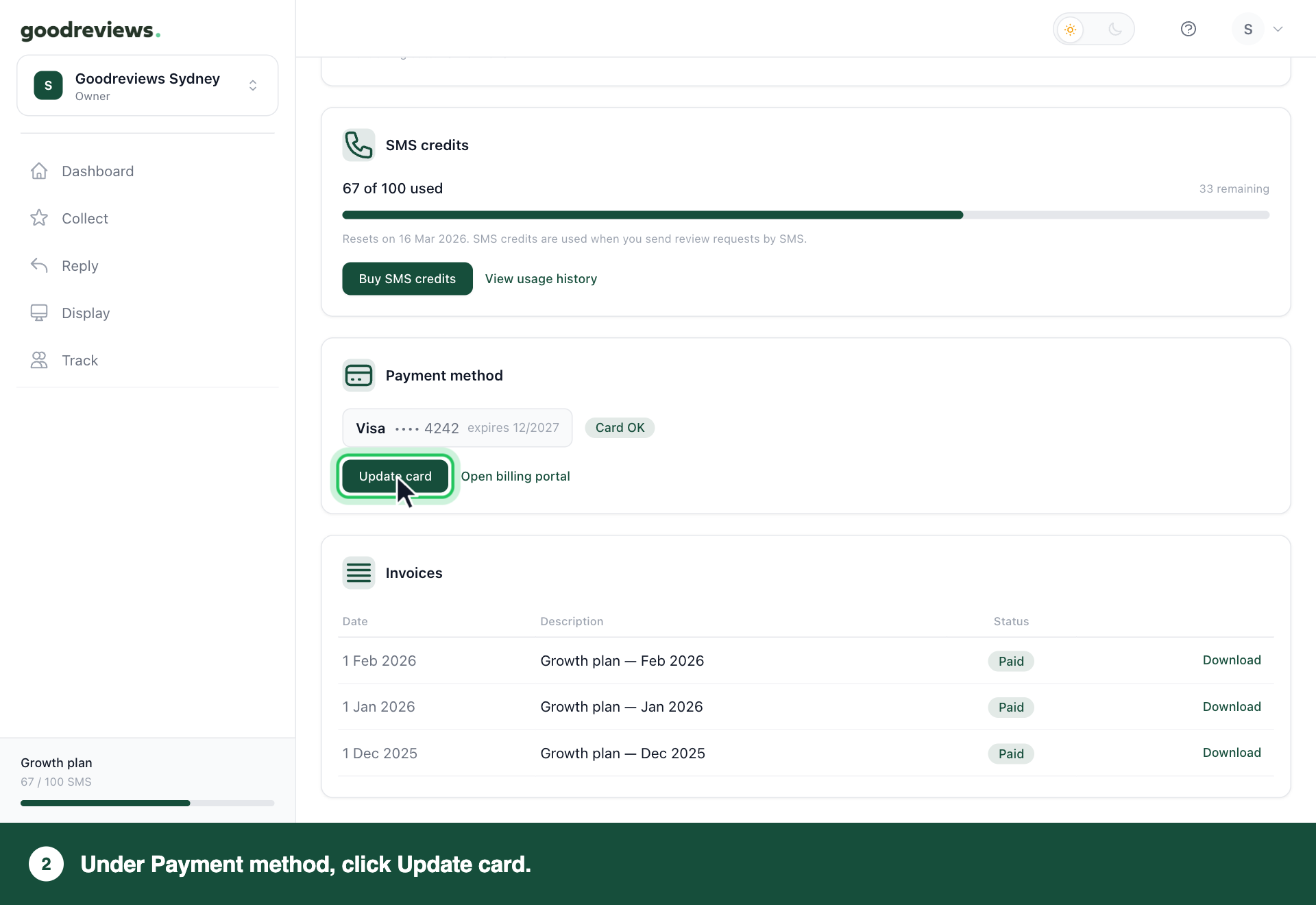
- Under Payment method, click Update card. If there's no card on file, click Add card.
- Stripe's billing portal opens. Add your new card there.
Part 3. Download an invoice
- Click your account menu at the top right.
- Click Billing.
- Under Invoices, find the invoice you want.
- Click Download next to it.
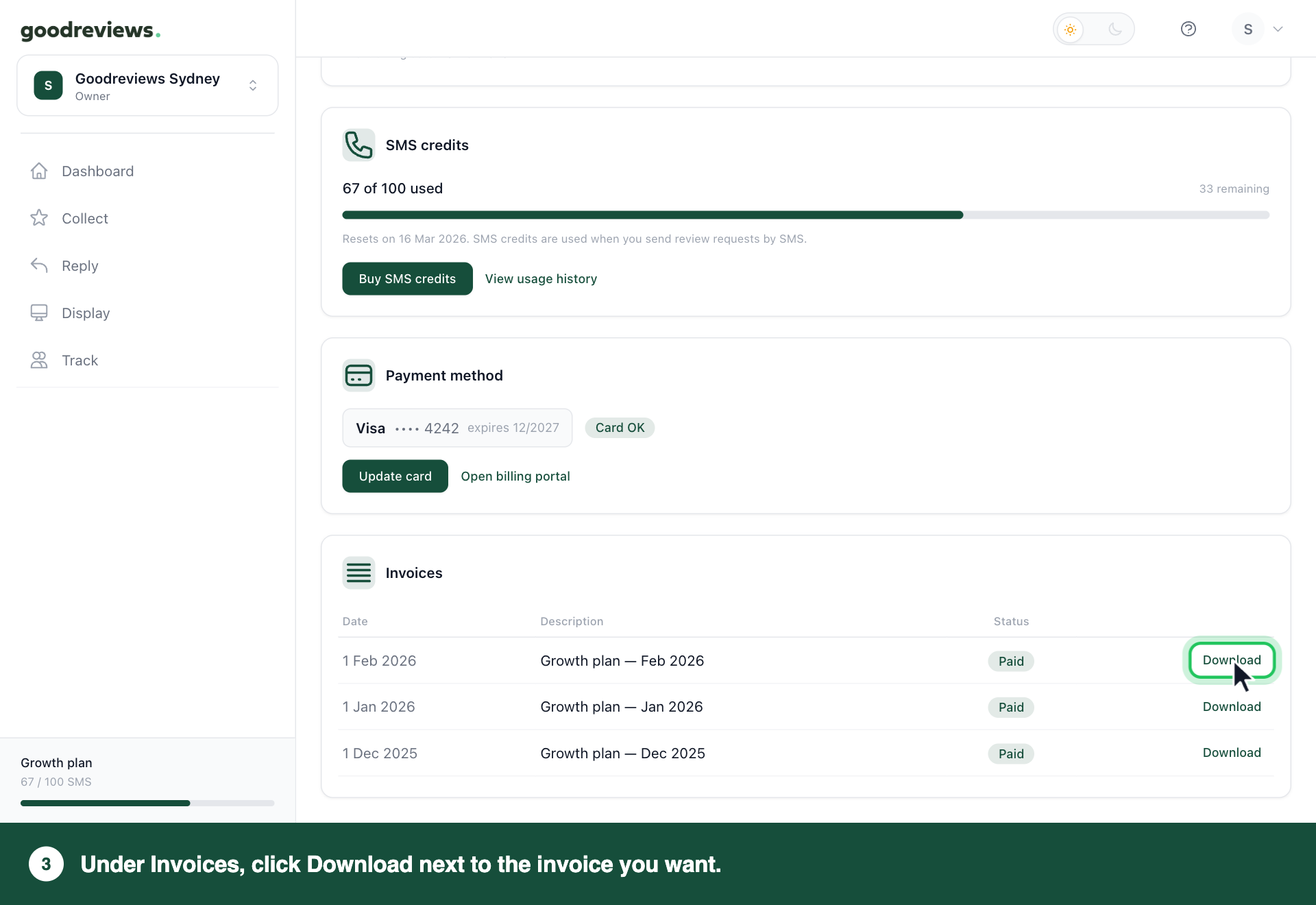
The invoice downloads. You can also get your invoices from Stripe's billing portal: click Open billing portal under Payment method.
If you haven't been billed yet, you'll see No invoices yet.
Part 4. Buy more SMS credits
- Click your account menu at the top right.
- Click Billing.
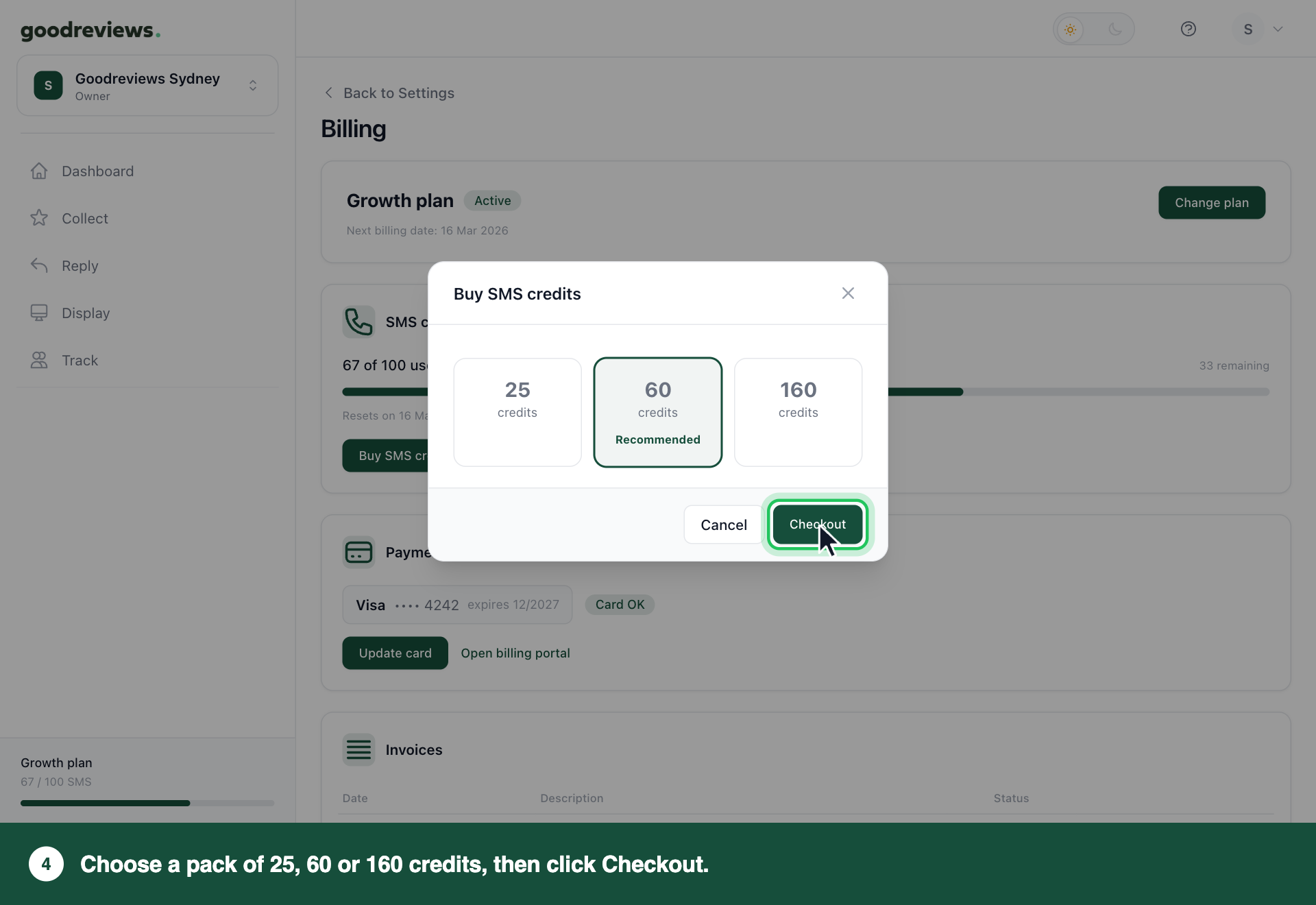
- Under SMS credits, click Buy SMS credits.
- Choose a pack.
- Click Checkout.
| Pack | Price |
|---|---|
| 25 credits | $10 |
| 60 credits (recommended) | $20 |
| 160 credits | $50 |
In Australia, prices are in AUD and exclude GST. Everywhere else, they're in USD with no tax added.
Want a different option? Email success@goodreviews.io.
We charge the card on file, and the credits are added straight away. Top-up credits don't expire.
We use your monthly credits first, then your top-up credits. Your balance shows under SMS credits on the Billing page, with monthly and top-up credits listed separately.
Requests that were waiting for credits don't send by themselves. Click Track in the sidebar, click Waiting for credits, then click Resend all. See Plans, credits and limits.
How to check it's working
Click your account menu at the top right, then click Billing. Under Payment method, check the card and its status.
| Status | What it means | What to do |
|---|---|---|
| Card OK | Your card is fine. | Nothing. |
| Card expired | Your card has expired. | Click Update card. |
| No payment method | There's no card on file. | Click Add card. |
Common questions
When does my new plan start? Straight away. Stripe works out the difference for the rest of your current billing period. If you're on a free trial, changing plan ends the trial.
When is my next payment? Click your account menu at the top right, then click Billing. Your Next billing date sits under your plan at the top of the page.
What does Past due mean? Your last payment didn't go through. You'll see Past due and Payment failed at the top of the Billing page. Click Update card there to keep your account active.
How many credits does each plan include? See Plans, credits and limits.
How do I cancel? Click your account menu at the top right, then click Billing. Under Danger zone, click Cancel subscription. See Cancel your plan for what happens next.
Still stuck? Email success@goodreviews.io.