Fix an automation that needs attention
An automation marked Needs attention may have a problem with its setup. One marked Disconnected has lost the connection to its tool. Each fix takes a few clicks, plus your tool's login if you need to reconnect.
Before you start
- If you need to reconnect, you need the login for that tool, such as Xero.
What each status means
| Status | What it means | What to do |
|---|---|---|
| Running | Requests are going out. | Nothing. |
| Paused | Nothing is being sent. It shows why: you paused it, or its tool is disconnected. | If the tool isn't connected, connect it again first (see Part 2). Then, if the automation still says Paused, click Resume. |
| Needs attention | There may be a problem with its setup. | Follow Part 1. |
| Disconnected | The tool is no longer connected. | Follow Part 2. |
Part 1. Fix an automation marked Needs attention
- Click Collect in the sidebar.
- Click Automations.
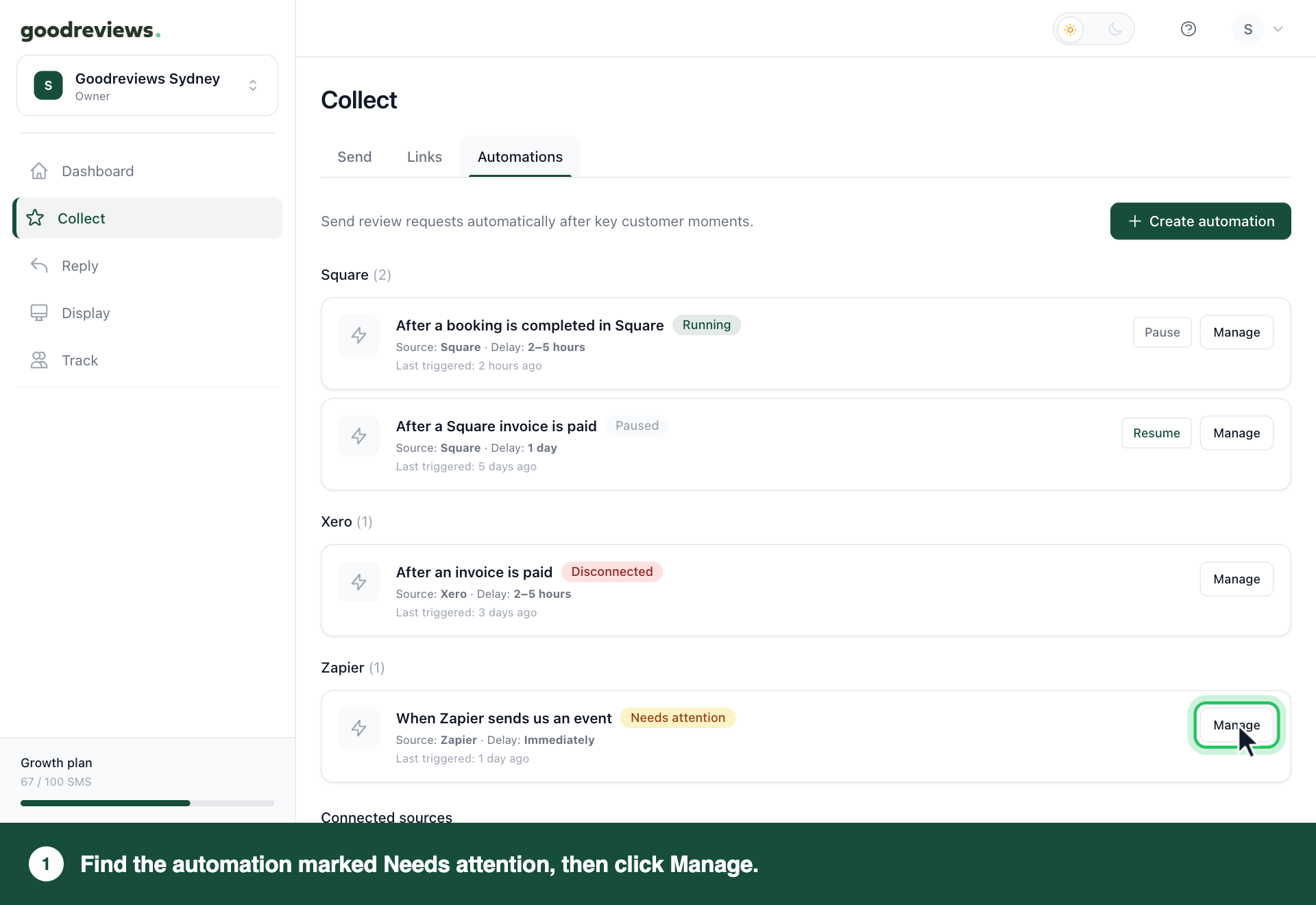
- Find the automation marked Needs attention. The card shows Source, the tool it uses.
- Click Manage on that automation.
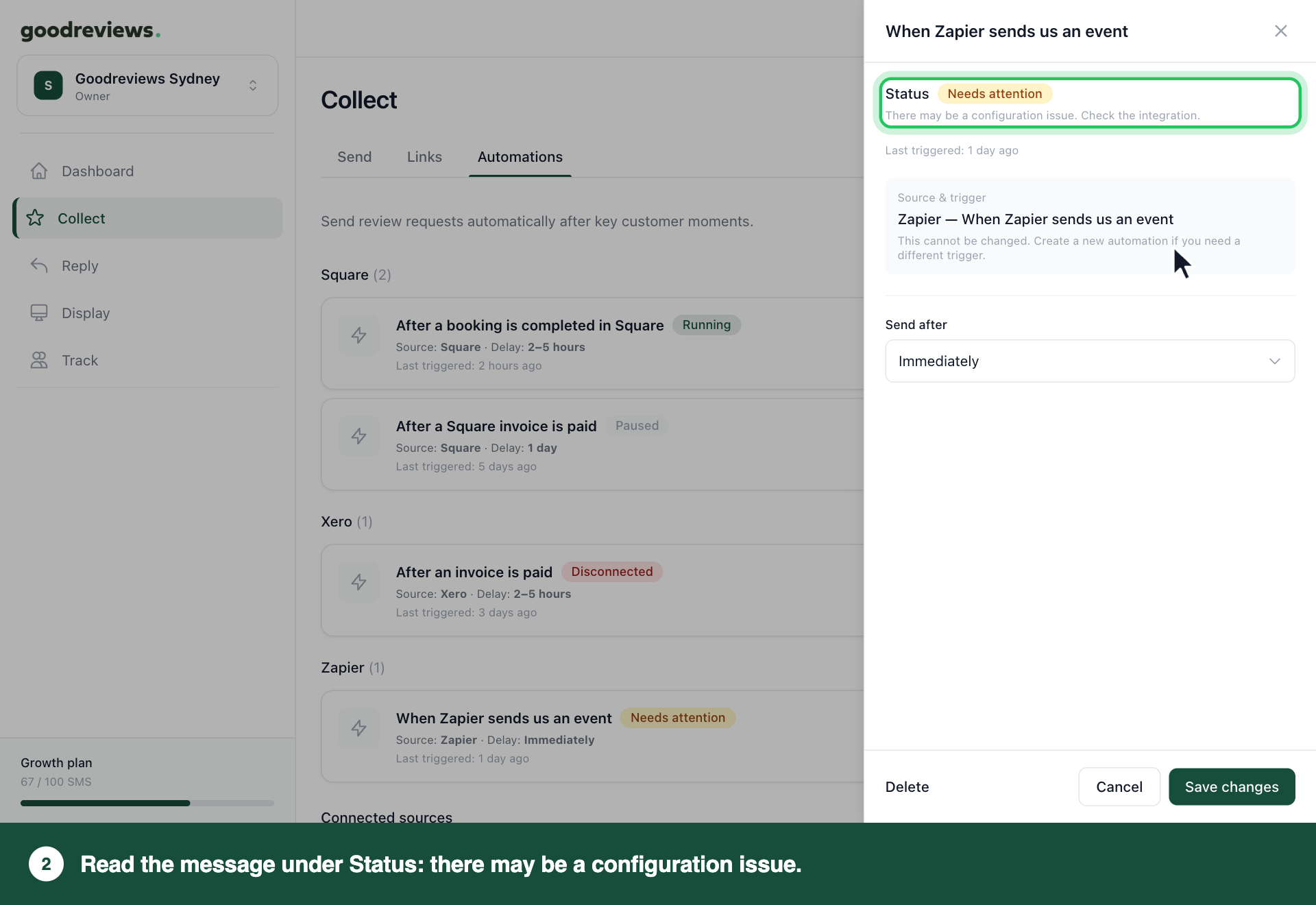
- Read the message under Status. It says there may be a configuration issue.
- Click Cancel.
- Click your account menu at the top right.
- Click Integrations.
- Under Connected, find the tool from step 3. If it's under Available to connect, see the note after Part 2's steps.
- Check what it shows next to its name, then use the table below.
| What you see | What to do |
|---|---|
| Disconnected, with Reconnect | Follow Part 2 from step 9. |
| Action required | Click View details. Under Finish setup, click Select location or Select organisation. Choose one, then click the same button in the window. |
| Connected, for Square, Xero or Stripe | Click View details, then click Reconnect. Follow the steps on that tool's screens. If the automation still says Needs attention, email success@goodreviews.io. |
| Error or No recent activity, for Zapier | Click View details. Check Last webhook received, then check your Zap against Connect Zapier. |
| Active, for Zapier | Click View details and check Last webhook received. Then check your Zap against Connect Zapier. If it looks right, email success@goodreviews.io. |
Part 2. Fix an automation marked Disconnected
These steps use Xero, and Square works the same way if it shows Reconnect. For Stripe, see the note after the steps. For Zapier, see Connect Zapier.
- Click Collect in the sidebar.
- Click Automations.
- Find the automation marked Disconnected. The card shows Source, the tool it uses.
- Click Manage on that automation.
- Read the message under Status. It says: "Reconnect the integration to resume sending."
- Click Cancel.
- Click your account menu at the top right.
- Click Integrations.
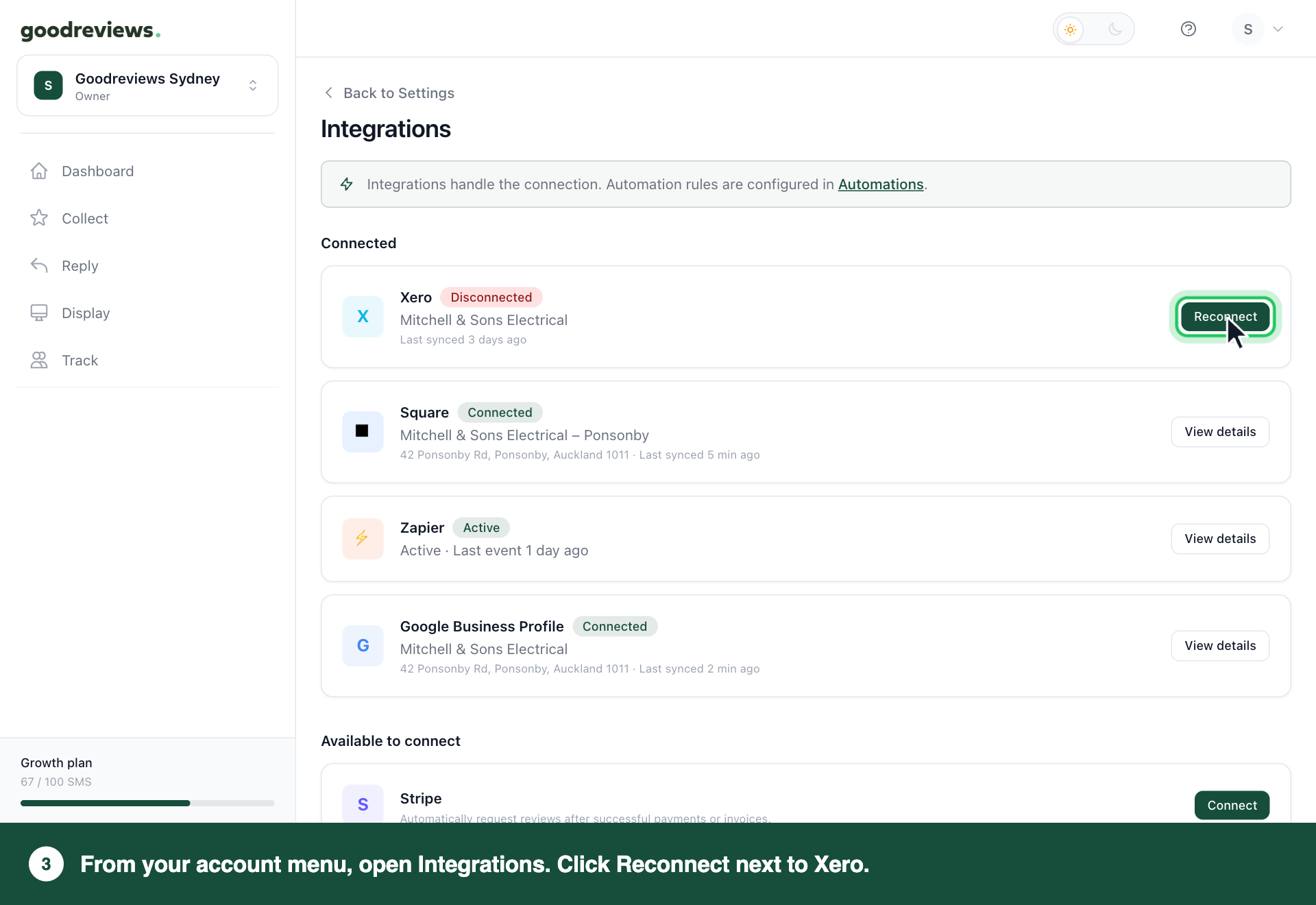
- Under Connected, Xero shows Disconnected. Click Reconnect next to Xero.
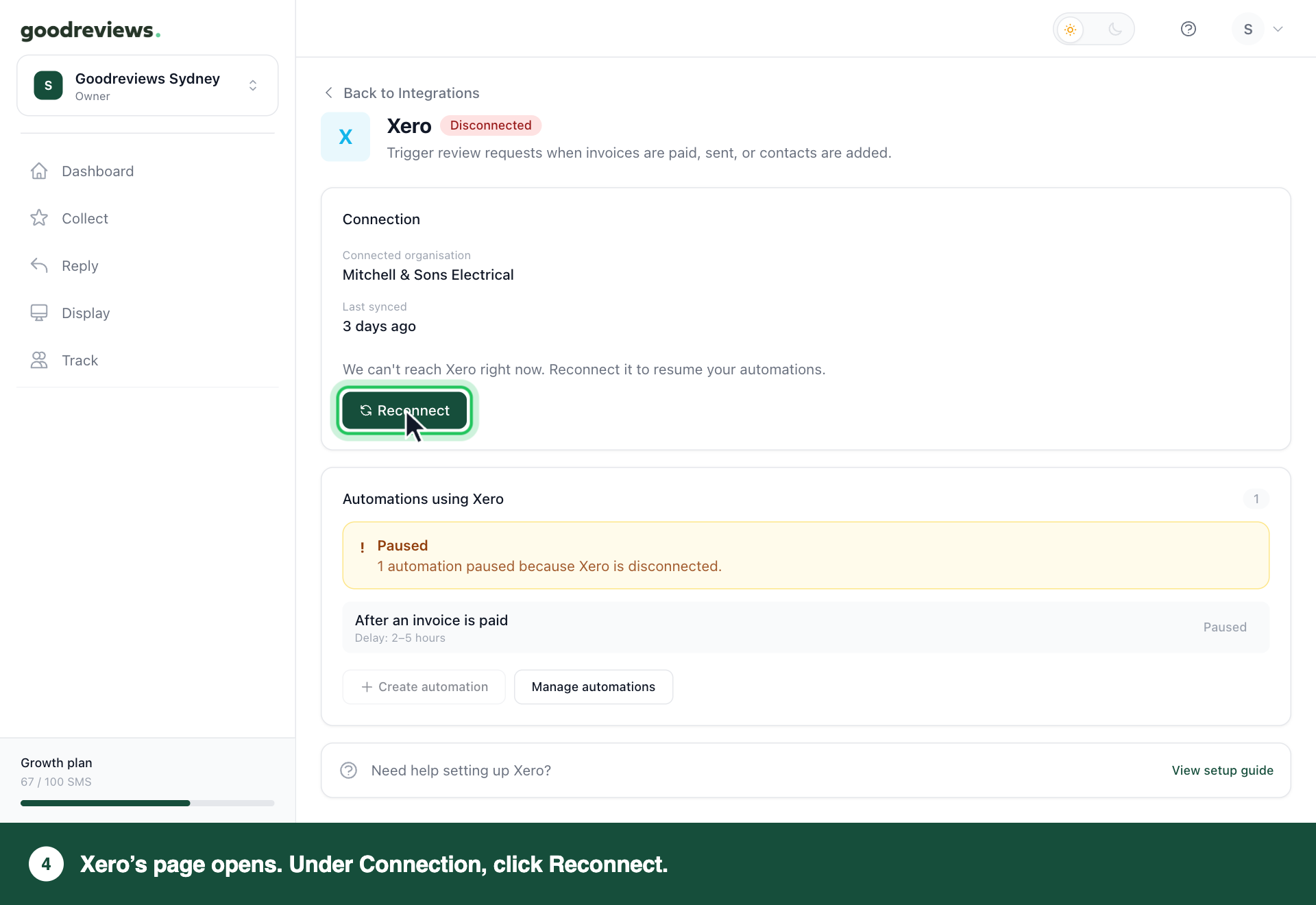
- Xero's page opens. Under Connection, click Reconnect.
- Follow the steps on Xero's screens.
When Stripe disconnects, it moves to Available to connect in Integrations. Click Connect next to Stripe, then follow Connect Stripe. If Square is under Available to connect, click Connect next to it, then follow Connect Square.
Once Square, Xero or Stripe is connected again, its automations start again by themselves. You don't need to click Resume. An automation you paused yourself stays paused until you click Resume.
How to check it's working
Click Collect in the sidebar, then click Automations. Check the automation's status. It should say Running. If it says Paused and the tool is connected, you paused it yourself, so click Resume.
If it still says Needs attention or Disconnected after you've worked through the steps, email success@goodreviews.io.
Common questions
Why can't I see a Resume button? Resume only shows on a Paused automation. A Needs attention or Disconnected automation doesn't have one, so fix the problem first. Once Square, Xero or Stripe is connected again, its automations start by themselves.
Why does the Xero page say Paused when Automations says Disconnected? While a tool isn't connected, its page in Integrations shows its automations as Paused. It says they're paused because Xero is disconnected. Either way, follow Part 2.
How will I know if a tool disconnects? Check the status in Automations, or look for a dashboard message like "Xero needs to be reconnected." Its Reconnect button opens Automations, where you click Reconnect next to the tool under Connected sources and follow Part 2 from step 10. For Stripe, see the note after Part 2's steps.
Should I delete the automation and start again? No. Deleting can't be undone, and you can't create a new automation until the tool is connected.
What about customers from while it was disconnected? Jobs that happened while the tool was disconnected are lost. We don't send them later. To ask those customers, click Collect in the sidebar. The Send tab opens. Send them a request by hand. See Send review requests.
Still stuck? Email success@goodreviews.io.