Connect Xero
Once Xero is connected, Goodreviews asks for a review when an invoice is sent or paid, or when a new contact is added. It takes two parts: connect Xero once, then create an automation that says when to ask.
Before you start
- You need your Xero login.
- Google Business Profile should already be connected in Goodreviews.
- Review requests are marketing messages. Recipients must have opted in. See Consent and SMS rules.
Part 1. Connect your Xero account
- Click your account menu at the top right.
- Click Integrations.
- Under Available to connect, click Connect next to Xero.
- Click Connect Xero.
- Follow the steps on Xero's screens.
- Choose the Xero organisation this account sends for.
- Click Select organisation.
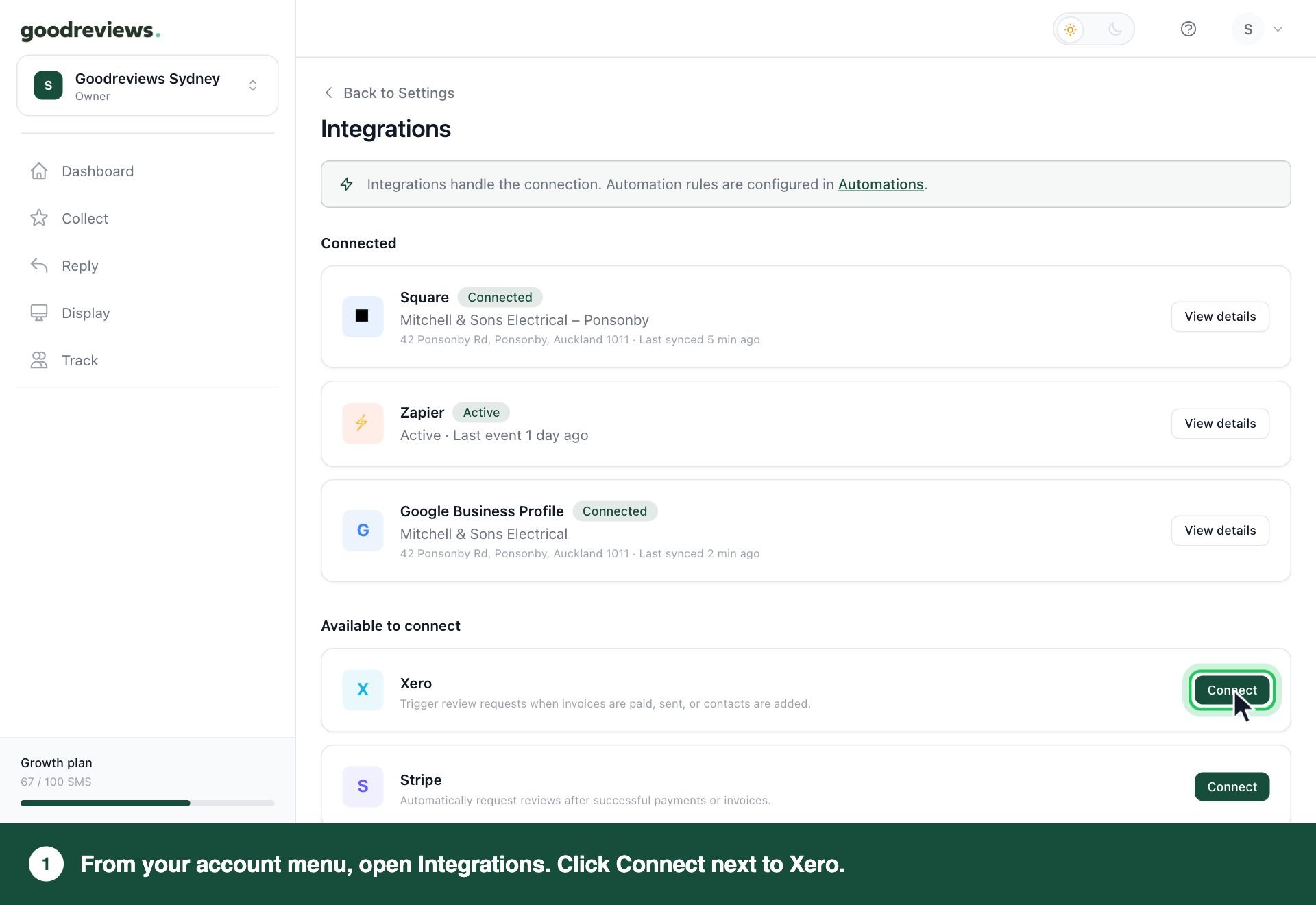
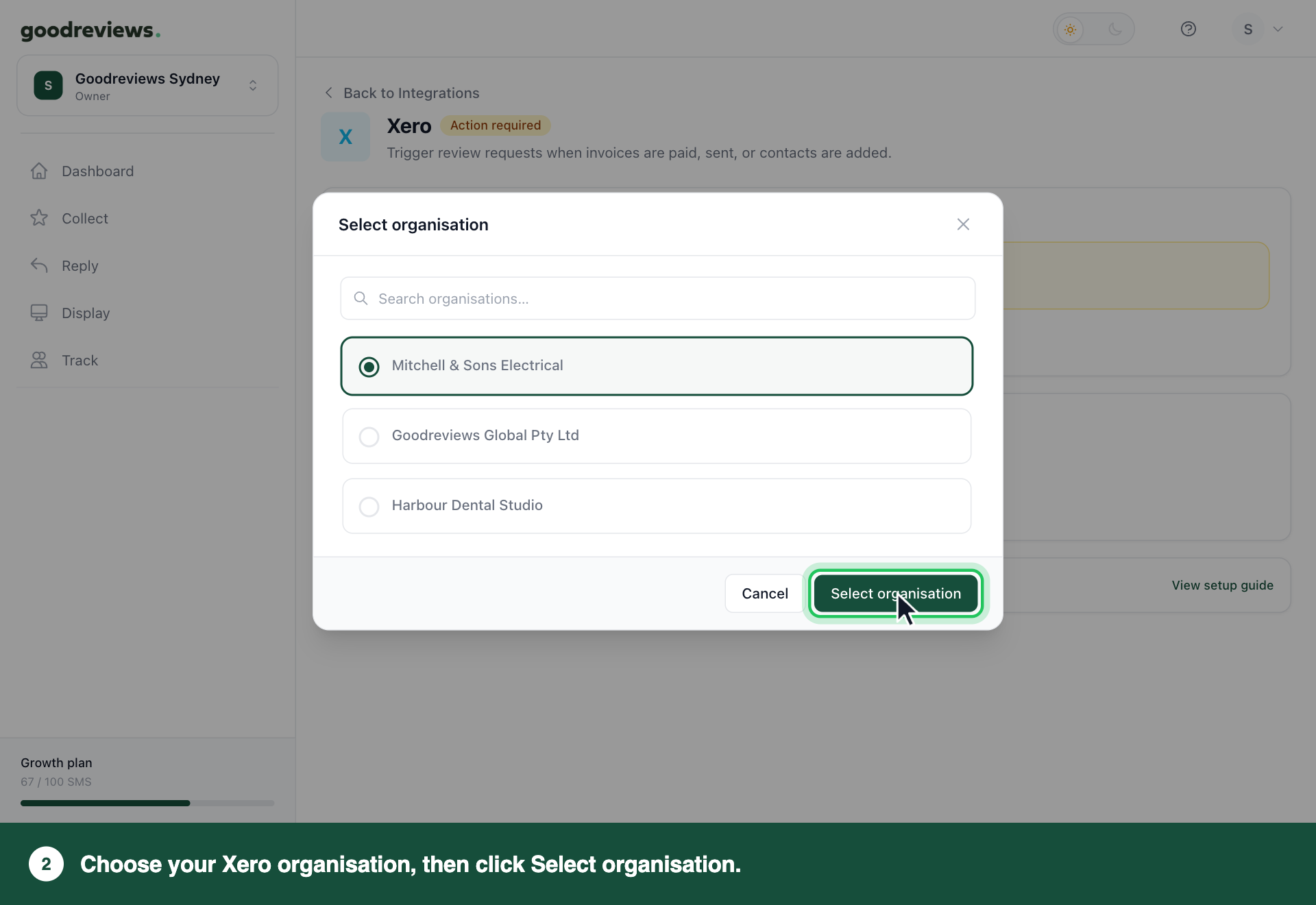
Xero now shows Connected. Nothing is sent yet. Part 2 tells us when to ask.
Part 2. Create an automation
Steps 4 to 6 are one screen each. Click Continue after each one.
- Click Collect in the sidebar.
- Click Automations.
- Click Create automation.
- Choose Xero.
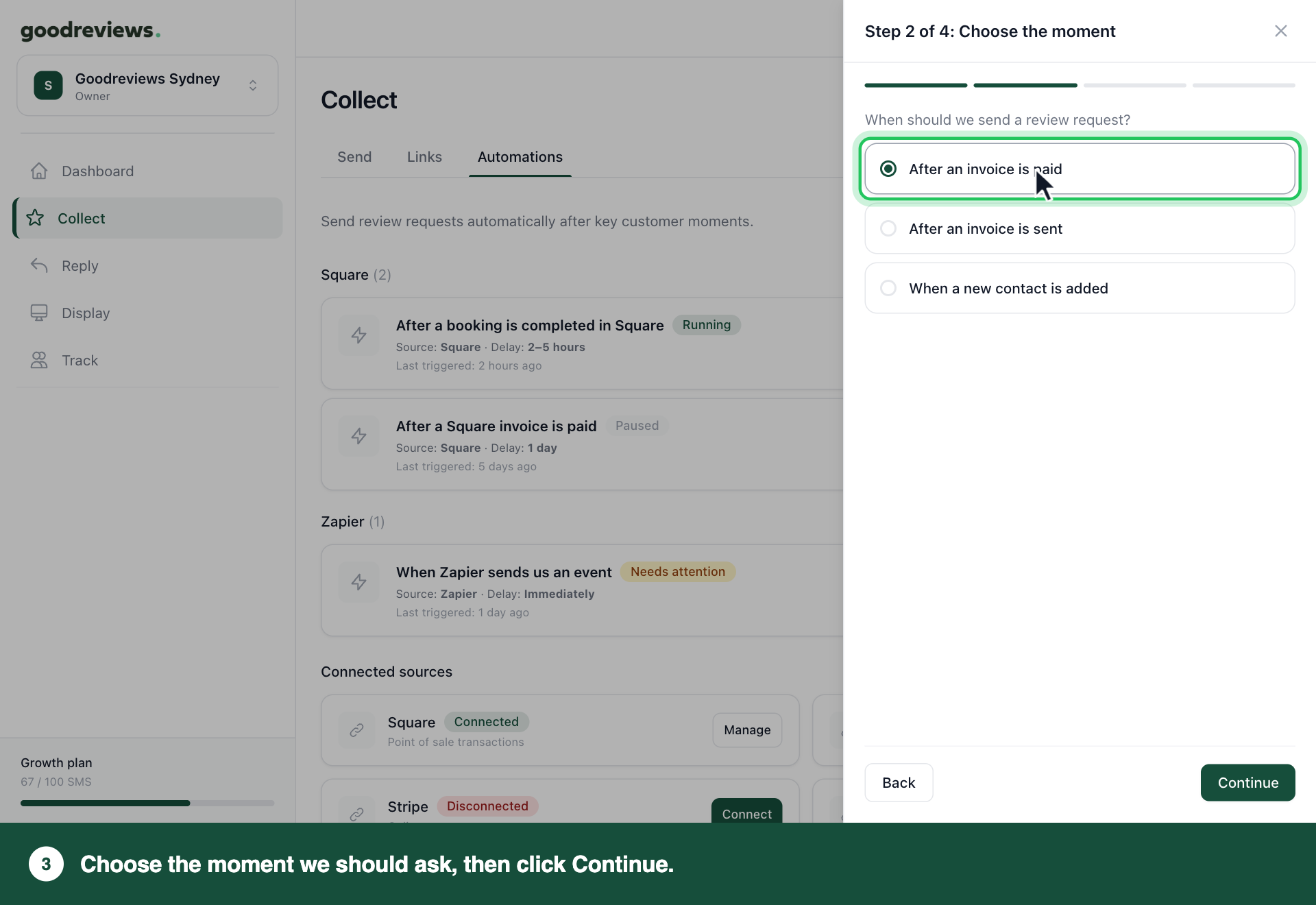
- Choose the moment we should ask. See the table below.
- Choose when to send from the Send after list. The default is 2–5 hours. The other choices are Immediately, 1 day, 3 days, 5 days, 7 days, 14 days and 30 days.
- Check the summary on Review and create. It says when we ask, and that we use your review request templates.
- Click Create automation.
The automation starts running as soon as you create it. You can pause or delete it at any time.
| Moment | Good for |
|---|---|
| After an invoice is paid | Anyone who wants the job finished and paid before asking. |
| After an invoice is sent | Trades and services that bill when the work is done. |
| When a new contact is added | Businesses that add each customer to Xero as they serve them. |
Want more than one moment? Create one automation for each.
How to check it's working
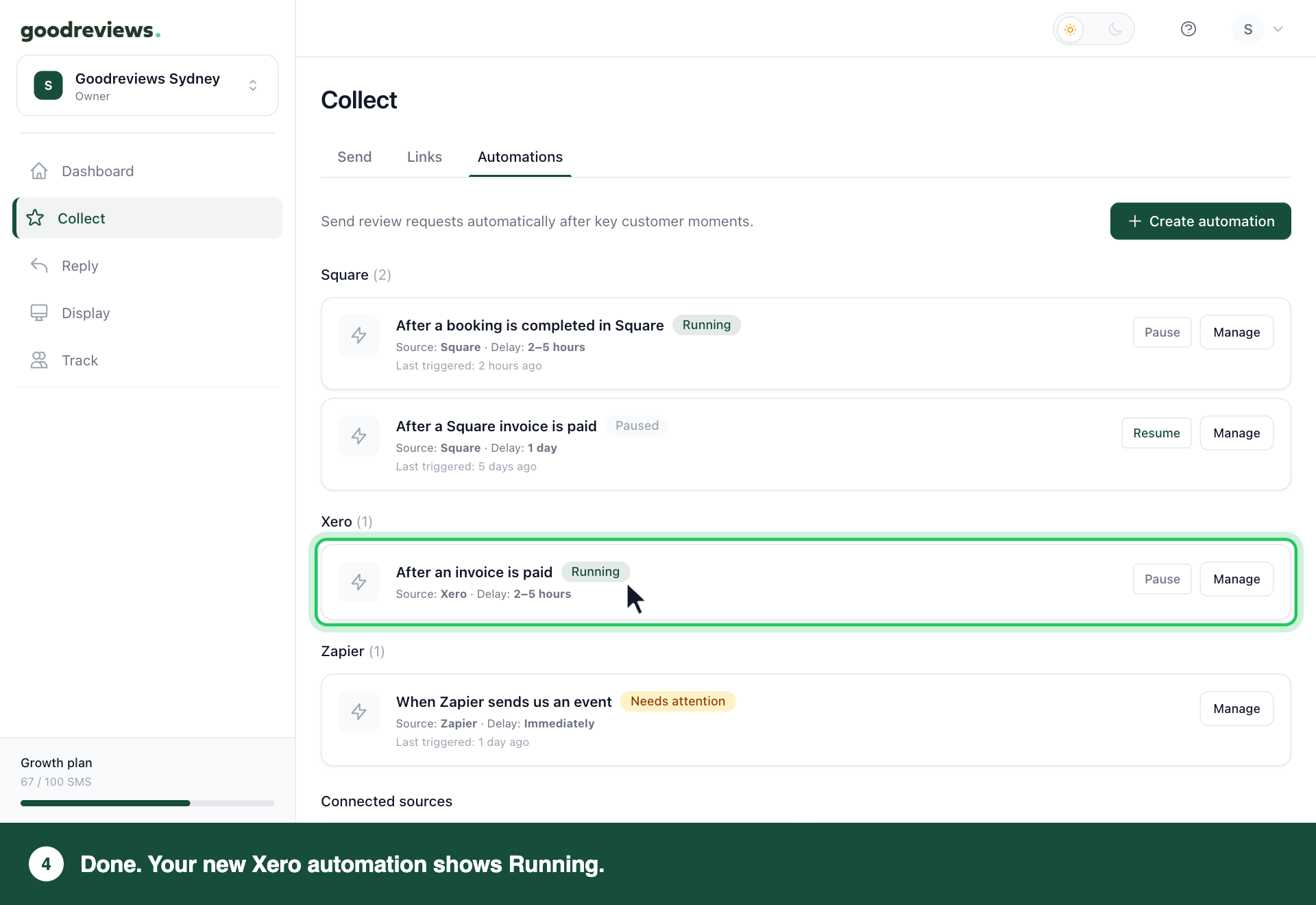
Click Collect in the sidebar, then click Automations. Your new automation should say Running, with Source: Xero.
| Status | What it means | What to do |
|---|---|---|
| Running | Requests are going out. | Nothing. |
| Paused | Nothing is being sent. It shows why: you paused it, or Xero is disconnected. | If you paused it, click Resume. If Xero is disconnected, see "If you need to reconnect Xero" below. |
| Needs attention | Something is stopping requests. | Click Manage and follow the message. |
| Disconnected | Xero is no longer connected. | See "If you need to reconnect Xero" below. |
If you need to reconnect Xero
- Click your account menu at the top right.
- Click Integrations.
- Click Reconnect next to Xero.
- On the Xero page, click Reconnect.
If Xero is under Available to connect with a Connect button instead, follow Part 1 above.
Your automations start again by themselves, so you don't need to click Resume. An automation you paused yourself stays paused until you click Resume.
Anything that happened in Xero while it was disconnected is not sent later. To ask those customers, click Collect in the sidebar and send them a request from the Send tab. See Send review requests.
Common questions
Why didn't my customer get a request? Your rest period stops anyone asked recently from being asked again.
Will a customer get two requests if an invoice is sent and then paid? No. They get one request per transaction, and the rest period stops repeats.
I closed the window before choosing an organisation. What now? Click your account menu at the top right, then click Integrations. Xero shows Action required.
Click View details next to Xero, then click Select organisation. Choose your organisation and click Select organisation.
How do I change the Xero organisation? Click your account menu at the top right, then click Integrations. Click View details next to Xero, then click Change organisation. Choose the organisation, then click Select organisation.
How do I disconnect Xero? Click your account menu at the top right, then click Integrations. Click View details next to Xero, then click Disconnect. Click Disconnect again to confirm.
Automations that use Xero stop running. They start again by themselves when you connect Xero again. Follow Part 1 above to connect it.
Still stuck? Email success@goodreviews.io.