Fix your Google connection
We use your Google connection to track new reviews and post your replies to Google reviews. If it drops, your review requests keep going out with your saved review link, and automations aren't paused. Here's how to check the connection, reconnect Google or change your location.
Before you start
- You need to sign in with the Google account that has access to your Business Profile.
Part 1. Check your connection
- Click your account menu at the top right.
- Click Integrations.
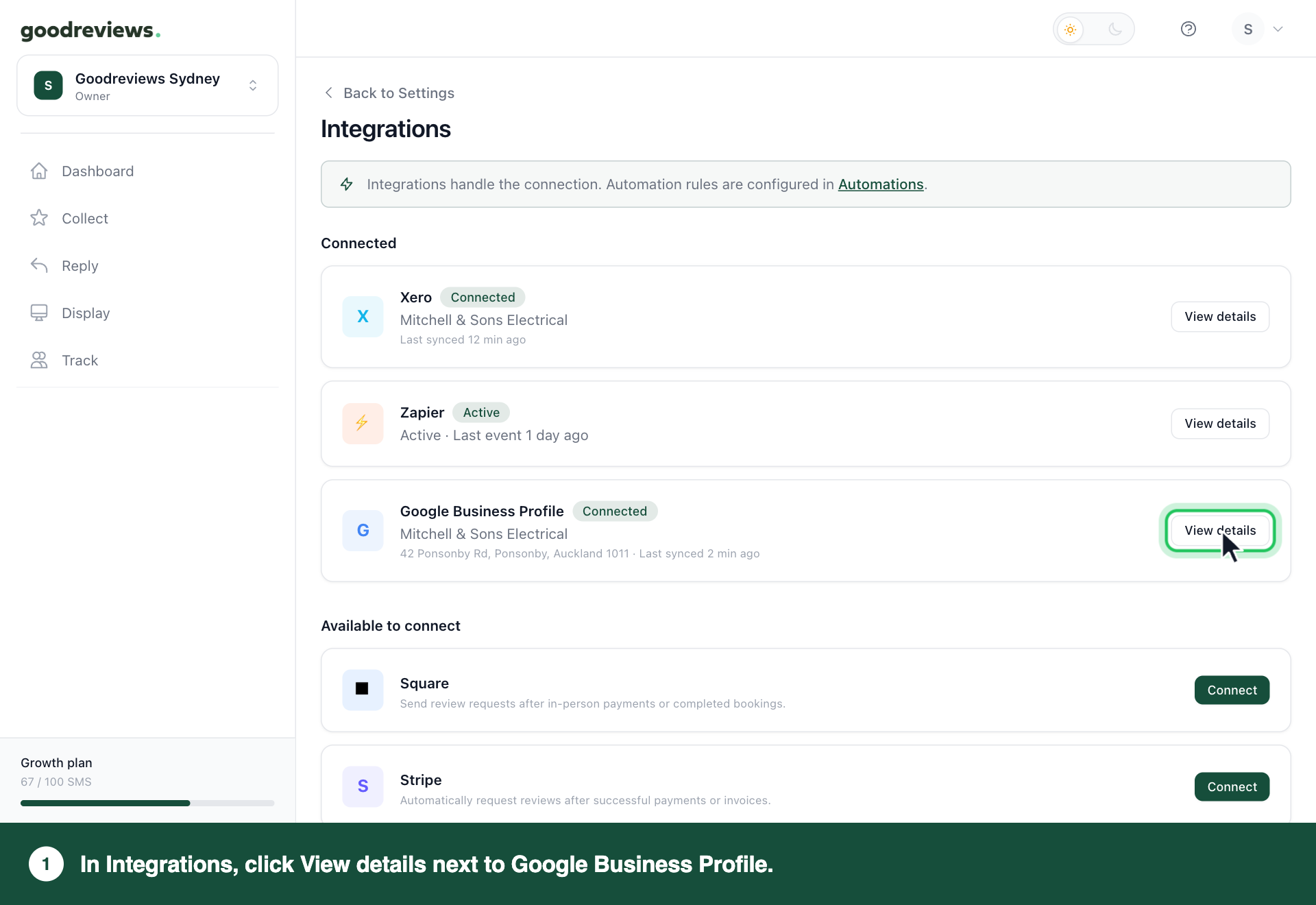
- Under Connected, click View details next to Google Business Profile.
- Check Connected location, Status and Last synced.
| What you see | What to do |
|---|---|
| The wrong business under Connected location | Follow Part 3. |
| You can't choose the location you need | Follow Part 4. |
| You can't find the location you need | Follow Part 4. |
| Status says Unverified | Follow Part 4. |
| These all look right, but you still have a problem | Follow Part 2. |
If Google Business Profile isn't listed under Connected, it isn't connected. Find it on the same Integrations page and connect Google again. Sign in with the Google account that has access to your Business Profile.
Part 2. Reconnect Google
Reconnecting opens Google's own screens, so we can't show them here. You sign in to Google there and approve access for Goodreviews again.
- Click your account menu at the top right.
- Click Integrations.
- Under Connected, click View details next to Google Business Profile.
- Click Reconnect.
- Follow Google's screens to sign in.
- Follow Google's screens to approve access.
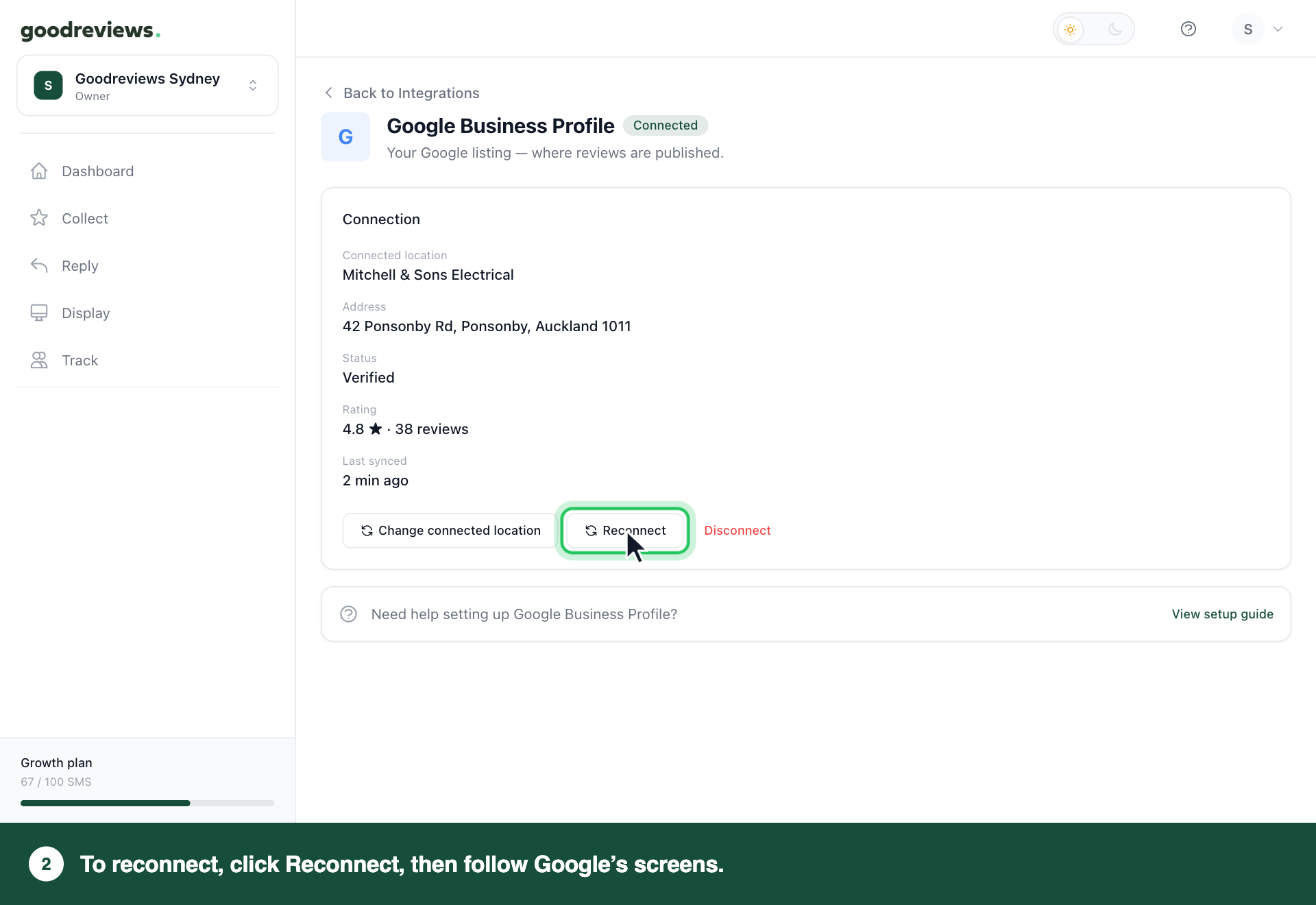
When you're back in Goodreviews, follow Part 1 to check Connected location. If it isn't the location you want, follow Part 3.
Part 3. Change your connected location
- Click your account menu at the top right.
- Click Integrations.
- Under Connected, click View details next to Google Business Profile.
- Click Change connected location.
- Click the location you want. You can search the list by name or address.
- Click Select location.
- Click Confirm change.
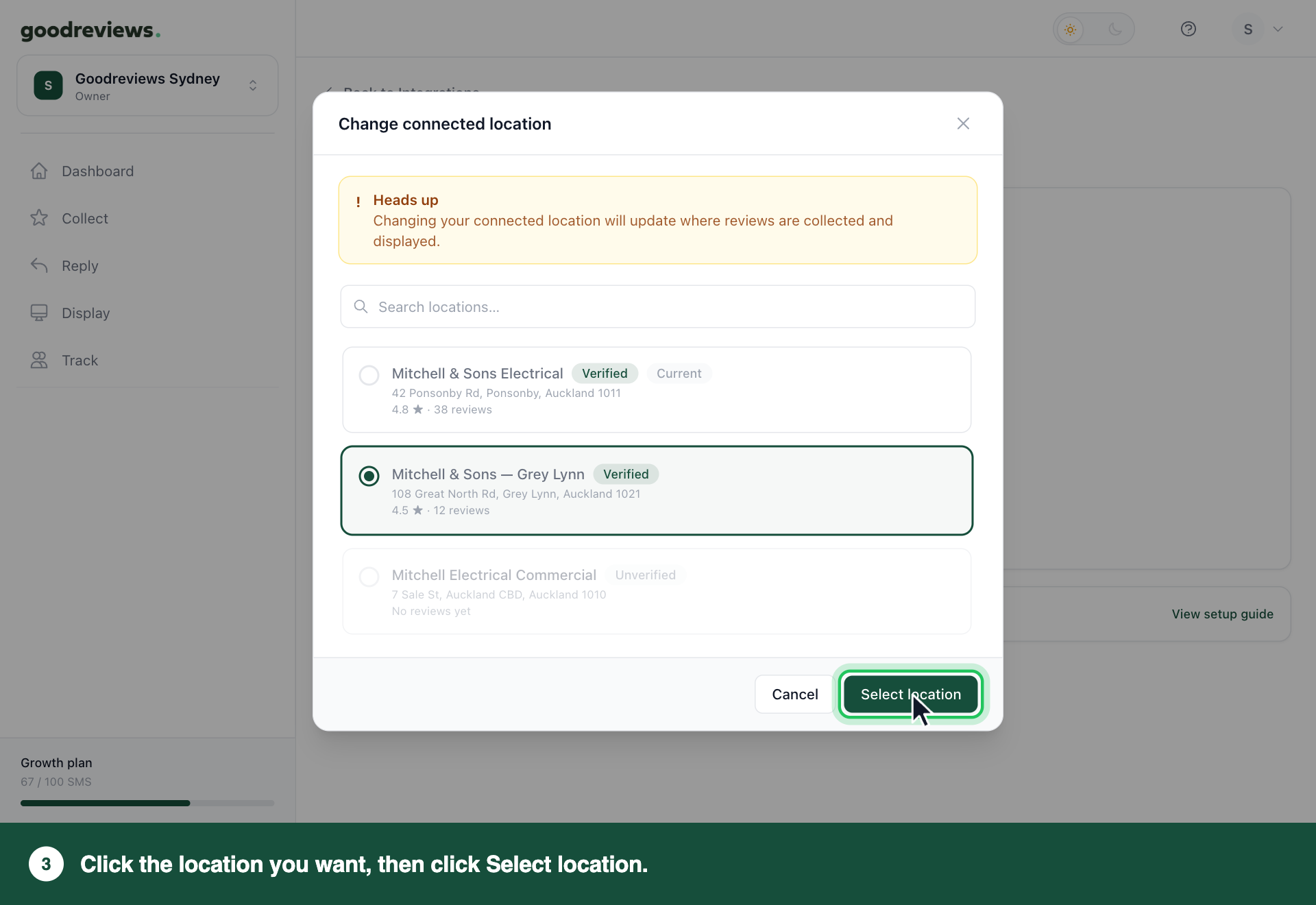
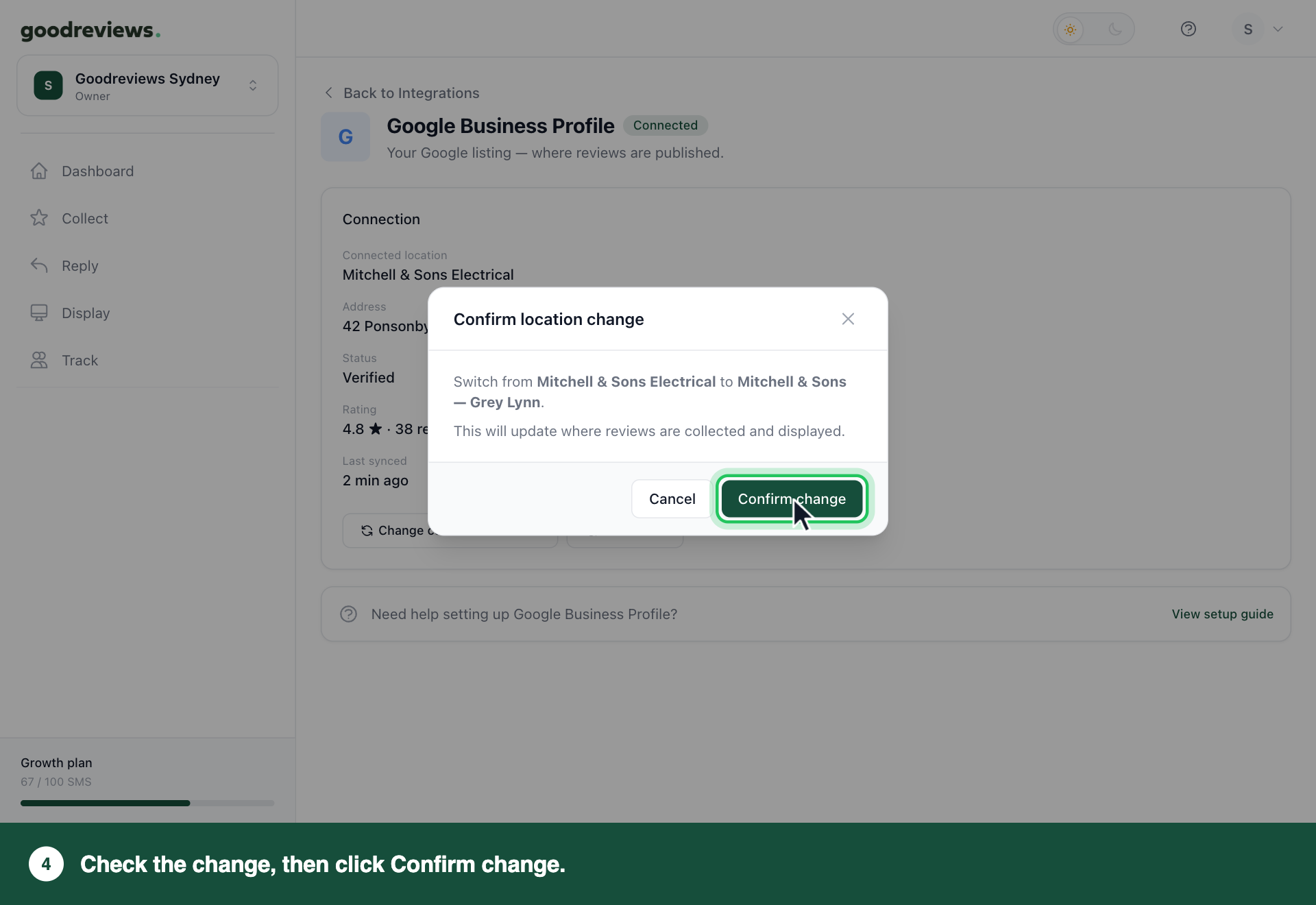
This updates where reviews are collected and displayed. Select location only works once you've picked a location other than your current one.
Part 4. Fix a missing or unverified location
- Click your account menu at the top right.
- Click Integrations.
- Under Connected, click View details next to Google Business Profile.
- Click Change connected location.
- Type your location's name in the Search locations… box.
- If it doesn't show, type its address instead.
Your location is marked Verified. Click it, then follow steps 6 and 7 of Part 3.
Your location is marked Unverified. You can see it in the list of locations, but you can't choose it. A location must be verified before it can be selected. Verify it with Google first. Google's own Business Profile help explains how. Then come back and follow Part 3.
Your location isn't in the list. Check that you signed in with the Google account that has access to your Business Profile. If you used a different account, follow Part 2 and sign in with the right one. If the location still isn't there, Google's own Business Profile help explains how to get access to it.
How to check it's working
If you changed your location, we show a message starting "Location updated to", followed by the location's name. Connected location then shows the location you chose.
To check your connection:
- Click Dashboard in the sidebar.
- Find Your review system.
- Check that Google Business Profile says Connected.
If it says Not connected, click your account menu at the top right, then click Integrations. Then see the end of Part 1, which covers Google not being listed under Connected.
Common questions
Which Google account should I sign in with? The Google account that has access to your Business Profile. If you're not sure which one that is, ask whoever set up your listing.
Will review requests still go out if Google disconnects? Yes. Requests keep going out with your saved review link, and your automations aren't paused. Syncing new reviews and posting your replies to Google reviews stop until you connect Google again. If Google Business Profile isn't listed under Connected, see the end of Part 1. If it is, follow Part 2.
Can I connect more than one location? Changing your location switches from one to the other. It doesn't add a second one. Each location needs its own Goodreviews account and plan. See Manage multiple accounts.
What happens if I click Disconnect? We ask you to confirm first. If you click Disconnect again, your Google Business Profile is disconnected and reviews no longer sync. Click Cancel to keep it connected.
Still stuck? Email success@goodreviews.io.