Reply to reviews
Answer your Google reviews from one inbox. We suggest a reply for each review, and you edit it before you send it. Replies are public, so read each one before you send.
Before you start
- Google Business Profile should already be connected in Goodreviews. If it isn't, see Fix your Google connection.
- Replies are public. On a 1 or 2 star review, the suggestion can include your Escalation contact, so check it before you click Send reply. To change the contact, see Part 3.
Part 1. Reply to a review
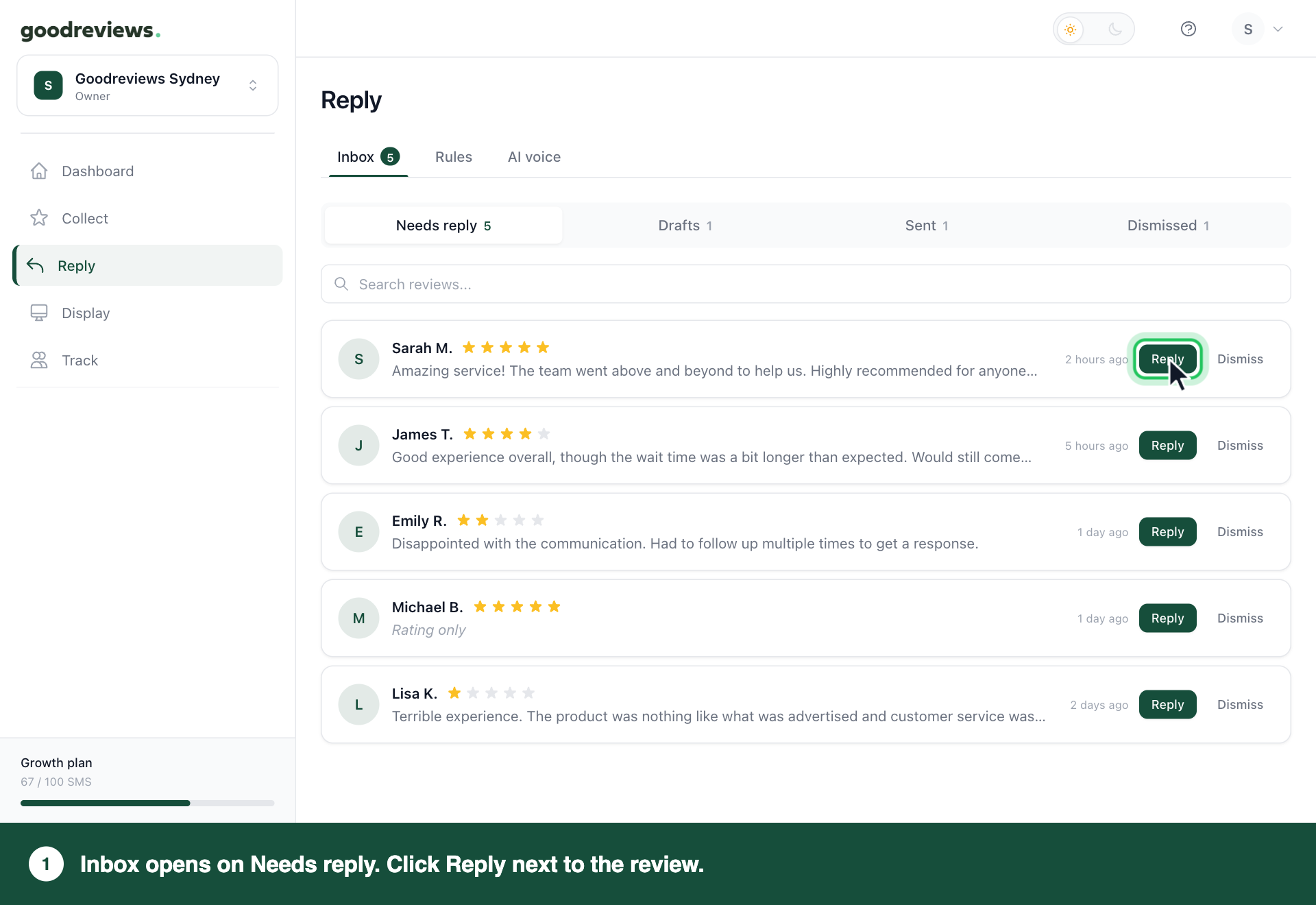
- Click Reply in the sidebar. Inbox opens on Needs reply.
- Click Reply next to the review. The Reply to review panel opens.
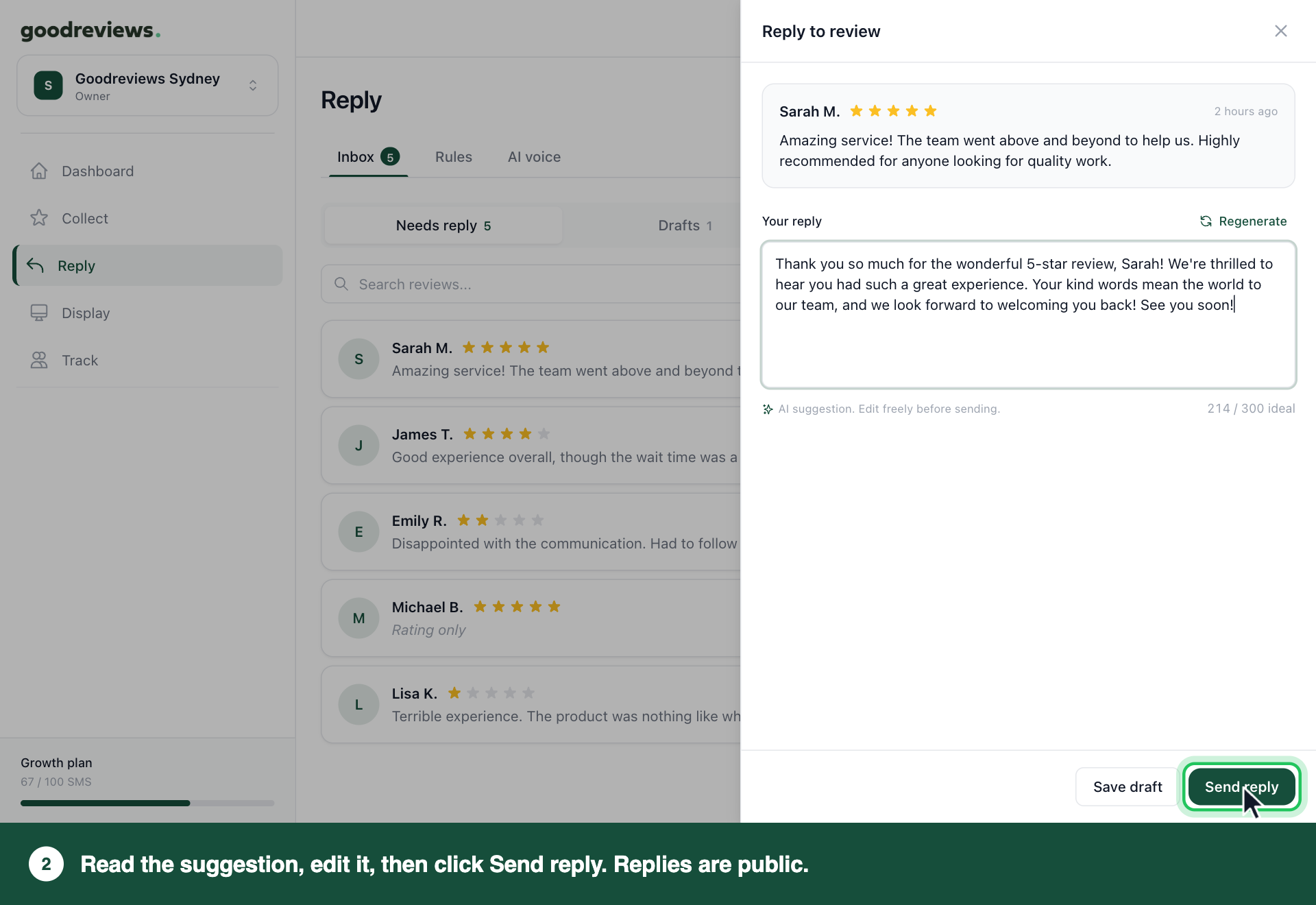
- Read the suggestion under Your reply.
- Edit it so it sounds like you.
- Click Send reply.
Part 2. Save a reply for later
- Click Reply in the sidebar.
- Click Reply next to the review.
- Click Save draft.
- When you're ready, click Reply in the sidebar.
- Click Drafts.
- Click Reply next to the review.
- Click Send reply.
To throw a draft away, click Delete draft instead. The review goes back to Needs reply.
Part 3. Choose your escalation contact
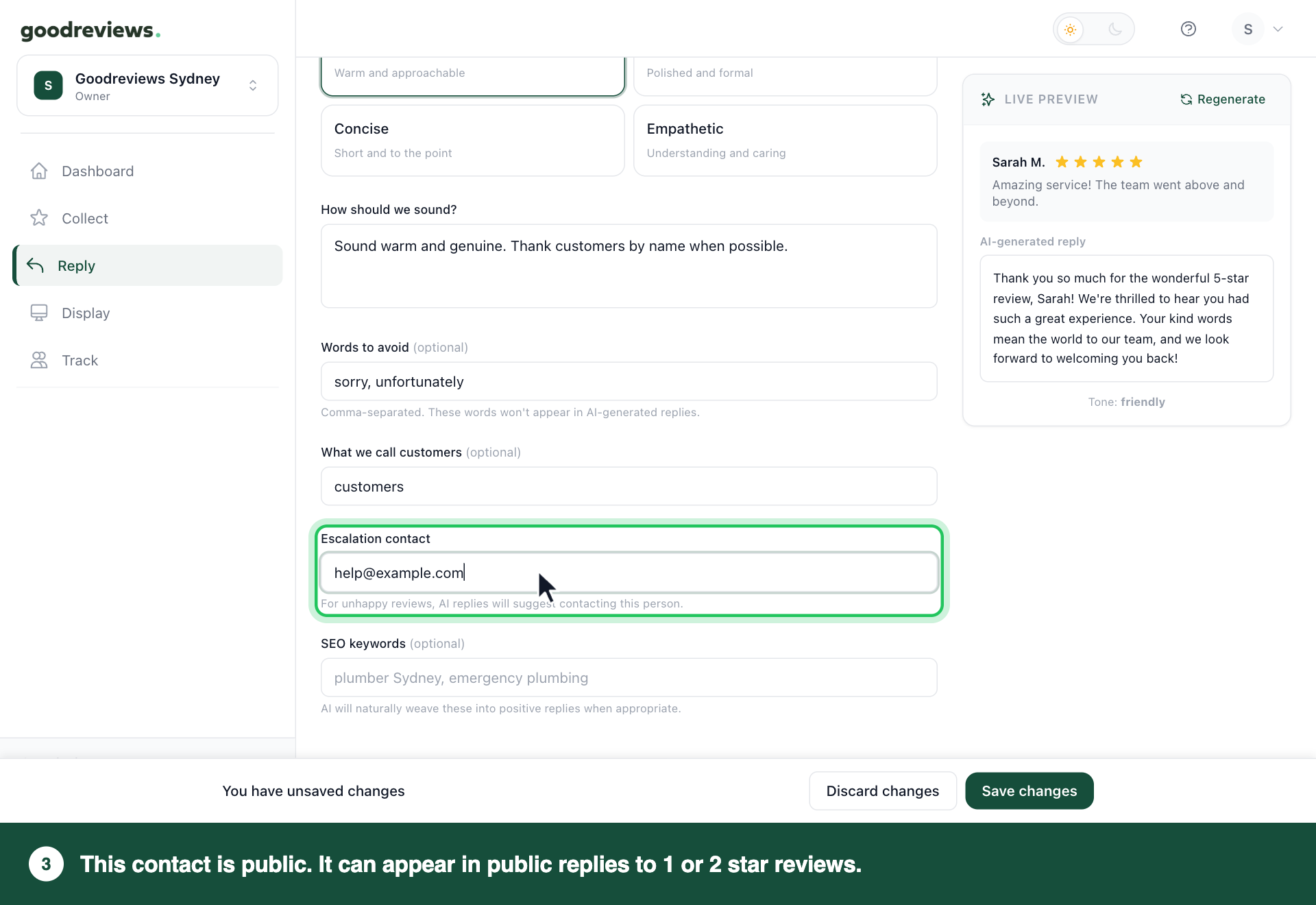
Escalation contact is public. It can appear in public replies to 1 or 2 star reviews, so anyone reading your reviews can see it. Only use a contact you're happy to share.
- Click Reply in the sidebar.
- Click AI voice.
- Scroll down to Escalation contact.
- Type a contact you're happy to show in public.
- Click Save changes.
How to check it's working
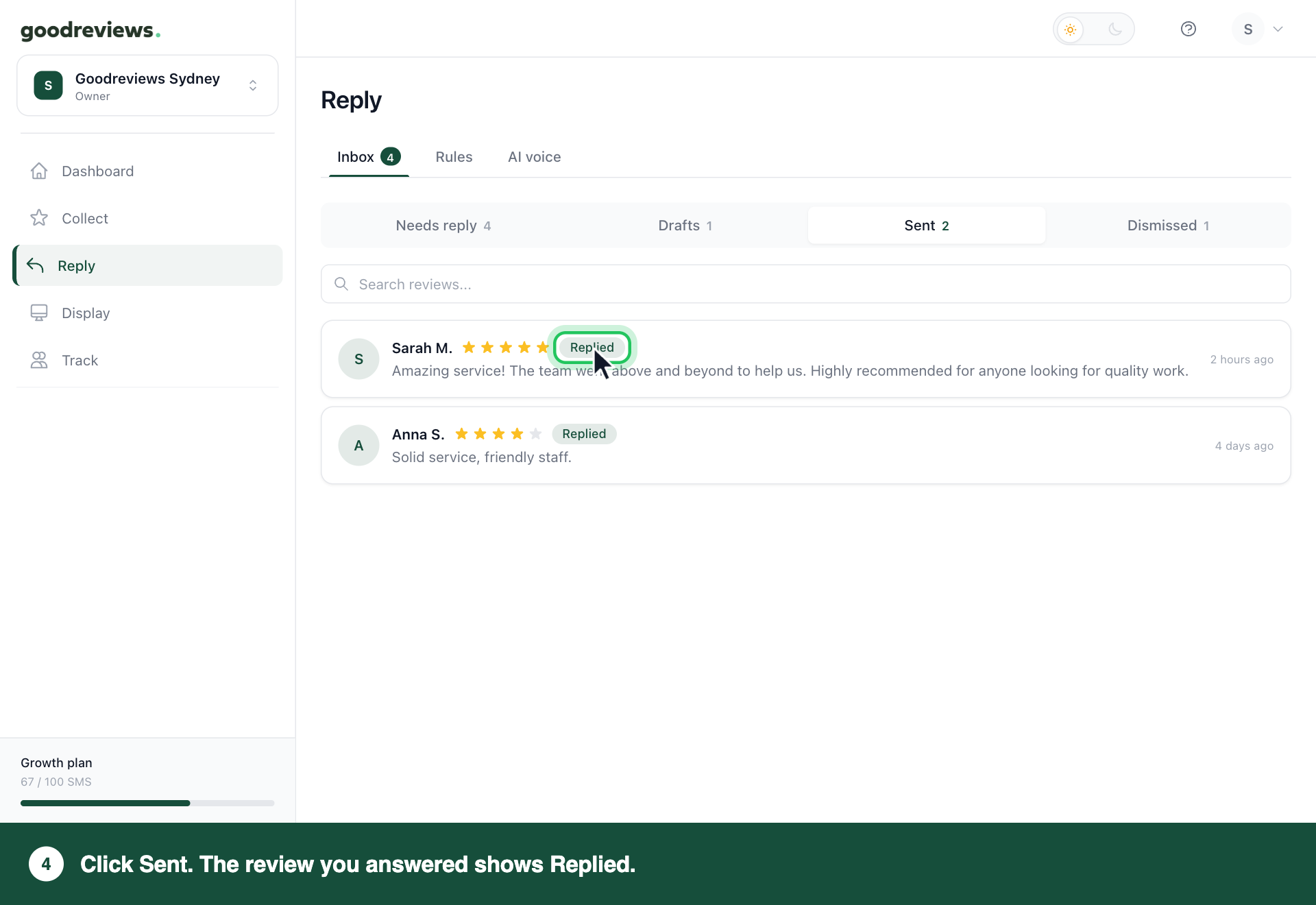
Click Reply in the sidebar, then click Sent. Your review should be there, marked Replied.
| Filter | What's in it |
|---|---|
| Needs reply | Reviews waiting for an answer. |
| Drafts | Replies saved but not sent. These show Draft. |
| Sent | Reviews you've answered. These show Replied. |
| Dismissed | Reviews you chose not to answer. |
Common questions
What if a review doesn't need a reply? Click Dismiss next to it in Needs reply. No reply is sent, and the review moves to Dismissed. To bring it back, click Dismissed, then click Undismiss next to the review.
Can I reply to a review with no comment? Yes. These reviews show Rating only. Click Reply next to the review, the same as any other.
Can I get a different suggestion? Yes. Click Regenerate in the Reply to review panel. It replaces what's in the box, including your edits. Read the new suggestion before you send it, including the sign-off at the end.
How do I find an old review? Click the filter it's in, such as Sent. Then type a customer name or words from the review into Search reviews....
Can replies go out without me? Yes, if you turn that on. See Auto-reply with AI. Auto-sent replies are public too.
Still stuck? Email success@goodreviews.io.