What your dashboard numbers mean
Your dashboard shows your reviews, your requests and how customers respond. Track shows the same story customer by customer. There's nothing to set up.
The number to read carefully is Clicked to Google. It counts customers who clicked through to Google, not confirmed new reviews.
Part 1. Check your overview
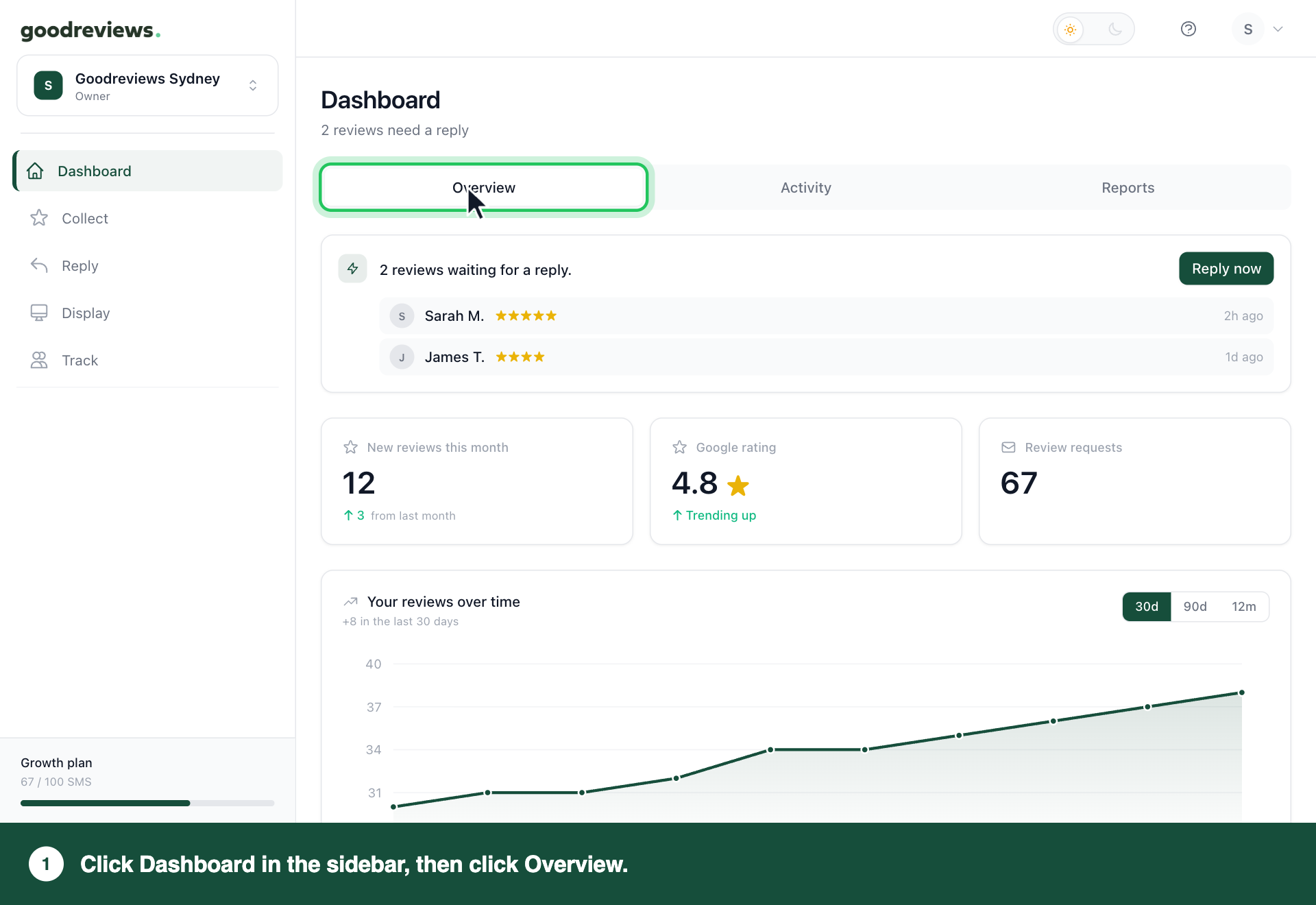
- Click Dashboard in the sidebar.
- Click Overview.
| Number | What it means |
|---|---|
| New reviews this month | Reviews you've received this month, with the change from last month. |
| Google rating | Your average star rating. Trending up means it has risen. |
| Review requests | How many requests went out in the last 30 days. |
| Your reviews over time | Your total reviews on a chart. Click 30d, 90d or 12m to change the range. |
| Review request capacity | The SMS credits you've used out of your limit. Upgrade appears when you're close to it. See Plans, credits and limits. |
Review request capacity is under Your review system, near the bottom of the page.
Part 2. Check your activity
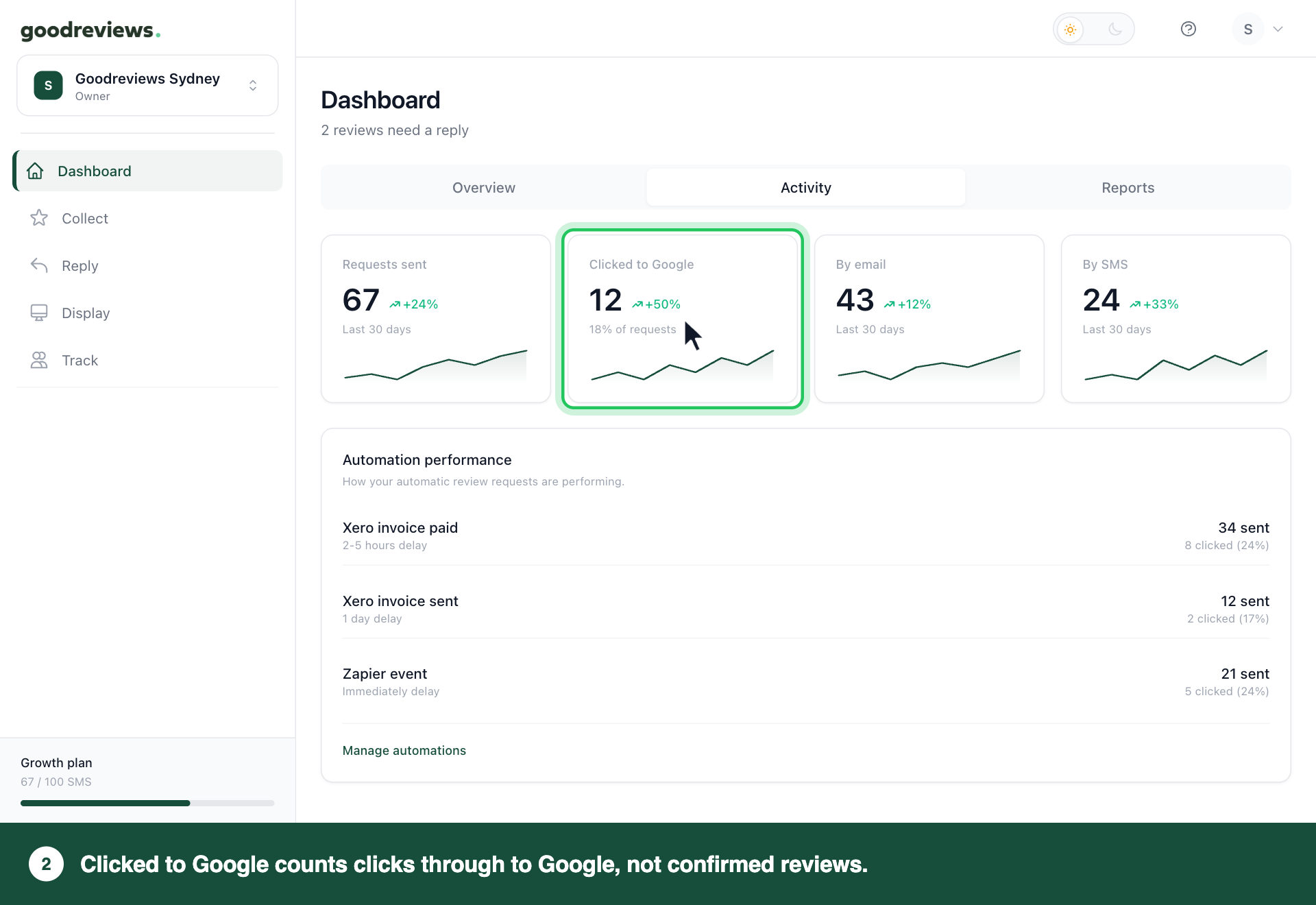
- Click Dashboard in the sidebar.
- Click Activity.
| Tile | What it means |
|---|---|
| Requests sent | How many requests went out in the last 30 days. |
| Clicked to Google | Customers who clicked through to Google. The percentage underneath is their share of your requests. |
| By email | How many requests went out by email in the last 30 days. |
| By SMS | How many requests went out by SMS in the last 30 days. |
The percentage beside each number shows how much it went up or down.
Clicked to Google doesn't tell you a review was left. A customer can reach your Google page and decide not to write anything. To see reviews, use New reviews this month on Overview.
Scroll down for two more cards.
Automation performance lists each automation with its delay. It shows how many requests were sent, how many were clicked and the rate. See How automations work.
Link and QR performance shows how your review link and QR codes are doing. Standard and branded QR codes count as one QR scan figure.
| Figure | What it means |
|---|---|
| Clicks | How many times your link was opened or a QR code was scanned. |
| To Google | Customers who clicked through to Google. These are not confirmed new reviews. |
| Rate | The share of Clicks that went on to Google. |
Part 3. Check your reports
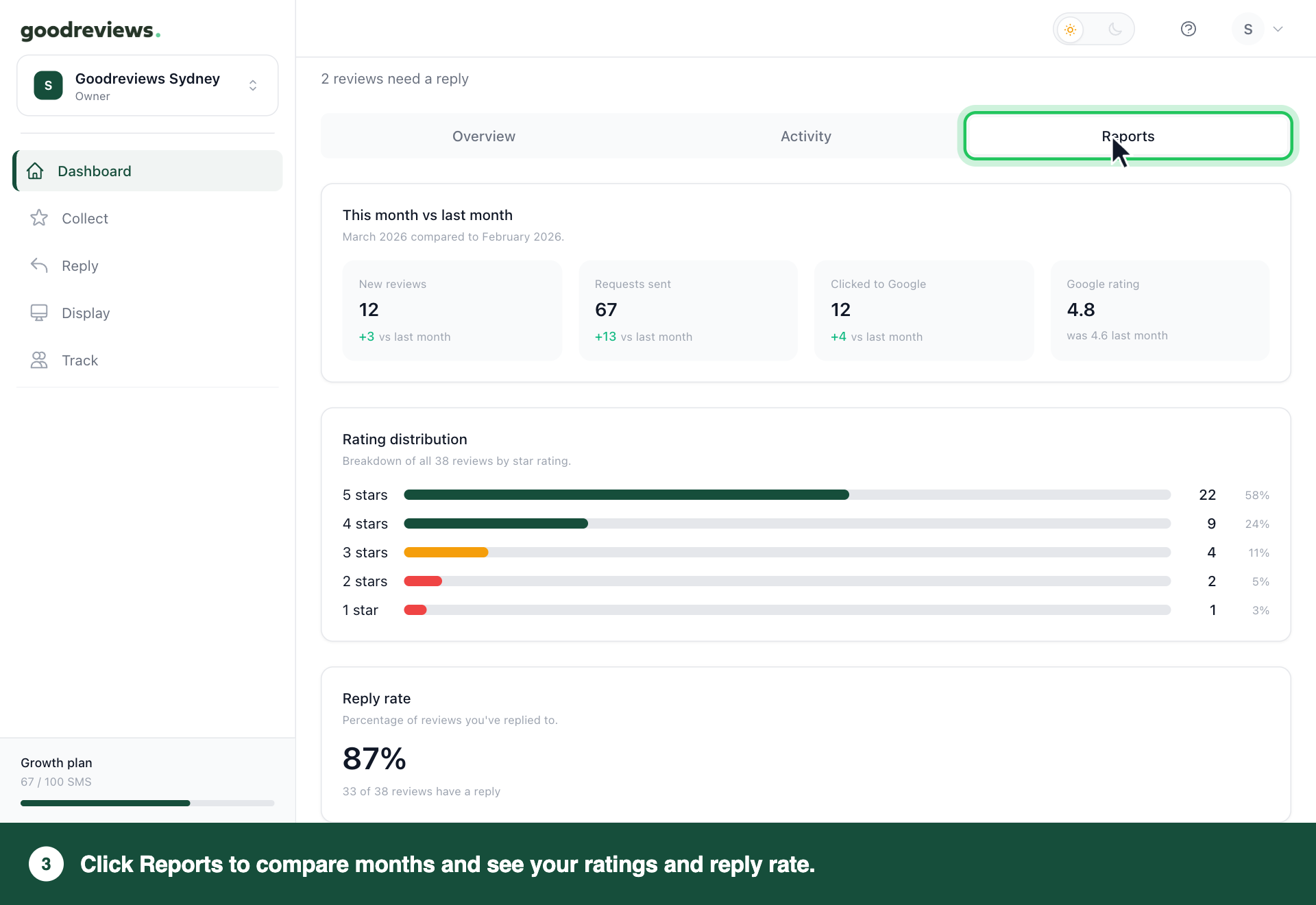
- Click Dashboard in the sidebar.
- Click Reports.
| Card | What it means |
|---|---|
| This month vs last month | New reviews, Requests sent, Clicked to Google and Google rating, compared with last month. |
| Rating distribution | How many of your reviews sit at each star rating, from 5 stars to 1 star. |
| Reply rate | The percentage of reviews you've replied to. |
Part 4. See each customer in Track
The dashboard gives you totals. Track shows who's behind them.
- Click Track in the sidebar.
- Click a filter along the top, such as Sent.
- Click Open next to a customer.
Customer details opens. Under Journey, you'll see each event in order, such as Request sent and Follow-up sent.
The number beside each filter is how many customers are in it. All shows everyone.
| Filter | What it means |
|---|---|
| Sent | The request was delivered. It stays Sent even after the customer clicks. |
| Scheduled | The request will send at the scheduled time. |
| Waiting for credits | The request didn't send because you ran out of SMS credits. It never went out, so it doesn't count towards your rest period. Buy more, then click Resend all. See Plans, credits and limits. |
| Failed | Delivery failed. Check the customer's contact details. |
| Rest period | We won't send this customer another request yet. Rest until shows the date that wait ends. |
The Google column shows whether each customer clicked through to Google.
| Google column | What it means |
|---|---|
| A dash (-) | The request hasn't been delivered yet. |
| Grey G | The request was sent. The customer hasn't clicked through yet. |
| Coloured G | The customer clicked through to Google. It doesn't confirm they left a review. |
Common questions
Does Clicked to Google mean I got a new review? No. It means the customer clicked through to Google. They may or may not have left a review.
Do my QR codes count separately? No. Standard and branded QR codes count as one QR scan figure.
How do I see which customers clicked? Click Track in the sidebar. A coloured G in the Google column means that customer clicked through to Google.
Why does a customer show as Failed? Delivery failed. Click Open next to the customer and check their contact details.
Still stuck? Email success@goodreviews.io.