Your review link and QR code
Your review link and QR codes let customers leave a review without a request from us. Copy the link or download a code, then share it yourself. It only takes a few clicks.
Before you start
- Google Business Profile should already be connected in Goodreviews.
Part 1. Copy your review link
- Click Collect in the sidebar. The Send tab opens.
- Click Links.
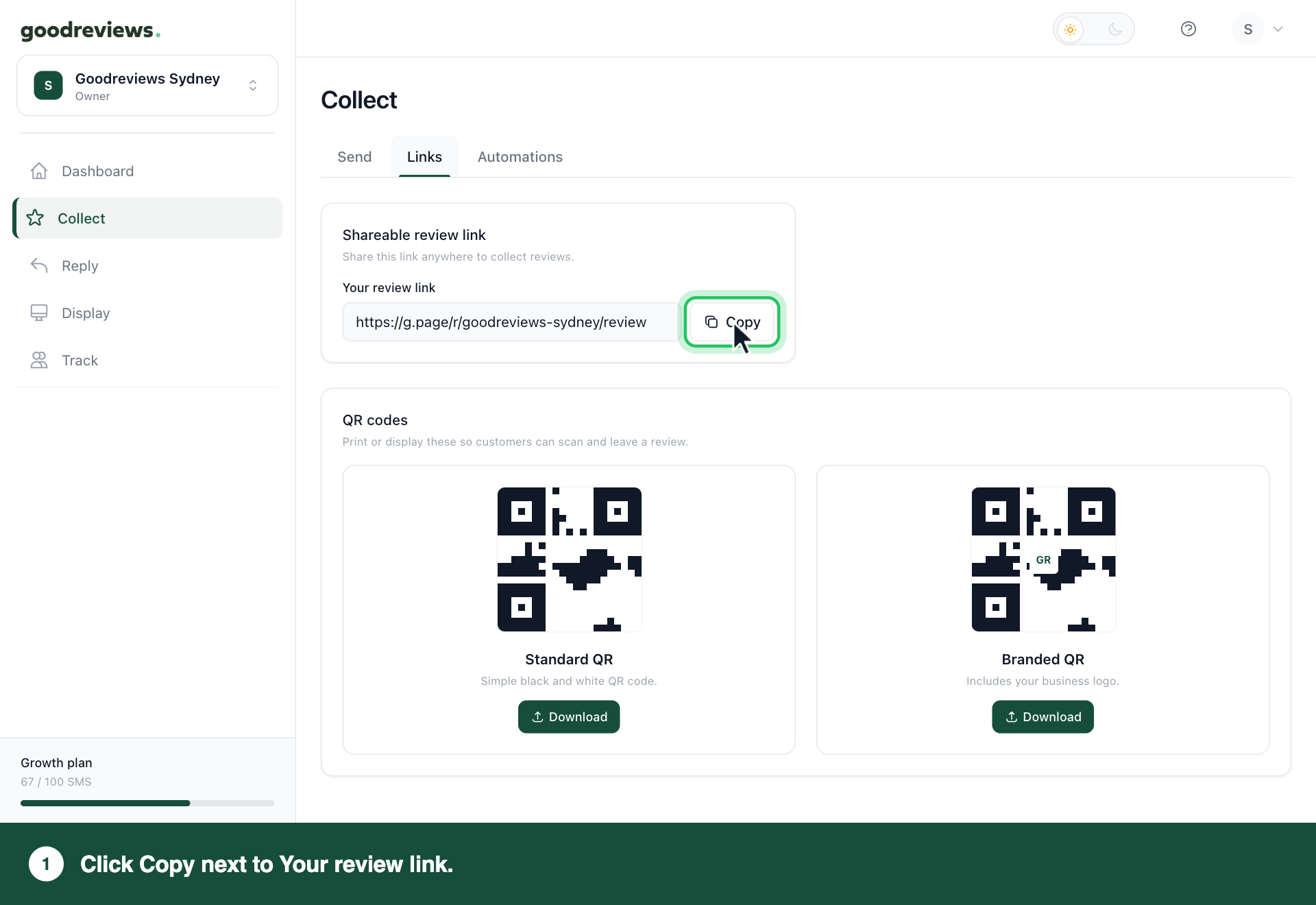
- Under Shareable review link, click Copy next to Your review link. You'll see Copied.
- Paste the link where you want it, like your website, an email signature or a social post.
Part 2. Download a QR code
- Click Collect in the sidebar. The Send tab opens.
- Click Links.
- Under QR codes, click Download under the code you want. See the table below. You'll see QR downloaded.
- Print or display the code so customers can scan it, like on a receipt, a flyer or a sign.
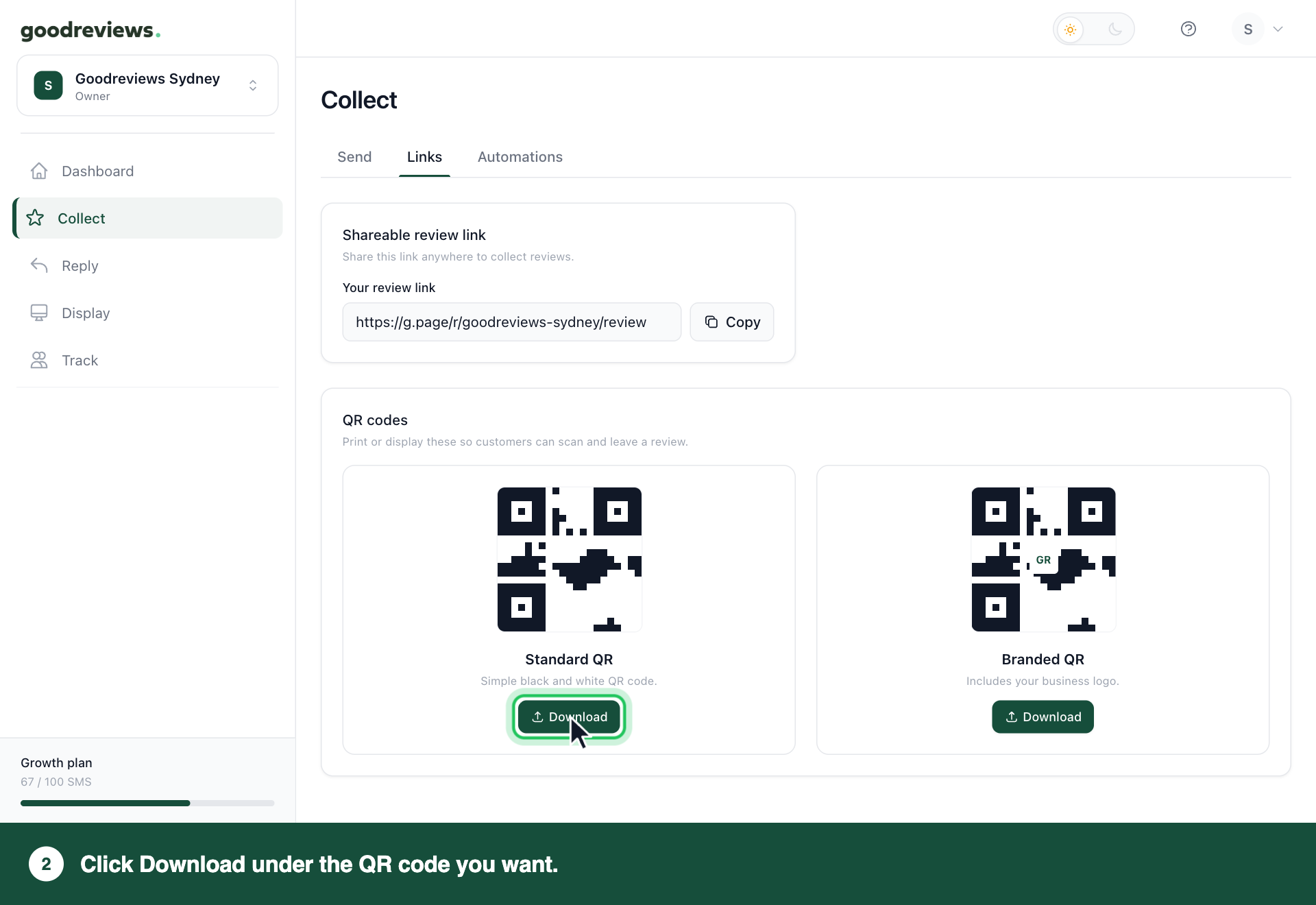
| Code | What it looks like |
|---|---|
| Standard QR | Simple black and white QR code. |
| Branded QR | Includes your business logo. |
Both codes open your review link.
How to check it's working
Open your link in a browser, or scan your QR code with your phone camera. Check it leads to your business's Google review page.
To see how they're doing:
- Click Dashboard in the sidebar.
- Click Activity.
- Scroll down to Link and QR performance.
| Figure | What it means |
|---|---|
| Clicks | How many times your link was opened or a QR code was scanned. |
| To Google | Customers who clicked through to Google. These are not confirmed new reviews. |
| Rate | The share of Clicks that went on to Google. |
Common questions
Which QR code should I use? Either one. Pick Branded QR if you want your business logo on it. Both count towards the same QR scan figure, so you can use both.
How is this different from sending a review request? A review request is a message we send by SMS or email. Your link and QR codes are yours to share, and we don't send anything. See Send review requests.
Can I see who used my link or QR code? No. Link and QR performance shows totals, not names.
Still stuck? Email success@goodreviews.io.