What changed in the new Goodreviews
Goodreviews has a new layout. Your daily work sits in five sidebar items: Dashboard, Collect, Reply, Display and Track. Settings live in your account menu at the top right.
Part 1. Dashboard
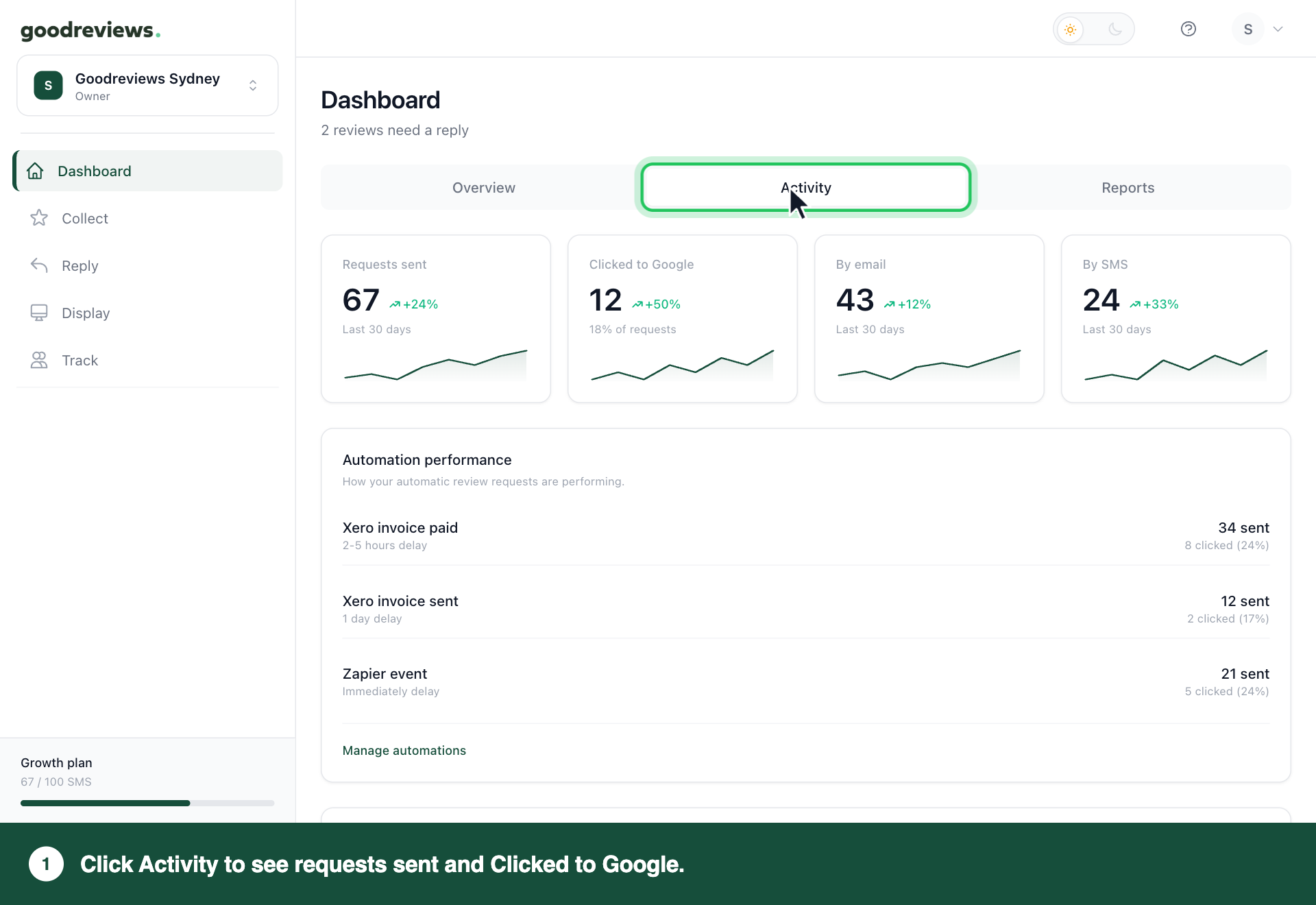
Dashboard is your summary. It has three tabs: Overview, Activity and Reports.
- Click Dashboard in the sidebar.
- Click Activity.
Activity shows how many requests went out. It also shows Clicked to Google, which counts customers who clicked through to Google, not confirmed new reviews.
Part 2. Collect
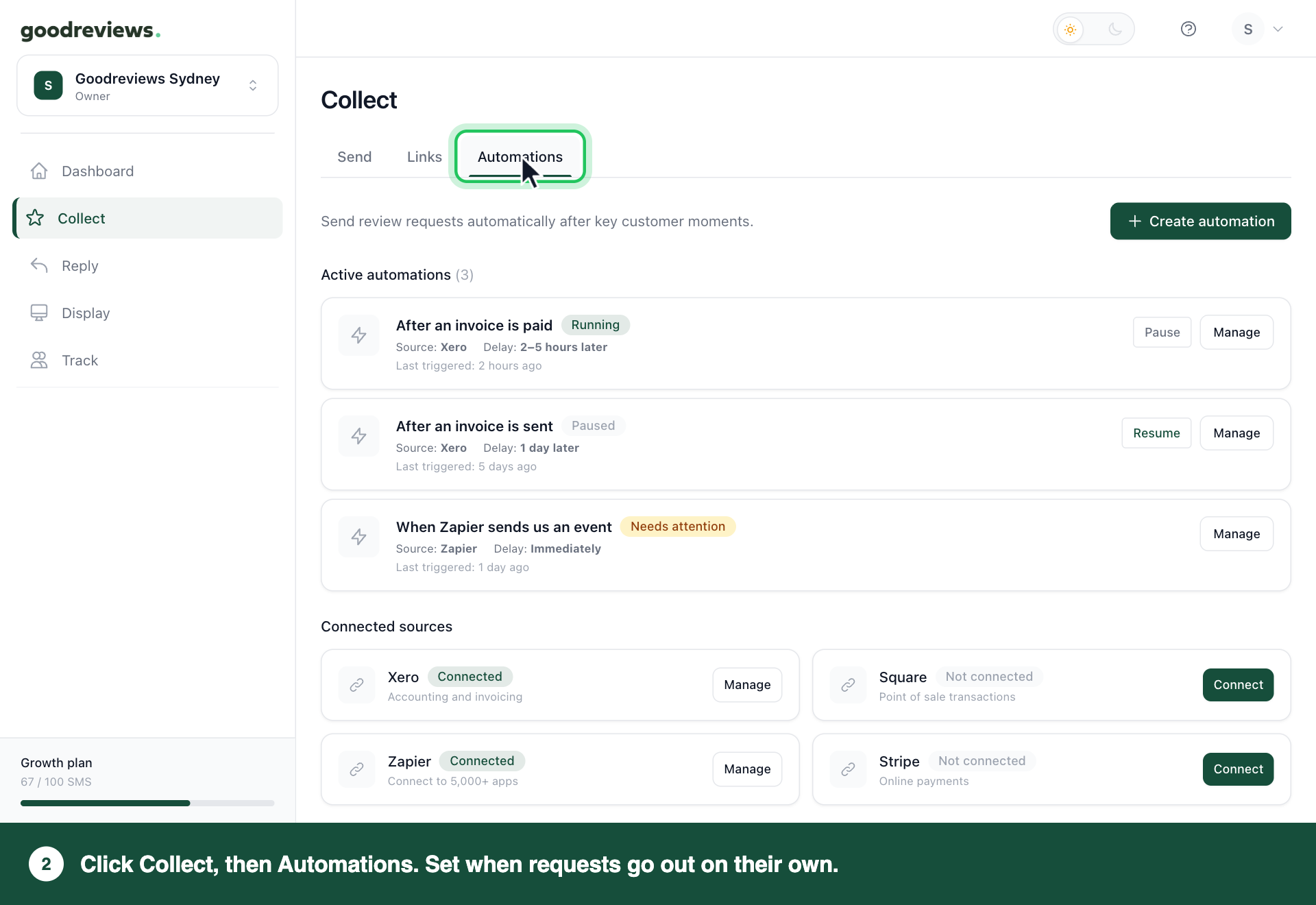
Collect is where you ask for reviews. It has three tabs: Send, Links and Automations.
- Click Collect in the sidebar. It opens on Send, where you send to one customer or a list.
- Click Links. This has your review link and QR codes.
- Click Automations. This is where you set when requests go out on their own.
Part 3. Reply
Reply is where you answer your reviews. It has three tabs: Inbox, Rules and AI voice.
- Click Reply in the sidebar. It opens on Inbox, with Needs reply, Drafts, Sent and Dismissed.
- Click Rules. This sets what happens for each star rating.
- Click AI voice. This sets how your AI replies sound. Escalation contact can appear in public replies to 1 or 2 star reviews, so only use a contact you're happy to share.
Part 4. Display
Display puts your reviews on your website.
- Click Display in the sidebar. You'll see your widgets, with Create widget at the top right.
Part 5. Track
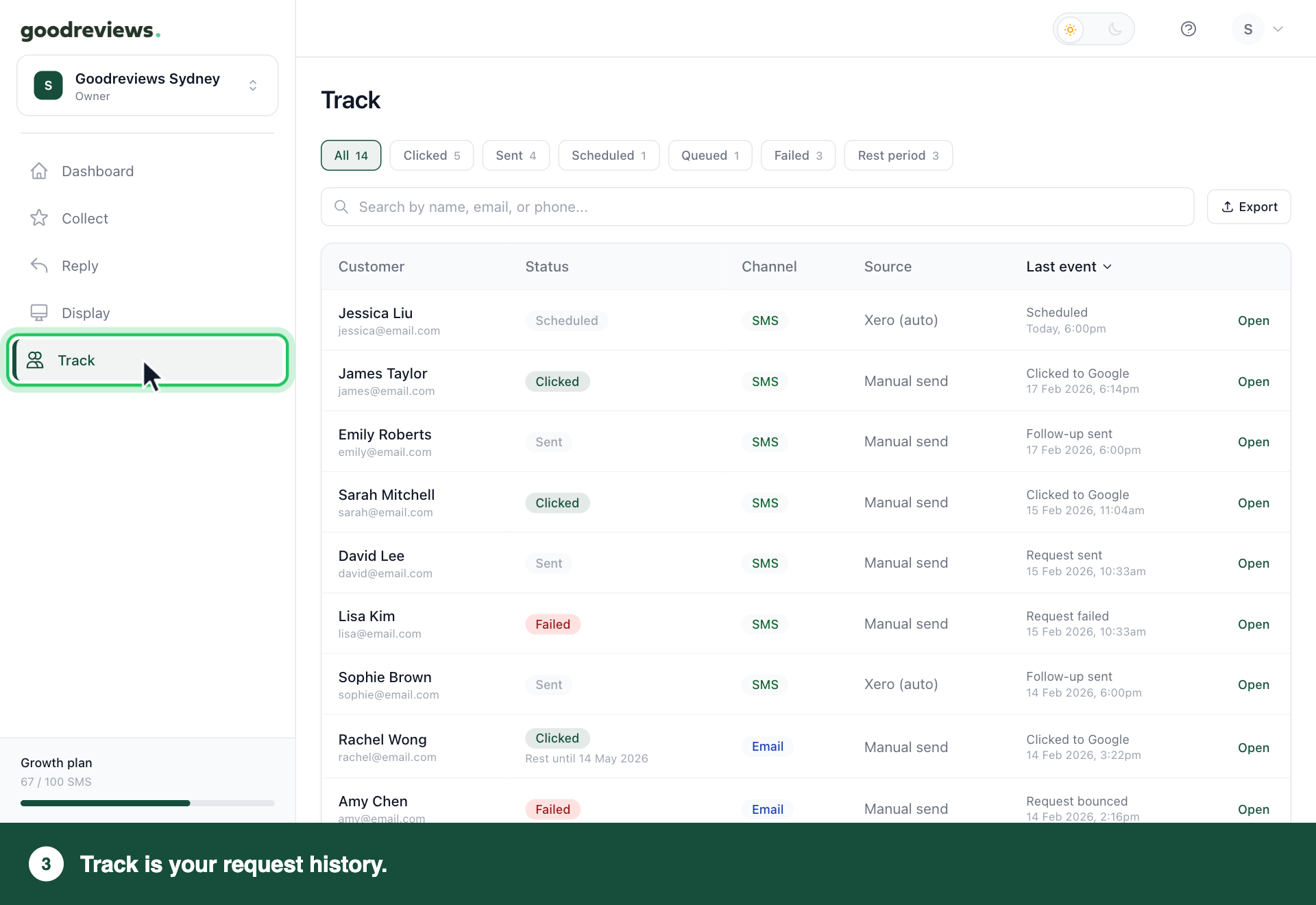
Track is your request history. It shows who you asked, how each request went and when it last changed.
- Click Track in the sidebar.
- Click a filter along the top, such as Sent, Failed or Rest period.
Status shows whether the request was delivered, so a customer who clicked through still shows Sent. The Google column shows a coloured G once they click through to Google.
Part 6. Settings
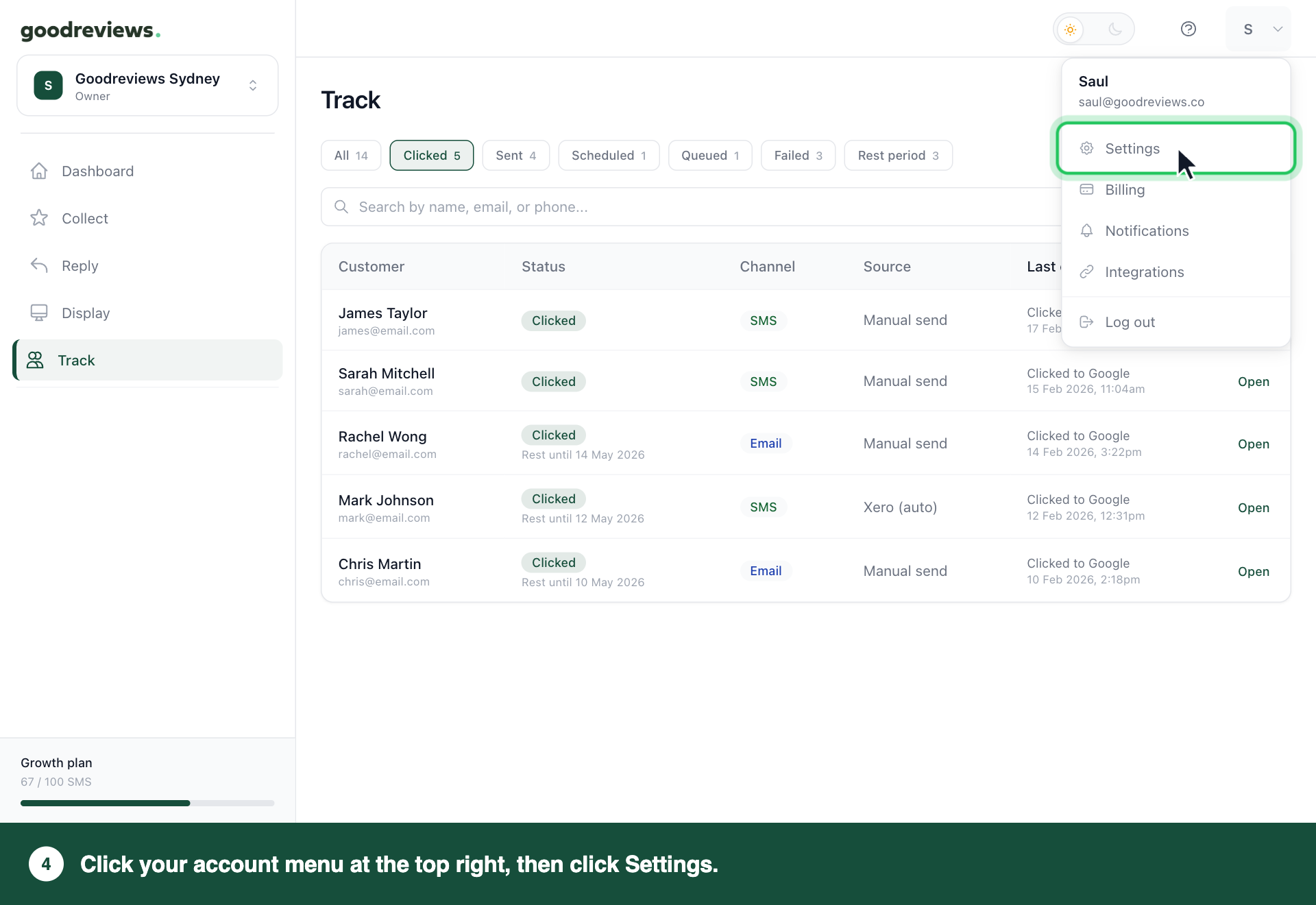
Settings aren't in the sidebar. They live in your account menu.
- Click your account menu at the top right.
- Click Settings.
You'll see Review settings, General, Billing, Notifications and Integrations. Billing, Notifications and Integrations are also in the account menu itself.
Where to find things
| What you want | Where it is now |
|---|---|
| Send a request | Collect, then Send |
| Your review link and QR codes | Collect, then Links |
| Automations | Collect, then Automations |
| Answer reviews | Reply, then Inbox |
| Website widgets | Display |
| Request history | Track |
| Templates and rest period | Account menu, then Settings, then Review settings |
| Your plan and invoices | Account menu, then Billing |
| Connect Square, Xero, Stripe or Zapier | Account menu, then Integrations |
| Became reviews | Now Clicked to Google, on Dashboard, then Activity |
| View Requests | Track |
Every customer now gets the same review request, in line with Google's review policy.
Common questions
Where can I see the requests I've sent? Click Track in the sidebar. You can search by name, email or phone.
Where did Settings go? Click your account menu at the top right, then click Settings.
Where do I connect a tool like Square? Click your account menu at the top right, then click Integrations. That only sets up the link, so to say when requests go out, click Collect in the sidebar, then click Automations. See Connect Square.
Does Clicked to Google mean I got a new review? No. It means the customer clicked through to Google. They may not have finished a review.
Where did average reply time and the monthly summary email go? We removed both.
Still stuck? Email success@goodreviews.io.