Add reviews to your website
A widget shows your reviews on your website. You pick a widget type, create it, then paste one piece of code into your site. The app walks you through three steps: Choose template, Configure and Install.
Before you start
- You need a login for your website, or help from the person who looks after it.
Part 1. Create your widget
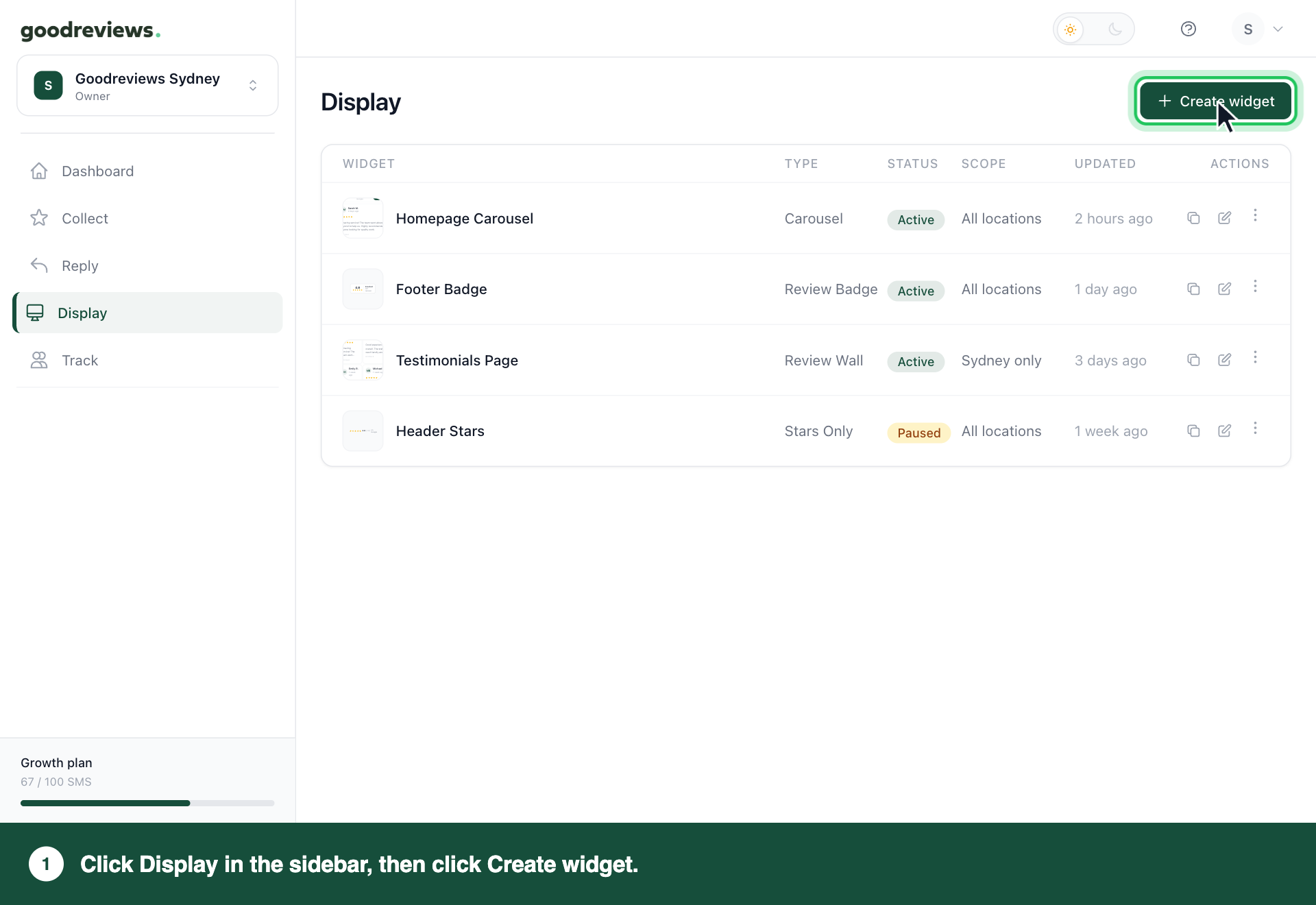
- Click Display in the sidebar.
- Click Create widget.
- Choose a widget type. See the table below.
- Click Continue.
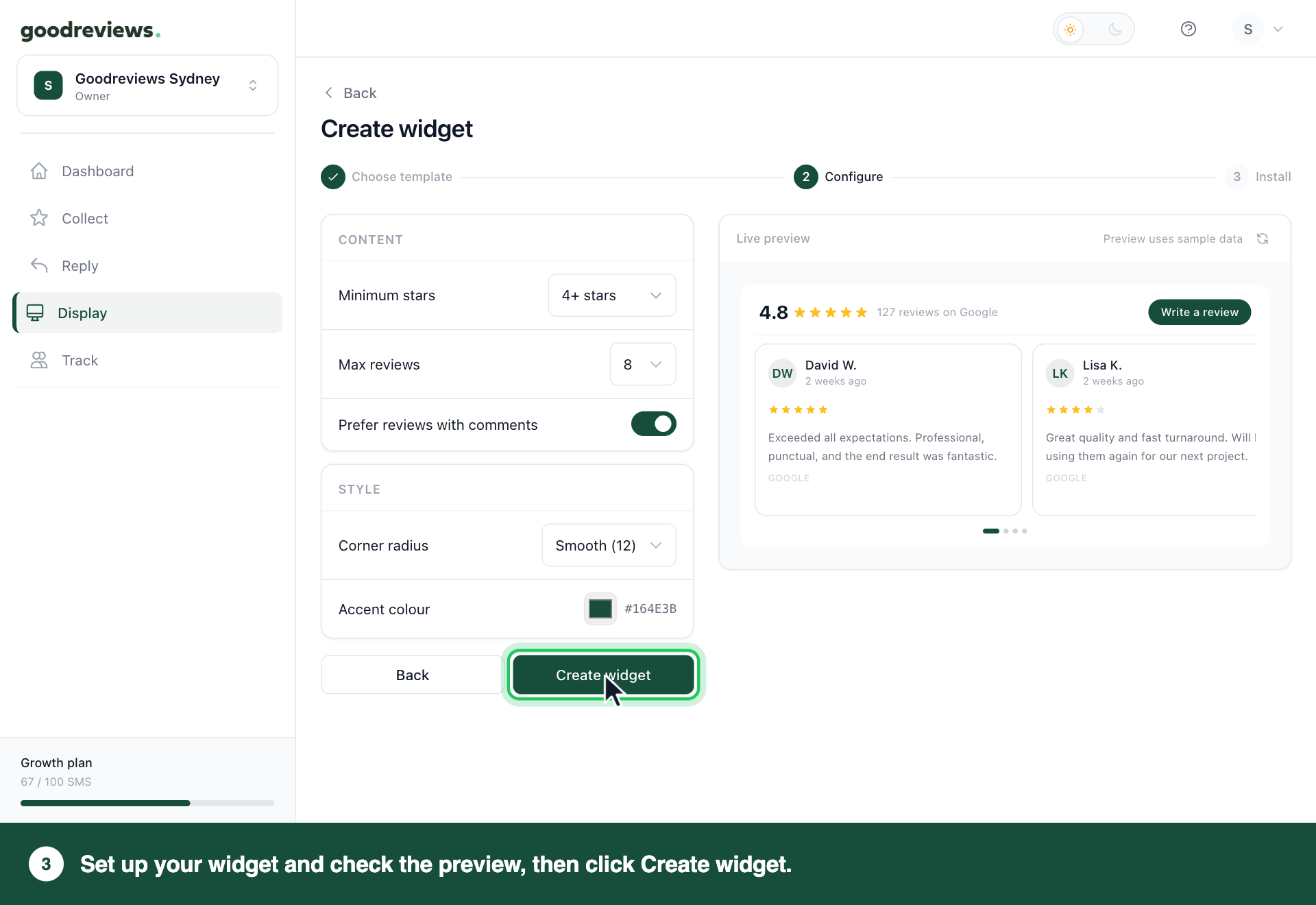
- Set your Corner radius and Accent colour.
- For a Carousel or Review Wall, set Minimum stars and Max reviews.
- Click Create widget.
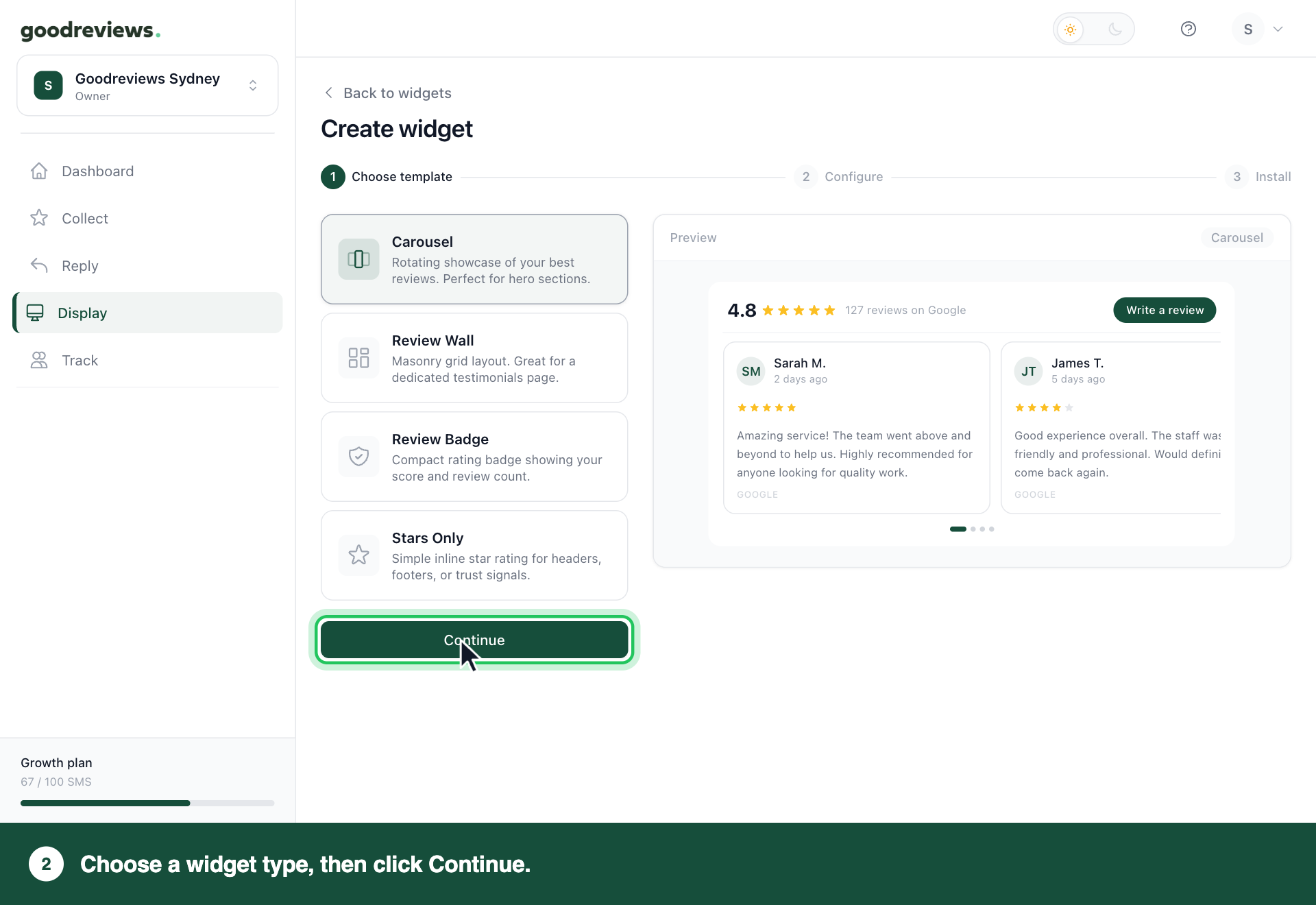
| Widget type | What it shows |
|---|---|
| Review Badge | A compact badge with your score and review count. |
| Carousel | A rotating showcase of your reviews. |
| Stars Only | A simple inline star rating. |
| Review Wall | A grid of reviews. |
The preview uses sample data, so it won't show your own reviews.
Part 2. Copy your embed code
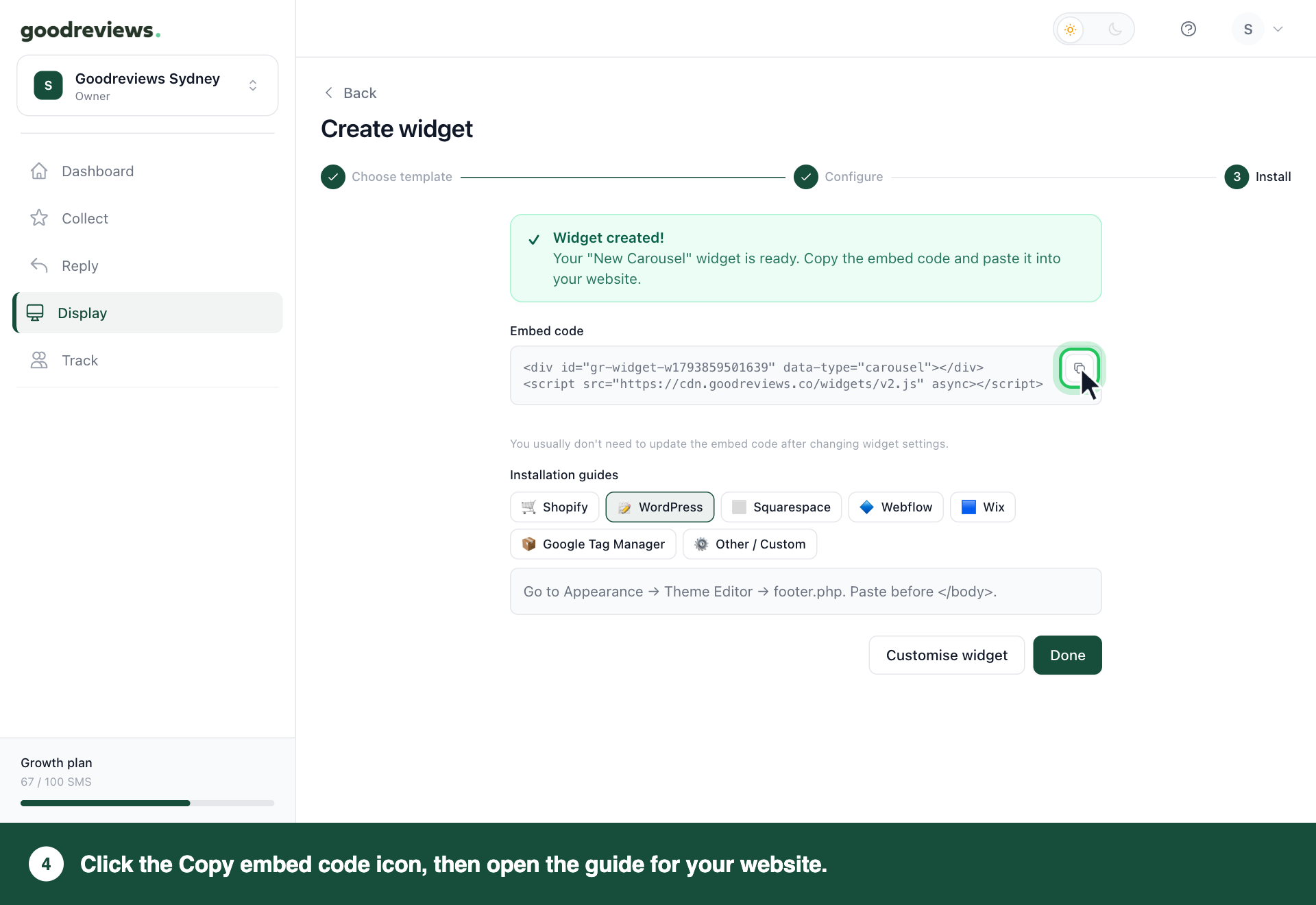
The Install step opens straight after you create the widget. It says Widget created! and shows your embed code.
- Click the Copy embed code icon at the top right of the code box.
- Under Installation guides, click your website platform. The app shows the steps for that platform.
- Click Done.
Part 3. Paste the code into your website
Follow the section for your platform. These are the same steps the app shows under Installation guides.
Your platform may change its menu names from time to time. If a menu doesn't match, search your platform's own help for adding custom code. When you've pasted the code, save or publish your changes there.
WordPress
- Open Appearance.
- Open Theme Editor.
- Open
footer.php. - Paste the embed code before the
</body>tag.
Wix
- Open the Wix Editor.
- Open Add.
- Open Embed.
- Open Custom Code.
- Paste the embed code.
Google Tag Manager
- Create a Custom HTML tag.
- Paste the embed code.
- Set the trigger to All Pages.
Squarespace
- Open Settings.
- Open Advanced.
- Open Code Injection.
- Open Footer.
- Paste the embed code.
Webflow
- Open Project Settings.
- Open Custom Code.
- Open Footer Code.
- Paste the embed code.
- Publish your site.
Shopify
- Open Online Store.
- Open Themes.
- Open Edit Code.
- Open
theme.liquid. - Paste the embed code before the
</body>tag.
Other sites
This is the Other / Custom guide in the app. Use it for any other website.
- Open your website's HTML.
- Paste the embed code before the closing
</body>tag.
How to check it's working
Open your website in your browser. Your widget should show your reviews. If it doesn't, email us the page address at success@goodreviews.io.
Then click Display in the sidebar. Your widget is in the list, with its Type, Status and Scope.
Common questions
Do I need new embed code after I change a widget? Usually not. Click Display in the sidebar, then click the Edit widget icon next to the widget. Make your change, then click Save changes. That publishes it to your website, and your embed code stays the same.
How do I get my embed code again? Click Display in the sidebar. Click the Copy embed code icon next to the widget. The install window opens with your code and the Installation guides.
Why does the preview show reviews that aren't mine? The preview uses sample data. It shows how the widget will look, not your own reviews.
Can I hide a widget on mobile? Yes. Click Display in the sidebar, then click the Edit widget icon next to the widget. Under Device visibility, turn off Show on mobile. Click Save changes.
Still stuck? Email success@goodreviews.io.