Change your review settings
Review settings control your logo, when requests go out, how often a customer can be asked, and the address on your emails. Change one or all of them. Each change takes a few clicks.
Part 1. Open Review settings
- Click your account menu at the top right.
- Click Settings.
- Click Review settings.
You'll see a list of sections. Only one opens at a time. Follow the part below for the setting you want to change.
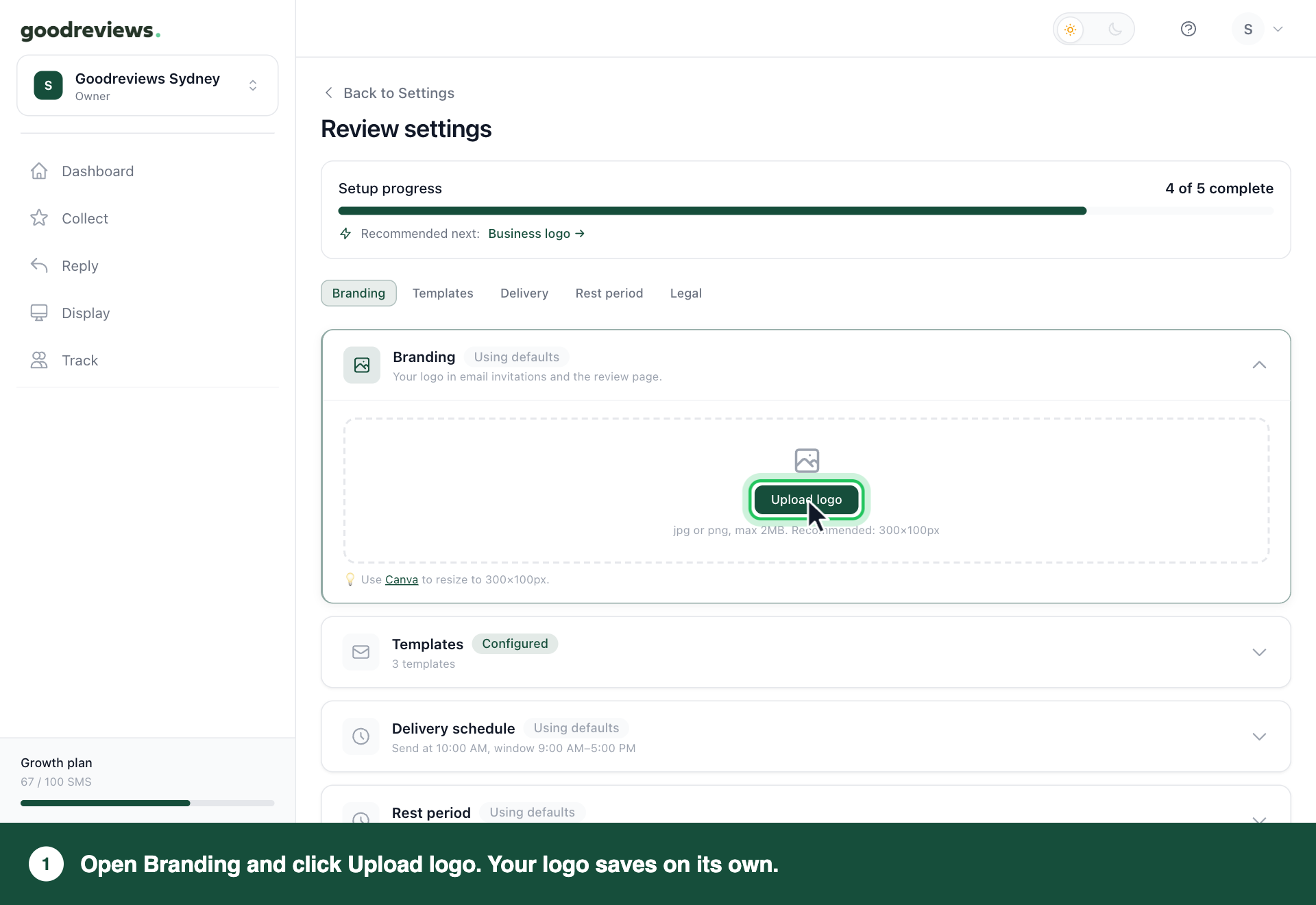
Part 2. Change your logo
Your logo appears in email invitations and on the review page.
- Click Branding.
- Click Upload logo.
- Choose your logo file. Use a jpg or png.
Your logo saves on its own, so there's no Save changes button here. To use a different logo later, click Replace.
Part 3. Change your delivery schedule
The delivery schedule sets when requests from your automations go out. The delivery window is the hours they can go out.
- Click Delivery schedule.
- Under Preferred send time, choose a time.
- Under Delivery window, choose the start time.
- Choose the end time. It must be after the start time.
- Click Save changes.
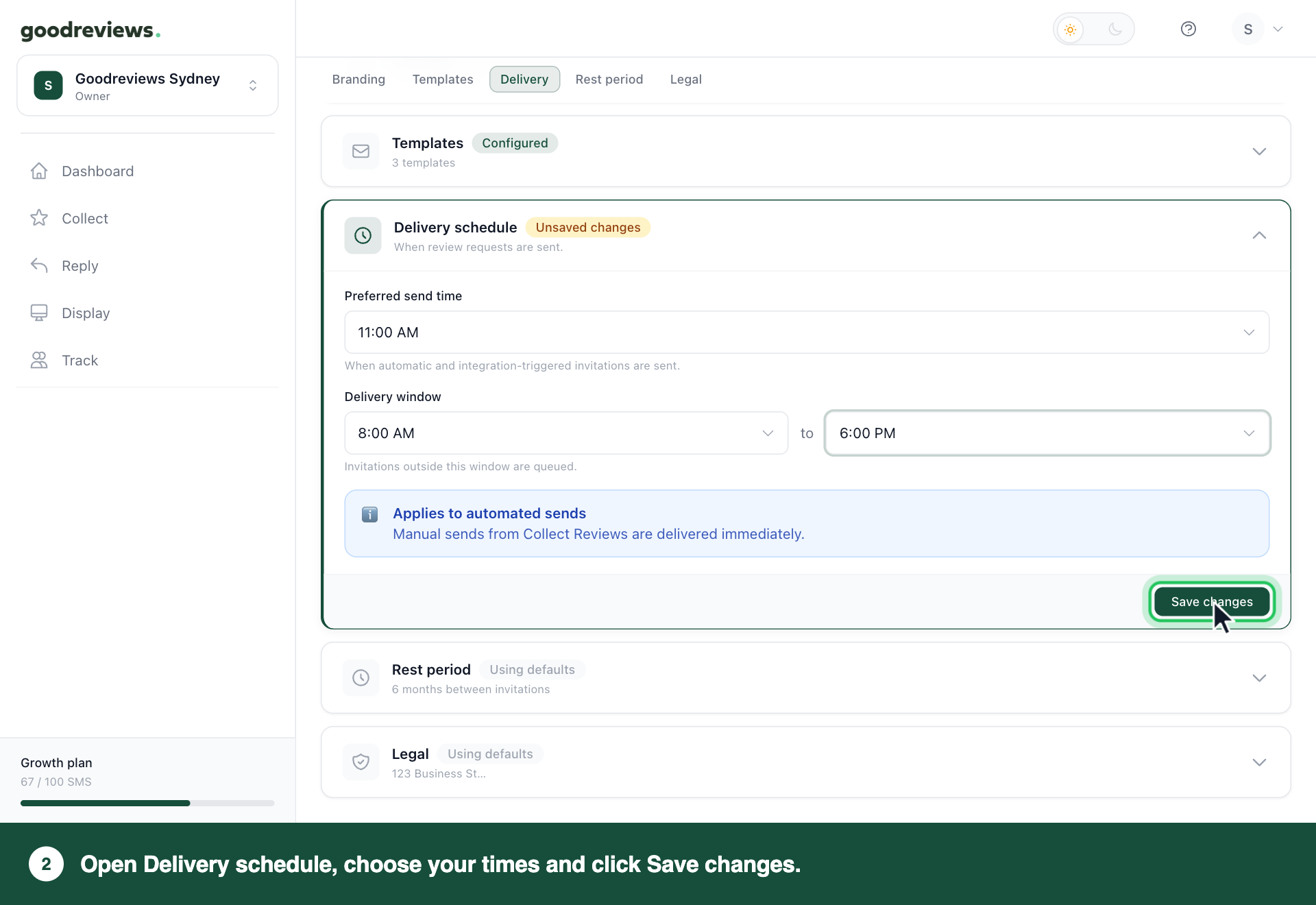
Requests outside your delivery window are queued. Whatever hours you choose, automatic requests and reminders only go out between 8:00 and 20:00 in your account's timezone.
If you're in the US, Australia or Canada, check your timezone is right:
- Click your account menu at the top right.
- Click Settings.
- Click General.
- Check Timezone shows where your business is.
Part 4. Change your rest period
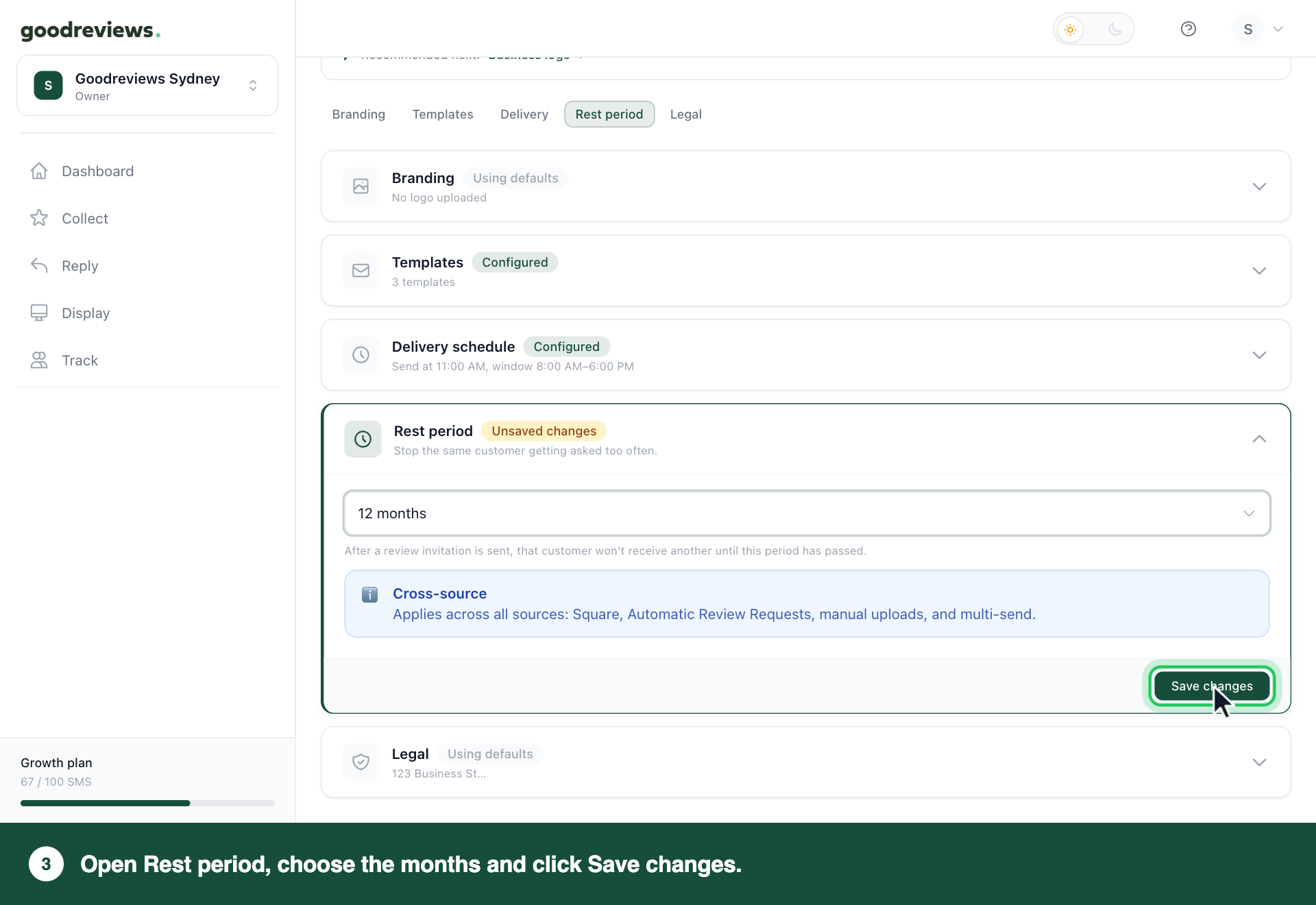
The rest period stops the same customer getting asked too often. After a request goes out, that customer won't get another until the period has passed.
The default is 6 months. The rest period covers every way you send: the Send tab (typed, pasted or uploaded), every automation and BCC requests. We match the same email or mobile across all of them.
- Click Rest period.
- Choose 1, 2, 3, 4, 5, 6, 9 or 12 months.
- Click Save changes.
Part 5. Change your mailing address
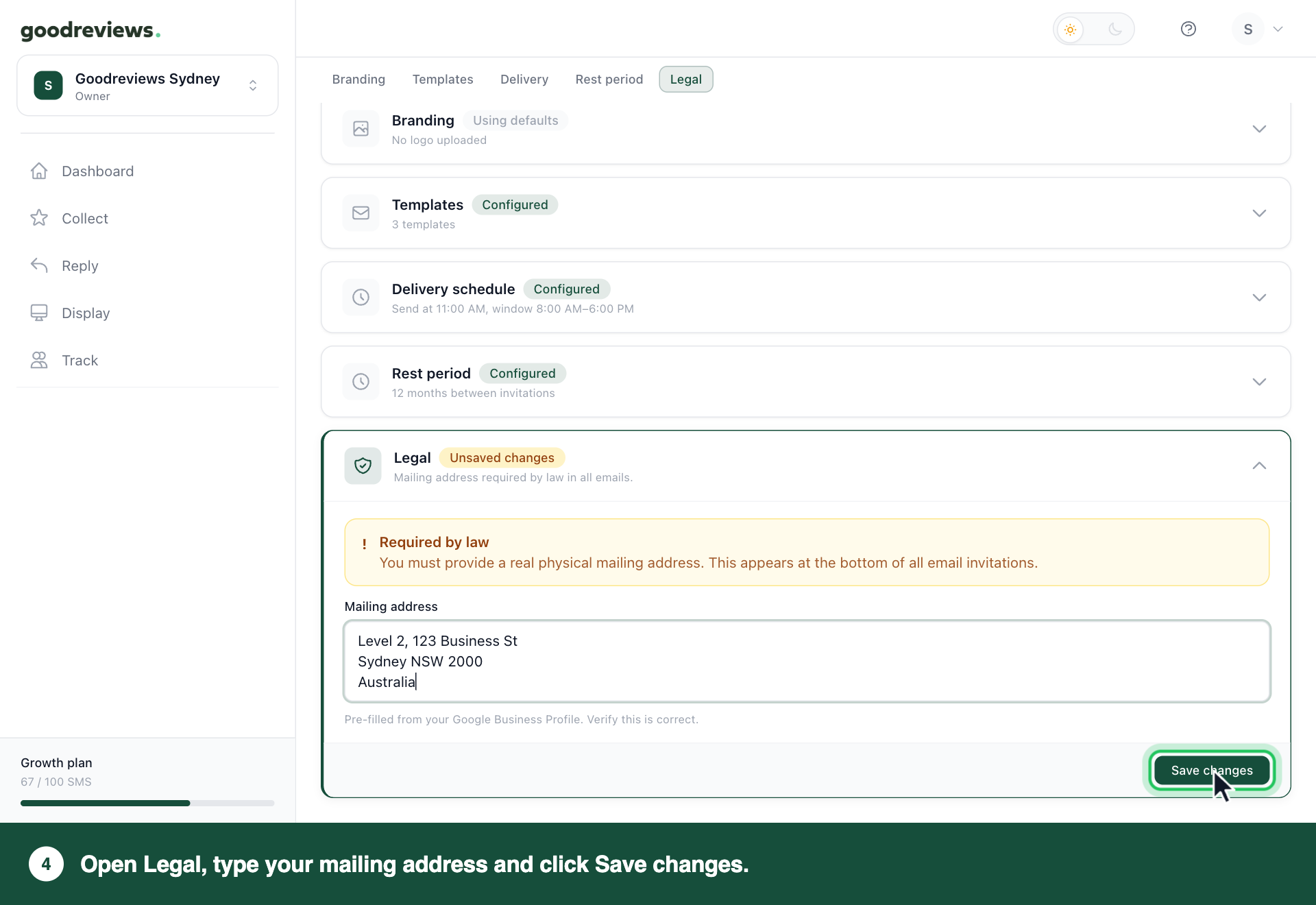
The law requires a real physical mailing address in your emails. It appears at the bottom of every email invitation. We fill it in from your Google Business Profile, so check that it's correct.
- Click Legal.
- Select the address in the Mailing address box.
- Type your address over it.
- Click Save changes.
How to check it's working
Look at the section you changed. It should say Configured. Sections you haven't saved a change to usually say Using defaults. Templates says Configured from the start.
Click the section name to close it. The line under its name shows your new setting. If it says Unsaved changes, open the section and click Save changes.
Common questions
Why can't I click Save changes? The button only works once you've changed something in that section.
How do I remove my logo? Follow Part 1. Click Branding, then click Remove.
Does the delivery schedule apply to requests I send myself? No. Your delivery schedule only applies to automatic requests. Requests you send from the Send tab don't wait for your preferred send time or delivery window.
Where do I change the wording of my messages? See Edit your email and SMS templates.
Still stuck? Email success@goodreviews.io.