Edit your email and SMS templates
Templates are the messages your customers get when we ask for a review. You can change the words, add details like the customer's first name, and send a test to yourself. It takes a couple of minutes.
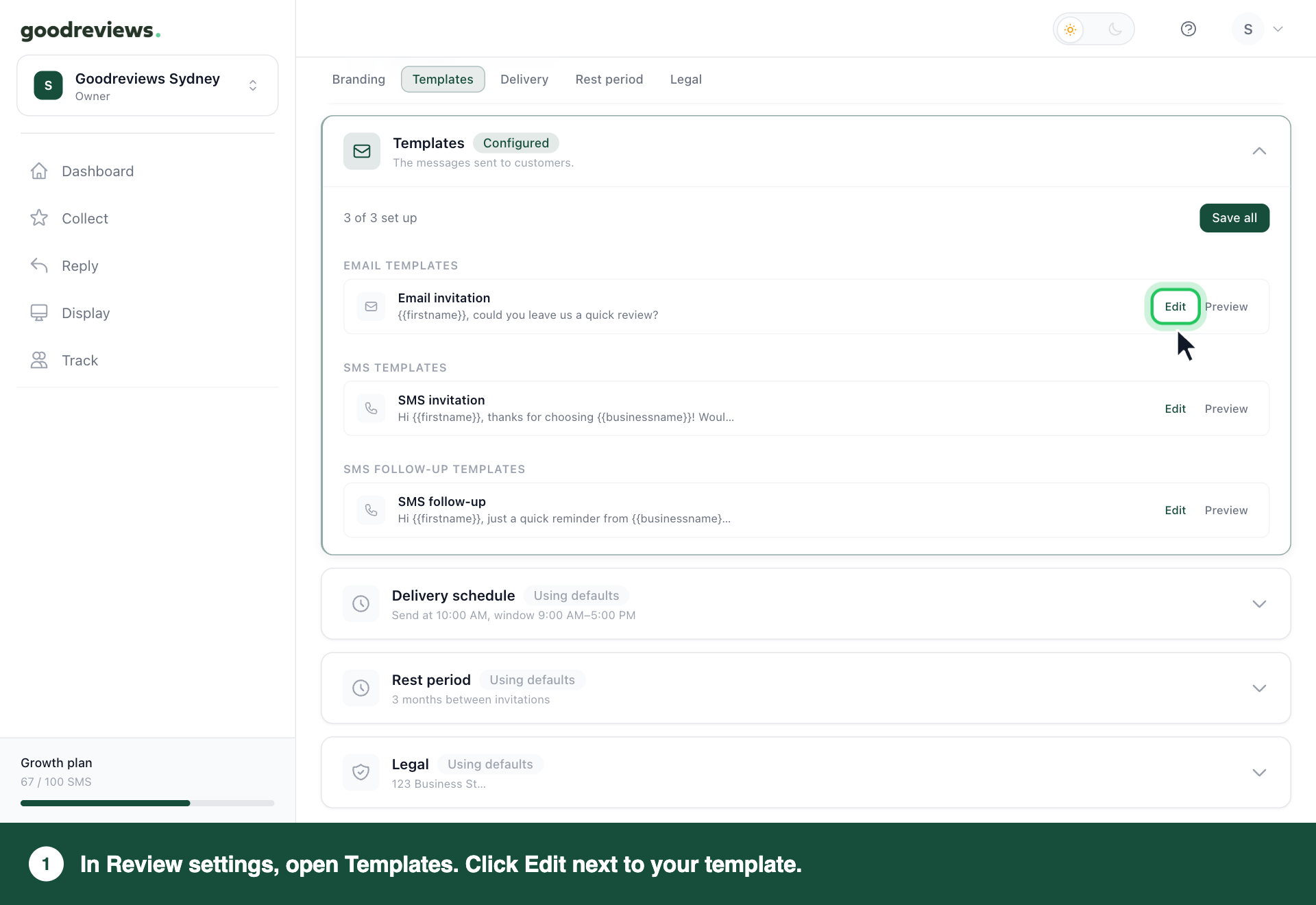
Part 1. Open your templates
Click your account menu at the top right.
Click Settings.
Click Review settings.
Click Templates.
Every account has three templates. You can edit them, but you can't add or delete them.
Template | What it is |
|---|---|
Email invitation | The email that asks for a review. |
SMS invitation | The first SMS that asks for a review. |
SMS follow-up | The SMS reminder. |
Your automations, the Send tab and BCC requests all use these same three templates.
Part 2. Edit a template
Click Edit next to the template you want to change.
Click into the box you want to change.
Change the words.
To add a detail like a first name, put your cursor where it should go.
Click First name, Business name or Your name in the Insert: row under the box.
Click Save & close. You'll see Template saved.
Click Save all at the top of Templates. You'll see Templates saved.
Your change applies to every request that hasn't gone out yet, including scheduled requests and follow-ups. Messages already sent don't change.
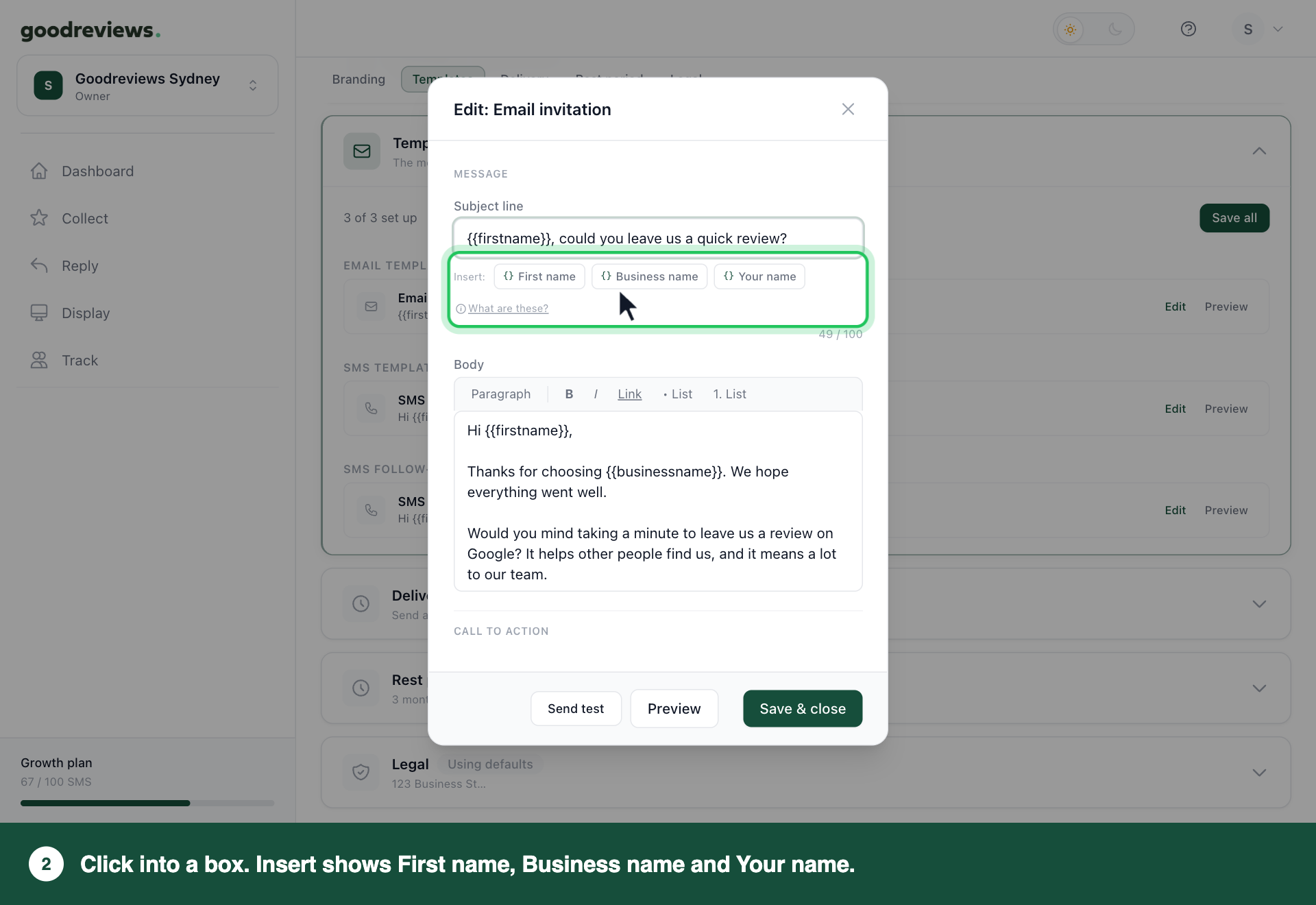
An email template has more boxes than an SMS template.
Template | Boxes you can change |
|---|---|
Email invitation | Subject line, Body, Button label, Sign-off |
SMS invitation and SMS follow-up | Message body |
Variables you can use
Variables fill in the details for each customer. Clicking a button in the Insert: row is the safest way to get the spelling right. You can also type a variable, with two curly brackets on each side.
Button | Variable | What it adds |
|---|---|---|
First name |
| The customer's first name. If we don't have it, "Hi {{firstname}}," becomes "Hi there,". |
Business name |
| Your business name. |
Write the rest of your message so it still reads well if we don't have the customer's first name.
Your name adds the Sender name you entered when you set up your account. It goes in exactly as it's written, so it's the same for every customer.
You don't need to add your review link. In an email it sits behind the button. In an SMS we add the link to the end of your message, then "Reply STOP to unsubscribe." So end your SMS on a line that leads into the link.
The SMS editor says to keep under 160 characters for best delivery rates.
How to check it's working
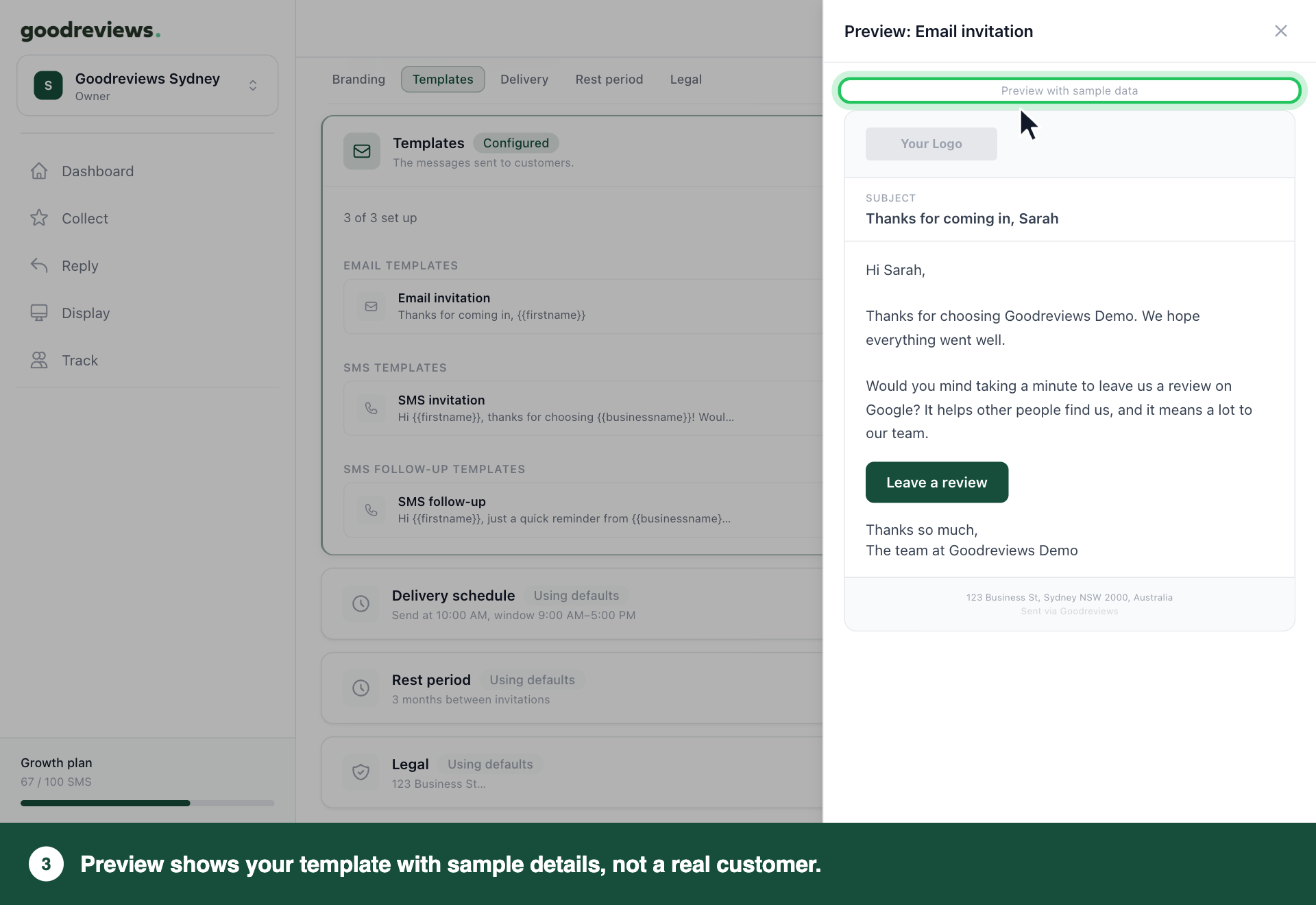
Preview shows the message with sample details. Send test sends it to you.
Click Preview next to your template.
Read the message. Preview with sample data means the names are examples, not a real customer.
Click the X at the top right of the preview.
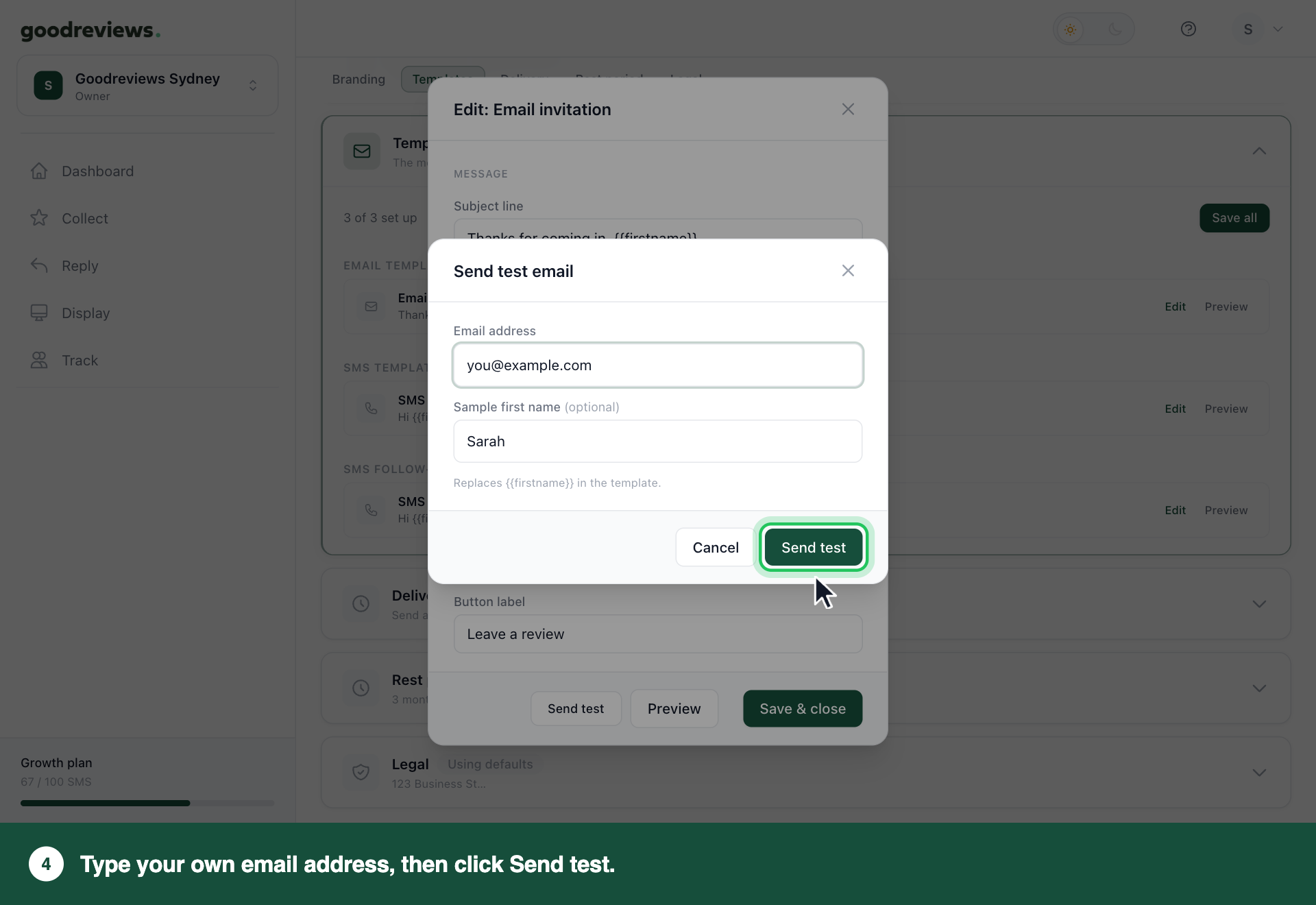
Click Edit next to your template.
Click Send test.
Type your own Email address or Phone number.
Click Send test. You'll see Test sent!
Click Save & close. You'll see Template saved.
Click Save all at the top of Templates. You'll see Templates saved.
Check your inbox or phone to see the real thing.
Common questions
How do I choose which template a request uses? You don't need to. Every request uses your Email invitation, SMS invitation and SMS follow-up. On the Send tab, Message templates shows them, and Manage templates brings you back here. See Send review requests.
Is there a separate template for the email reminder? No. We send one email reminder using your Email invitation, with "Reminder:" added to the start of the subject.
Will my change affect requests that are already waiting? Yes. We read the template when each message goes out. Anything not yet sent, like a request waiting on an automation delay or a follow-up, uses your new wording.
Can I add another template or delete one? No. Each account has one Email invitation, one SMS invitation and one SMS follow-up. You can change the words in each as often as you like.
Still stuck? Email success@goodreviews.io.