Send review requests
Send a review request by SMS or email to one customer or a whole list. It only takes a few clicks, and requests go out as soon as you click send.
Add your customers with Part 1, 2 or 3. Then finish with Part 4.
Before you start
- Google Business Profile should already be connected in Goodreviews.
- Each customer needs a mobile number or an email address. A first name is optional.
- Review requests are marketing messages. Each customer must have expressly agreed to get them from your business, and you must keep a record of their consent. See Consent and SMS rules.
- SMS requests use your SMS credits. See Plans, credits and limits.
Part 1. Add one customer
- Click Collect in the sidebar. The Send tab opens.
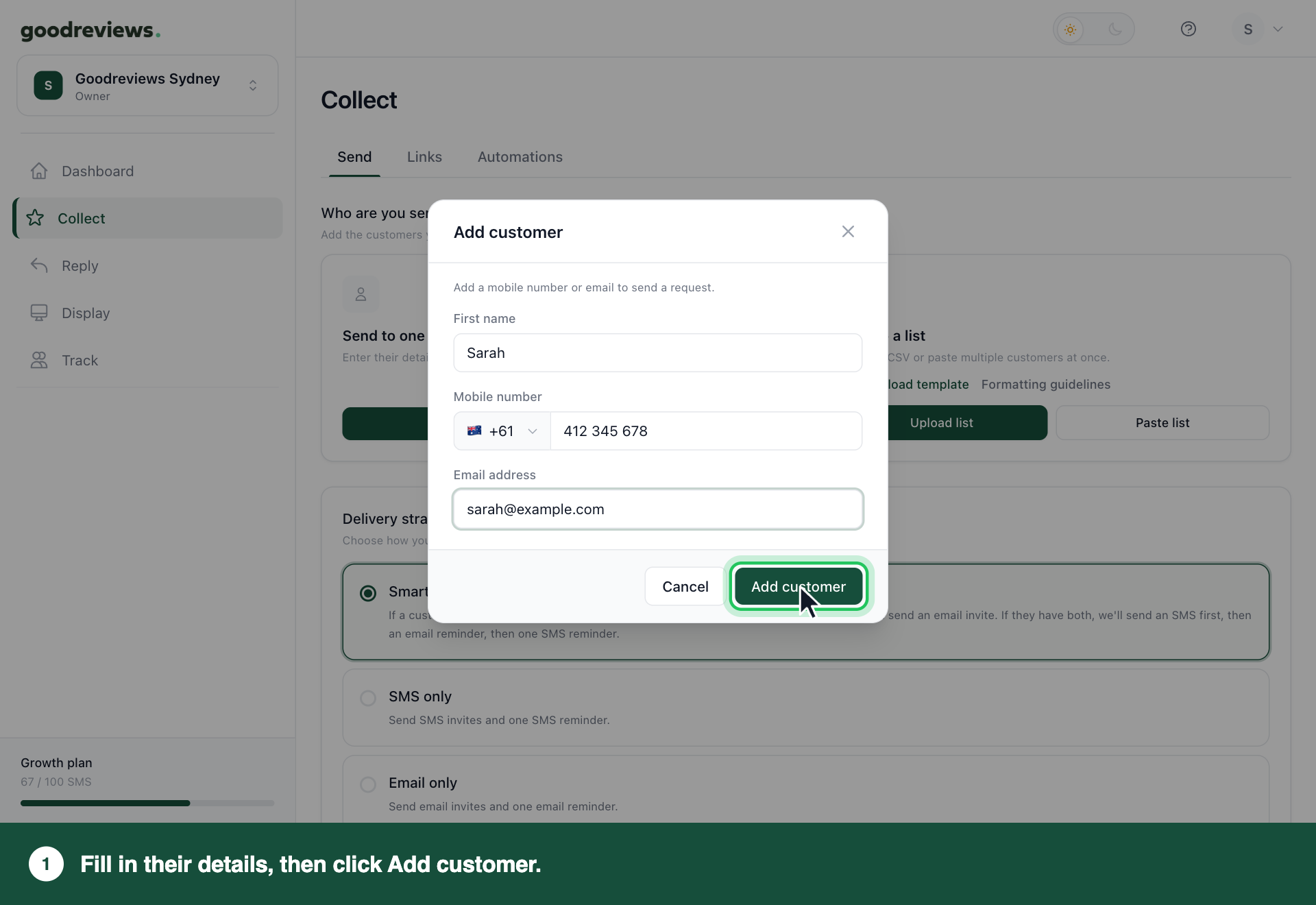
- Under Send to one customer, click Add customer.
- Type their First name.
- Choose their country code.
- Type their Mobile number.
- Type their Email address.
- Click Add customer.
You only need a mobile number or an email, not both. To add someone else, click Add customer again.
Part 2. Upload a list
- Click Collect in the sidebar. The Send tab opens.
- Under Send to a list, click Download template.
- Replace the three example rows with your customers. See the CSV format section below.
- Save the file as a CSV.
- Click Upload list and choose your saved file.
- If you see Map columns, follow steps 6 to 9 in Part 3. Then go to Part 4.
Part 3. Paste a list
- Click Collect in the sidebar. The Send tab opens.
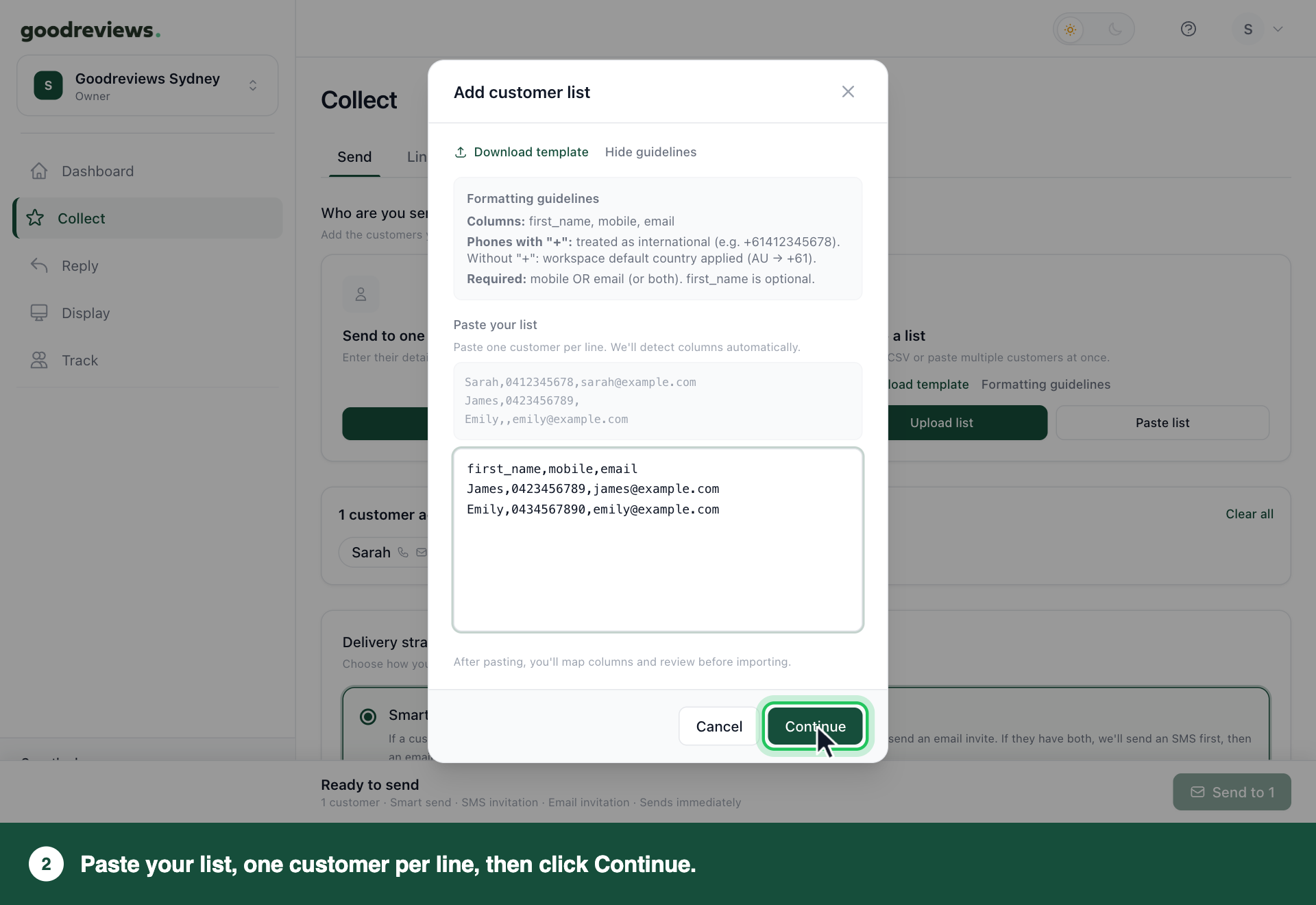
- Under Send to a list, click Paste list.
- To see the rules, click Formatting guidelines.
- Paste your list into the box, one customer per line. Start with the header row,
first_name,mobile,email. - Click Continue.
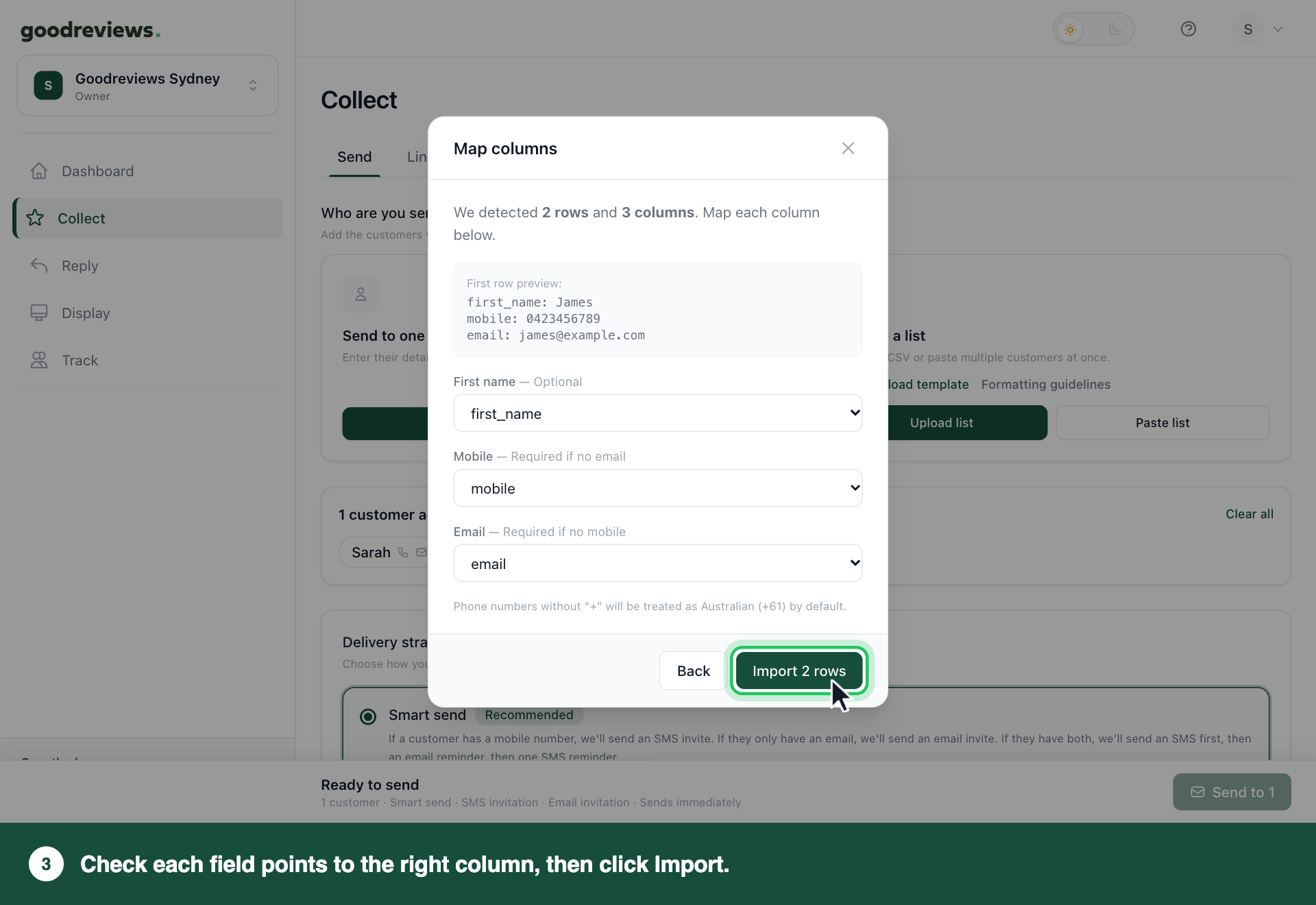
- On the Map columns screen, check First name, Mobile and Email each point to the right column.
- Click Import. The button shows how many rows you have, like Import 2 rows.
- Check the Import summary. It shows Total rows, Imported and Skipped.
- Click Done.
Part 4. Choose how to send, then send
Your customers now show on the Send tab, under a count like 3 customers added. Click the cross next to a name to remove it, or click Clear all to start again.
- Under Delivery strategy, choose how to send. Smart send is recommended. See the table below.
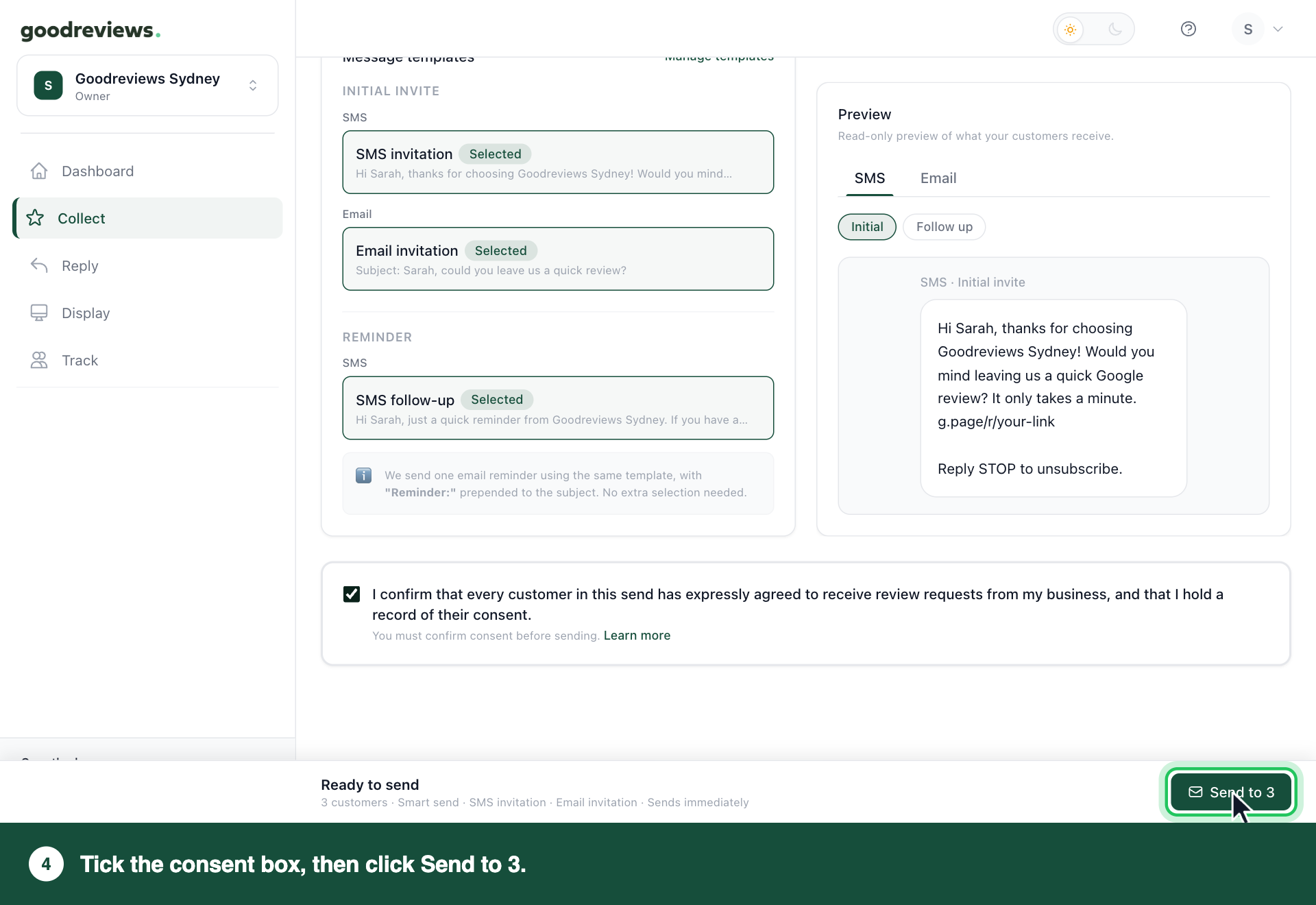
- Under Message templates, you'll see the templates we use. Each one is marked Selected. There's nothing to choose.
- Read the Preview. It shows what your customers receive.
- Tick the consent box. It reads: I confirm that every customer in this send has expressly agreed to receive review requests from my business, and that I hold a record of their consent.
- At the bottom of the page, click the Send to button. It shows how many customers you added, like Send to 3.
You'll see Sent to 3 customers, with the number matching your list. Click Send more requests to send another batch.
| Delivery strategy | What we send |
|---|---|
| Smart send | Mobile only: an SMS invite. Email only: an email invite. Both: an SMS first, then an email reminder, then one SMS reminder. |
| SMS only | An SMS invite and one SMS reminder. |
| Email only | An email invite and one email reminder. |
When we send an email reminder, it uses the same template as the email invite, with Reminder: added to the start of the subject.
The consent box is required. You can't send until it's ticked. Ticking it means every customer on this send has expressly agreed to get review requests from you, and you keep a record of that.
CSV format
Use the file from Download template. It's called goodreviews-template.csv. You can also click Formatting guidelines on the Send tab to see these rules in the app.
Keep the first row exactly as it is. Replace the example rows with your customers, one per row.
first_name,mobile,email
Sarah,0412345678,sarah@example.com
James,0423456789,
Emily,,emily@example.com
| Column | Required? | Notes |
|---|---|---|
| first_name | No | The customer's first name. |
| mobile | Yes, if there's no email | With a +, we treat it as international, like +61412345678. Without a +, we use your workspace default country. |
| Yes, if there's no mobile | Must be a valid email address. |
If your list has numbers from another country, or you're not sure, start each mobile with + and the country code, like +61412345678.
We skip a row and tell you why on the Import summary screen:
| Reason | What to do |
|---|---|
| Missing mobile and email | Add a mobile number or email to that row. |
| Invalid email format | Fix the email address in that row. |
How to check it's working
Click Track in the sidebar. Your customer should be in the list, with a status of Sent and a source of Manual send. Once they click through to Google, the Google column shows a coloured G. See What your dashboard numbers mean.
Common questions
Why can't I click Send? Tick the consent box first. The screen says You must confirm consent before sending. You also need at least one customer added.
When does the request go out? Straight away. Your delivery schedule only applies to automated sends. Reminders go out between 8:00 and 20:00 in your account's timezone.
What if my list has customers with only a mobile or only an email? Choose Smart send. It sends an SMS to customers with a mobile and an email to customers with an email. If you choose SMS only or Email only, check every customer has a mobile or an email to match.
Why didn't one of my customers get a request? They may be in their rest period. We don't send another request to the same email or mobile within the months you set. The default is 6 months.
The rest period covers every way you send. That's the Send tab, whether you type, paste or upload customers, and every automation and BCC request. If any of them reached the customer in that time, this request won't be sent.
When you send from the Send tab, a customer in their rest period shows Not sent: contacted in the last X months, where X is the number of months you set. To change the months, see Change your review settings.
How do I change what the message says? Click Manage templates under Message templates. It opens Templates in Review settings. Your changes apply to every message that hasn't gone out yet. See Edit your email and SMS templates.
Still stuck? Email success@goodreviews.io.