Connect Zapier
Connect Zapier and you can trigger review requests from thousands of apps. It takes three parts: copy your API key, build a Zap in Zapier, then create an automation in Goodreviews.
Before you start
- You need a Zapier account.
- Google Business Profile should already be connected in Goodreviews.
- Review requests are marketing messages. Recipients must have opted in. See Consent and SMS rules.
Part 1. Copy your API key
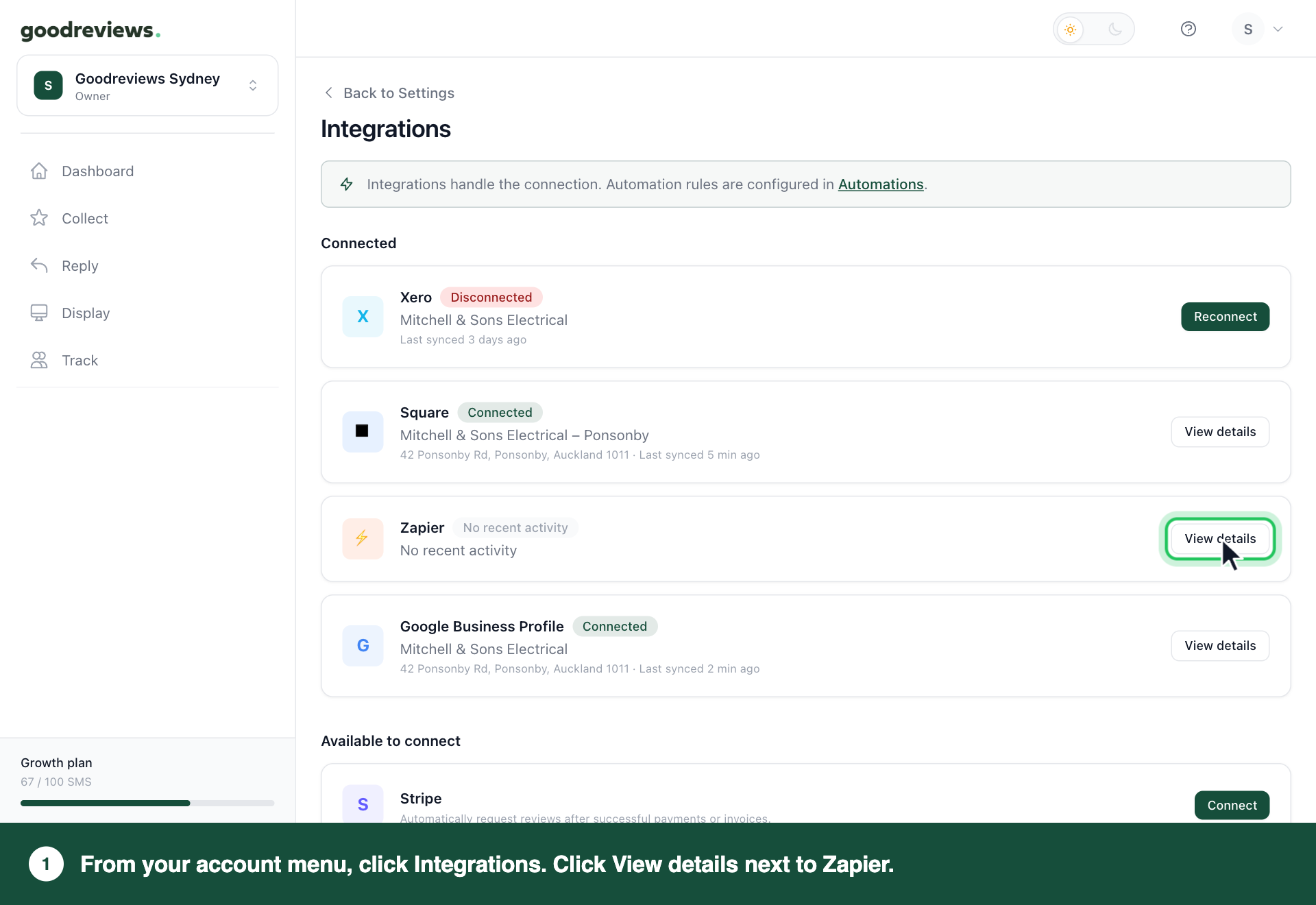
- Click your account menu at the top right.
- Click Integrations.
- Under Connected, click View details next to Zapier. If Zapier is under Available to connect, click Connect next to it.
- Under API access, click the copy button next to API key.
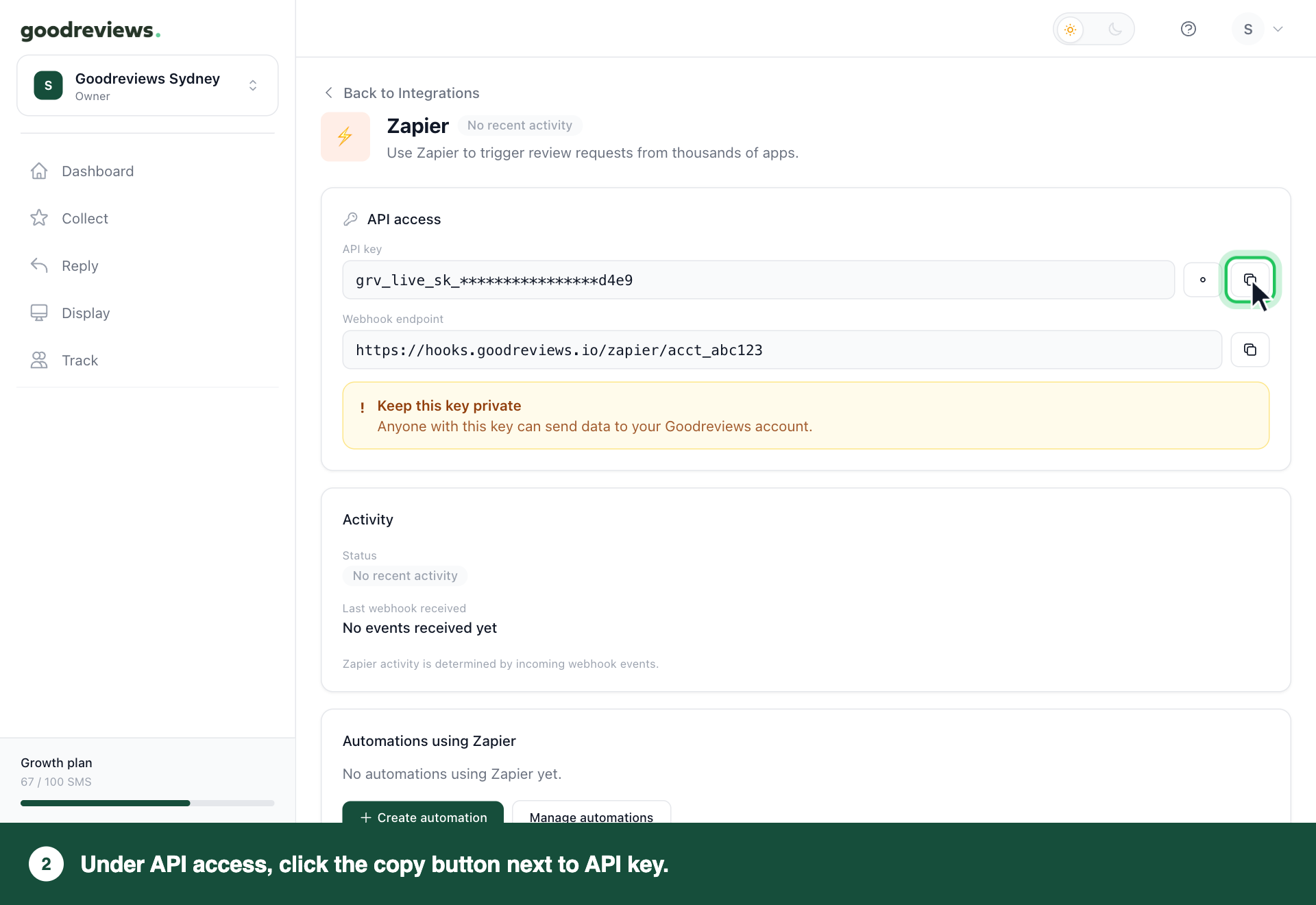
A short message confirms the key is copied. Keep this key private. Anyone with it can send data to your Goodreviews account.
Part 2. Build the Zap
This part happens in Zapier, not in Goodreviews. The Zap tells us when to send a request. You don't set a delay here. You set it on the Goodreviews automation in Part 3.
- Log in to Zapier and create a new Zap.
- For the trigger, choose the app and event that should start a review request. Any app works. For example, Google Calendar's Event Ended.
- For the action, choose the Goodreviews app, then the Send Review Invitation action.
- When Zapier asks you to connect Goodreviews, paste the API key you copied in Part 1.
- Fill in the fields Zapier shows, using your customer's details from the trigger app.
- Finish the Zap in Zapier and turn it on.
Part 3. Create an automation
The Zap sends the event. The automation sets how long we wait before sending. Steps 4 to 6 are one screen each. Click Continue after each one.
- Click Collect in the sidebar.
- Click Automations.
- Click Create automation.
- Under Choose a source, click Zapier.
- Under Choose the moment, click When Zapier sends us an event. It's the only moment for Zapier.
- Under Choose when to send, choose an option from Send after. The wait starts when we receive the event. The default is 2–5 hours. The other options are Immediately, 1 day and 3 days.
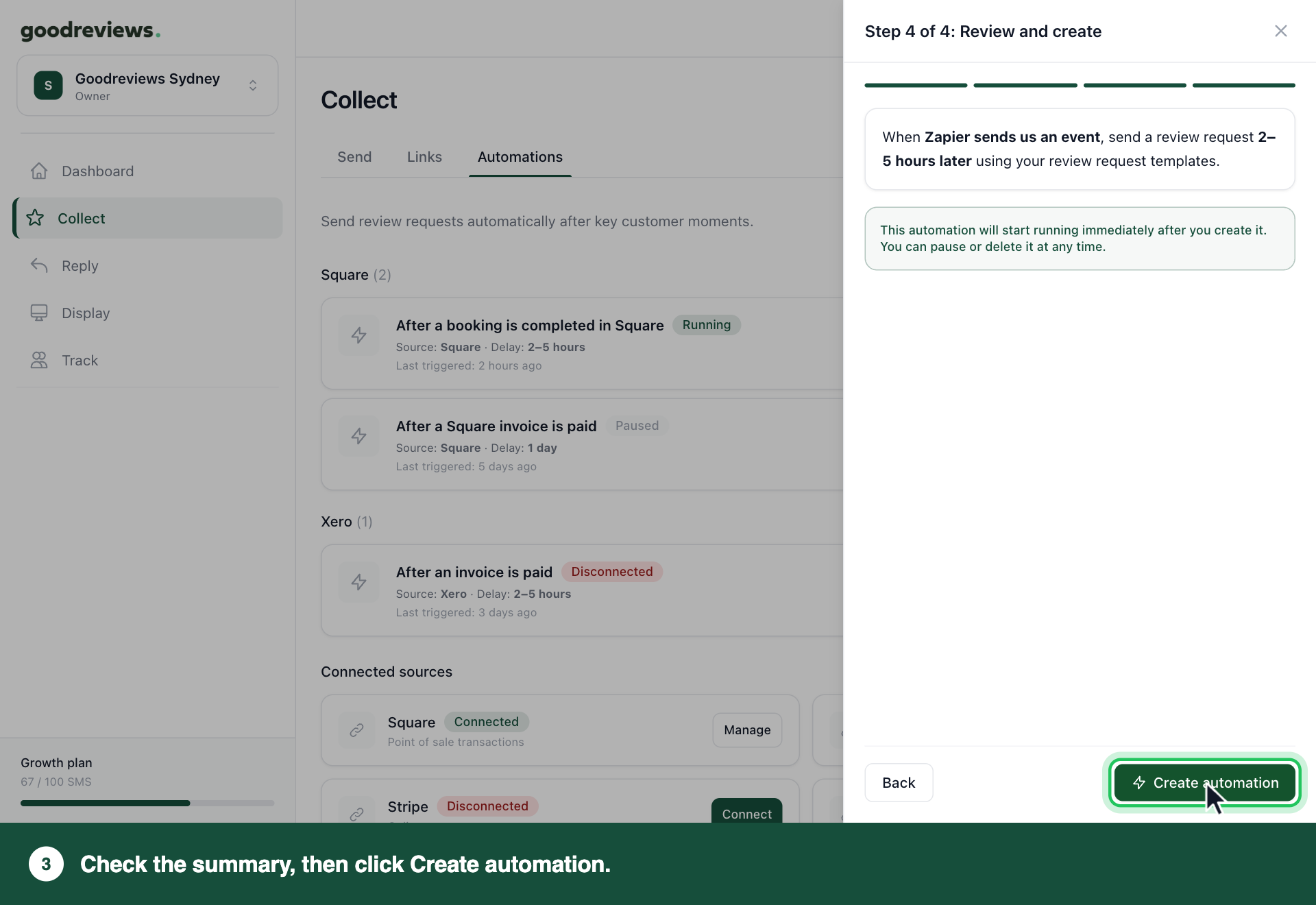
- Under Review and create, check the summary. For example: "When Zapier sends us an event, send a review request 2–5 hours later using your review request templates."
- Click Create automation.
The automation starts running straight away. Every request uses your account's review request templates. To change the wording, see Edit your email and SMS templates.
How to check it's working
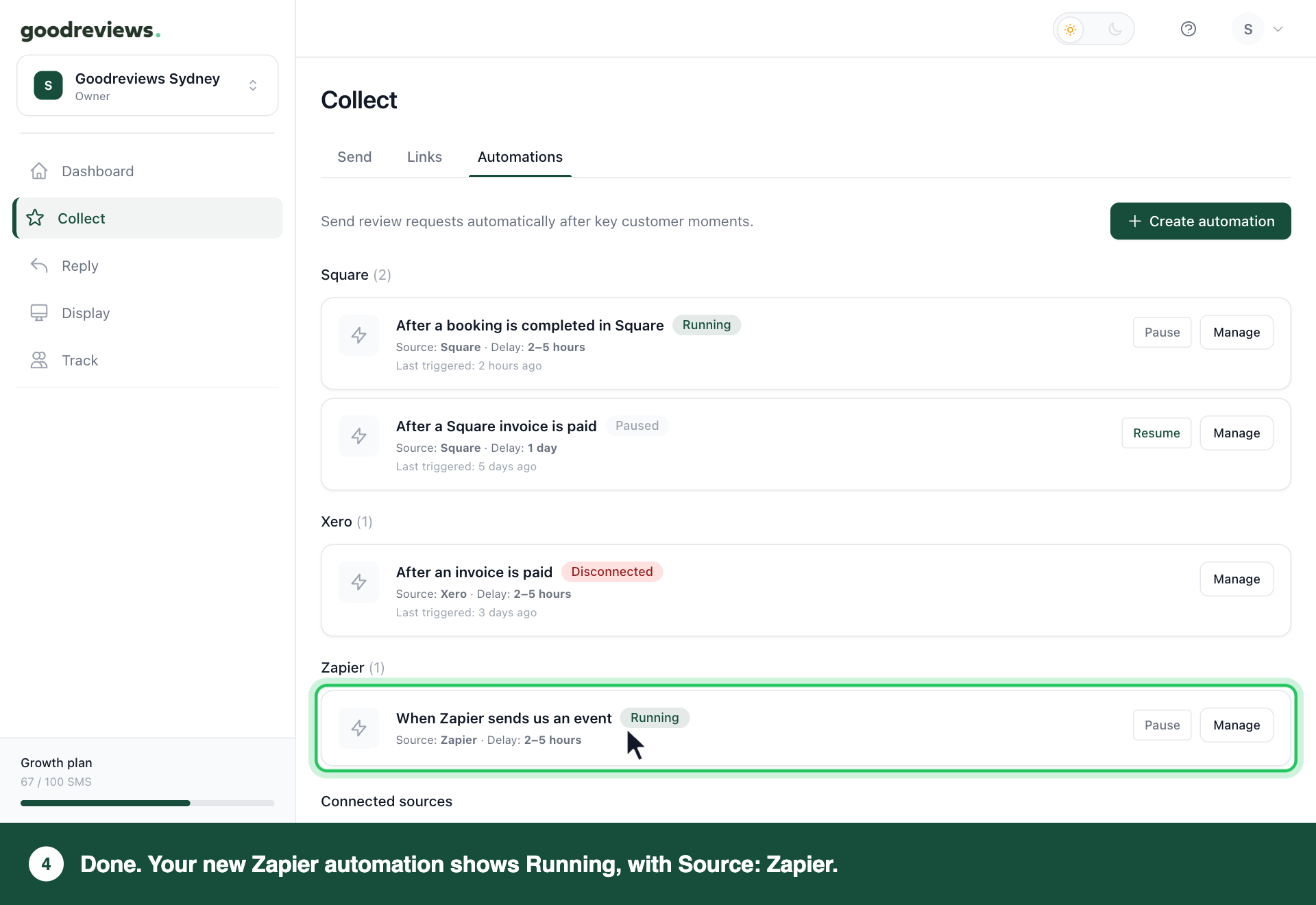
First, check the automation. Click Collect in the sidebar, then click Automations. Your new automation should say Running, with Source: Zapier.
| Status | What it means | What to do |
|---|---|---|
| Running | Requests are going out. | Nothing. |
| Paused | Nothing is being sent. | Click Resume. |
| Needs attention | Something is stopping requests. | Click Manage and follow the message. |
| Disconnected | Zapier is no longer connected. | Check Activity below. In Zapier, check your Zap is on and uses your current API key. If it still says Disconnected, email success@goodreviews.io. |
Next, check that your Zap reaches us. Click your account menu at the top right, then click Integrations. Click View details next to Zapier. Look under Activity.
| What you see | What to do |
|---|---|
| Active, with a time under Last webhook received | Nothing. We're receiving events. |
| No recent activity, with No events received yet | Check your Zap against Part 2. |
| Error | Check Last webhook received, then check your Zap against Part 2. |
Common questions
Why didn't my customer get a request? First, check Last webhook received on the Zapier page. If it hasn't changed, the event didn't reach us. Your rest period also stops anyone asked recently from being asked again.
Do I have to add a delay? No. It's optional. Choose Immediately for no delay. Your delivery schedule still applies, so requests outside your Delivery window are queued. Requests only go out between 8:00 and 20:00 in your timezone.
Can I have more than one Zapier automation? No. Zapier has one moment, and each moment can have one automation. If you already have one, Zapier shows Automation exists. To change its wait, click Manage on the automation and change Send after.
Where do I find my API key again? Click your account menu at the top right, then click Integrations. Click View details next to Zapier. The key is under API access.
How do I stop Zapier sending events? Click your account menu at the top right, then click Integrations. Click View details next to Zapier. Click Revoke API key, then click Revoke key. Any Zaps using this key stop working immediately.
Still stuck? Email success@goodreviews.io.