How automations work
An automation sends a review request on its own after something happens in a tool you already use, like a payment in Square. You connect a tool, pick a moment and choose how long to wait. After that, it runs without you.
Before you start
- Google Business Profile should already be connected in Goodreviews.
- Review requests are marketing messages. Recipients must have opted in. See Consent and SMS rules.
- SMS requests use your SMS credits. See Plans, credits and limits.
Part 1. Connect a tool
Integrations handle the connection. Automations say when to ask. You need a connected tool before you can create an automation.
- Click your account menu at the top right.
- Click Integrations.
- Under Available to connect, click Connect next to your tool. If your tool shows Reconnect, click Reconnect.
- Follow the article for your tool:
If your tool is already under Connected with no Reconnect button, skip to Part 2. Connecting a tool sends nothing by itself.
Part 2. Create an automation
The Create automation window has four steps. Click Continue after each of the first three.
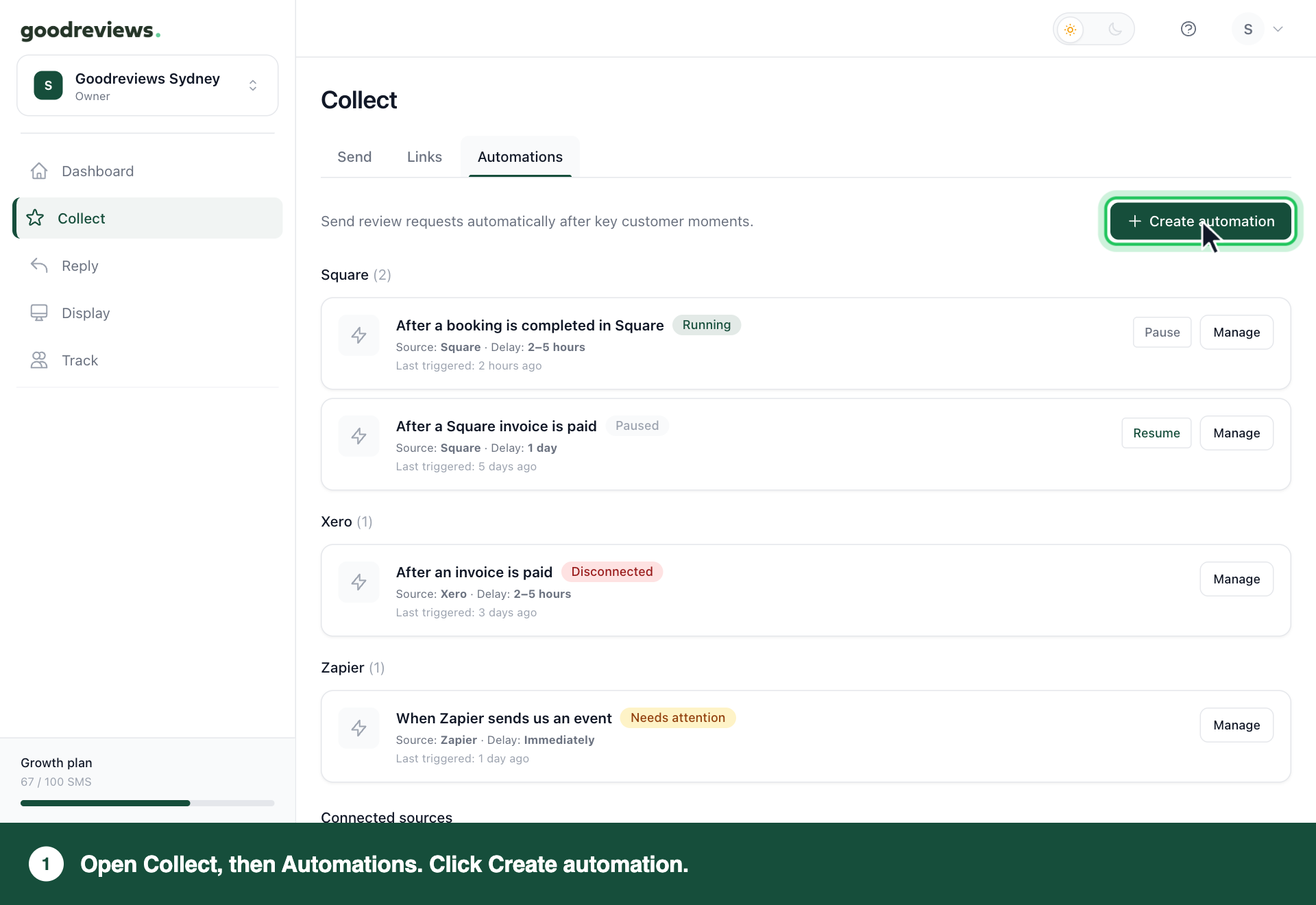
- Click Collect in the sidebar.
- Click Automations.
- Click Create automation.
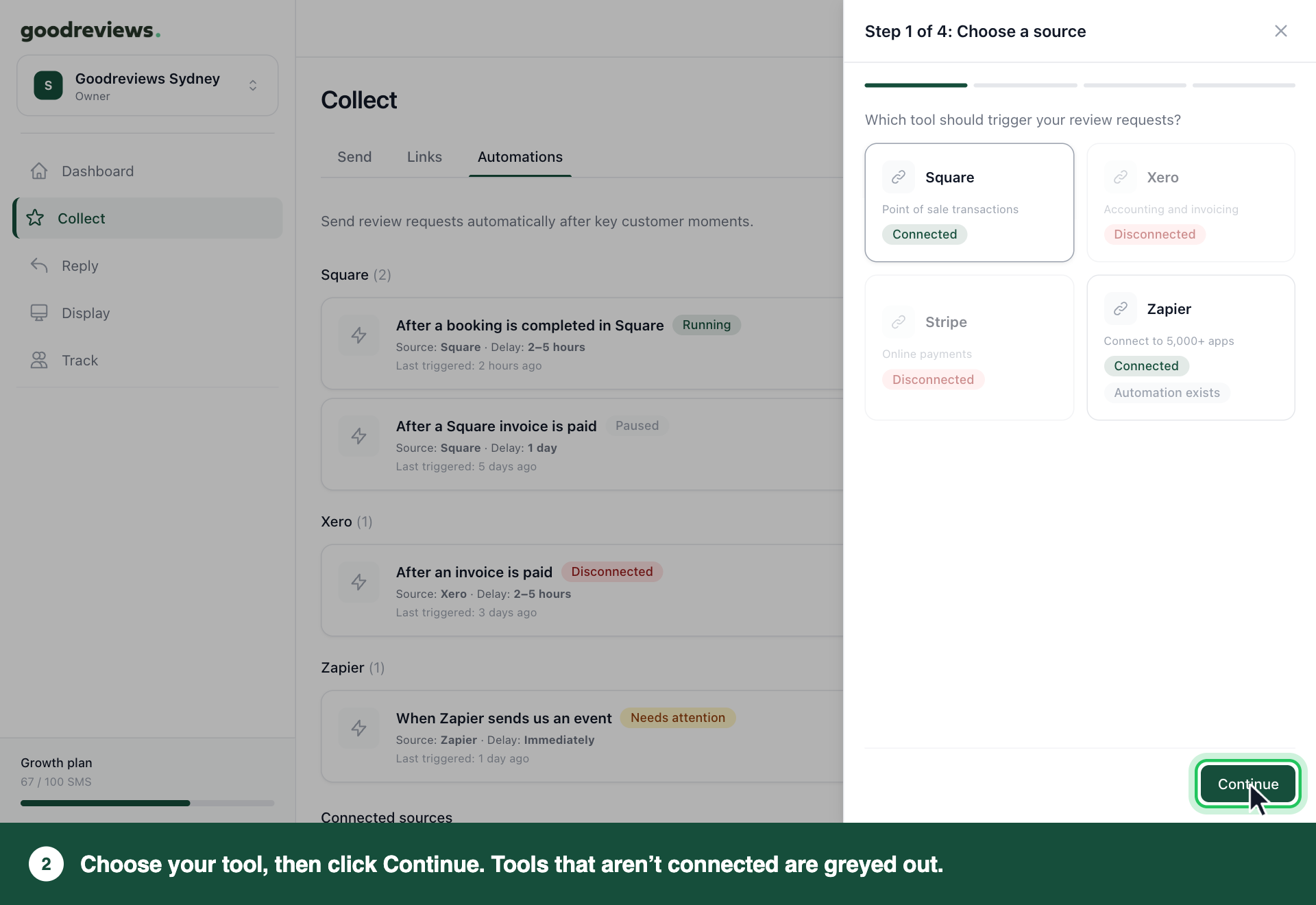
- Under Step 1 of 4: Choose a source, click your tool. Only connected tools can be chosen.
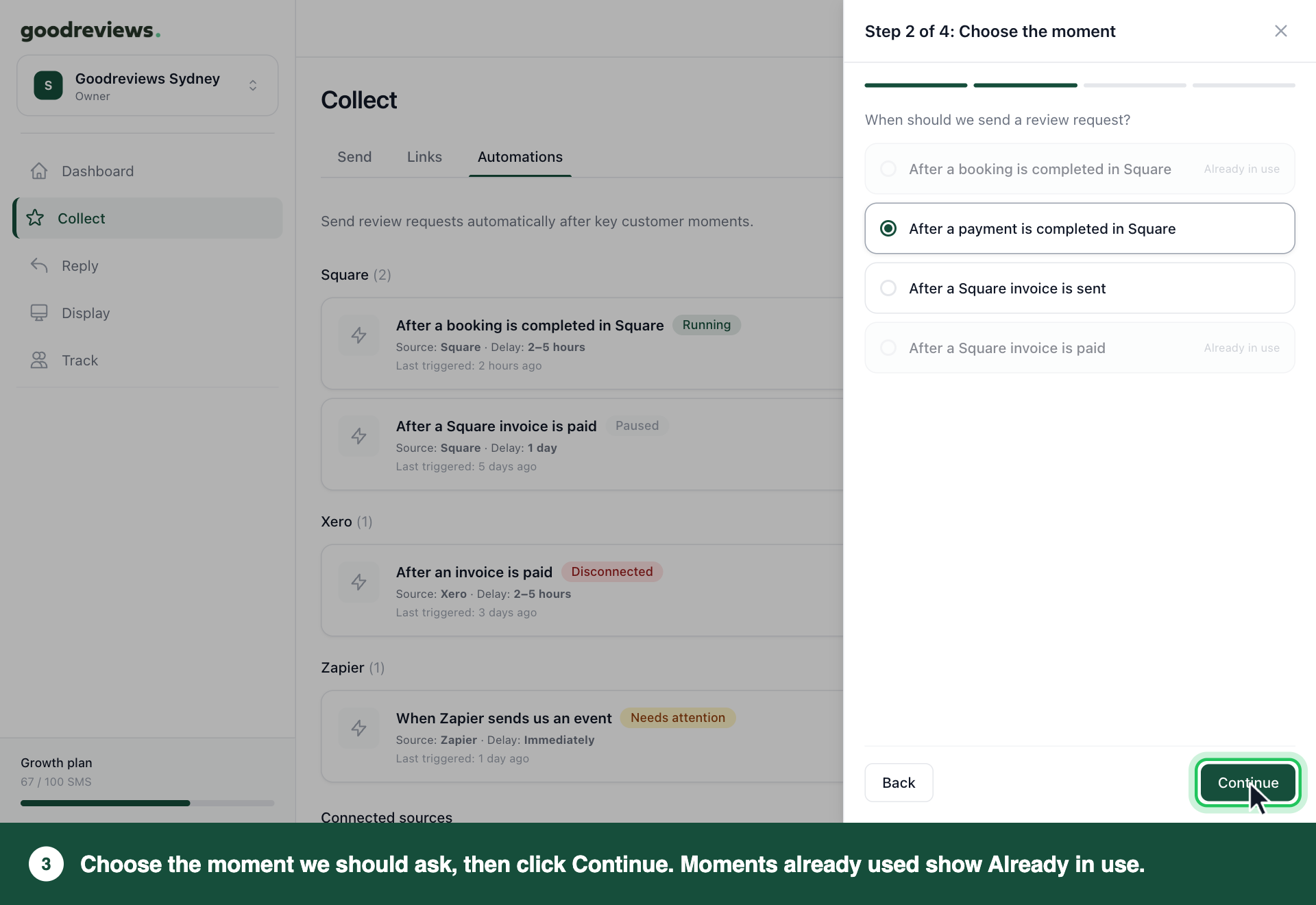
- Under Step 2 of 4: Choose the moment, click the moment we should ask. See the first table below.
- Under Step 3 of 4: Choose when to send, choose your delay from Send after. The default is 2–5 hours.
- Under Step 4 of 4: Review and create, check the summary.
- Click Create automation.
The automation starts running as soon as you create it.
Pick a moment
The moment is what starts the automation. Each tool has its own moments.
| Tool | Moments |
|---|---|
| Square | After a booking is completed in Square, After a payment is completed in Square, After a Square invoice is sent, After a Square invoice is paid |
| Xero | After an invoice is paid, After an invoice is sent, When a new contact is added |
| Stripe | After an invoice is issued, After a payment is received |
| Zapier | When Zapier sends us an event |
For Square, the booking moment only covers Square Appointments. For payments in person, the customer needs to give their email or mobile for a digital receipt.
Want more than one moment? Create one automation for each moment. Each one has its own delay, and you can pause each one on its own.
For Zapier, you set up the trigger in Zapier. See Connect Zapier.
Set a delay
The delay is how long we wait after the moment before sending the request.
| Tool | Send after options |
|---|---|
| Square, Xero and Stripe | Immediately, 2–5 hours, 1 day, 3 days, 5 days, 7 days, 14 days, 30 days |
| Zapier | Immediately, 2–5 hours, 1 day, 3 days |
Your Delivery schedule also applies, so a request due outside your Delivery window waits until it opens. Whatever delivery window you choose, requests and reminders only go out between 8:00 and 20:00 in your timezone. To change your hours or check your timezone, see Change your review settings.
What we send
Every automation uses your review request templates. Your account has one set, shared by every automation and the Send tab. To change the wording, see Edit your email and SMS templates.
Edits apply to every request that hasn't gone out yet, including ones waiting on a delay.
Part 3. Change or pause an automation
To change the delay:
- Click Collect in the sidebar.
- Click Automations.
- Click Manage next to the automation.
- Choose a new delay from Send after.
- Click Save changes.
The Manage window also shows the automation's status and its Source & trigger. The tool and moment can't be changed there.
To pause an automation:
- Click Collect in the sidebar.
- Click Automations.
- Click Pause next to the automation.
To start it again, follow the same steps and click Resume. You can also click Pause automation or Resume automation in the Manage window.
How to check it's working
Click Collect in the sidebar, then click Automations. Your new automation shows under its tool, marked Running, with Source: and Delay: underneath.
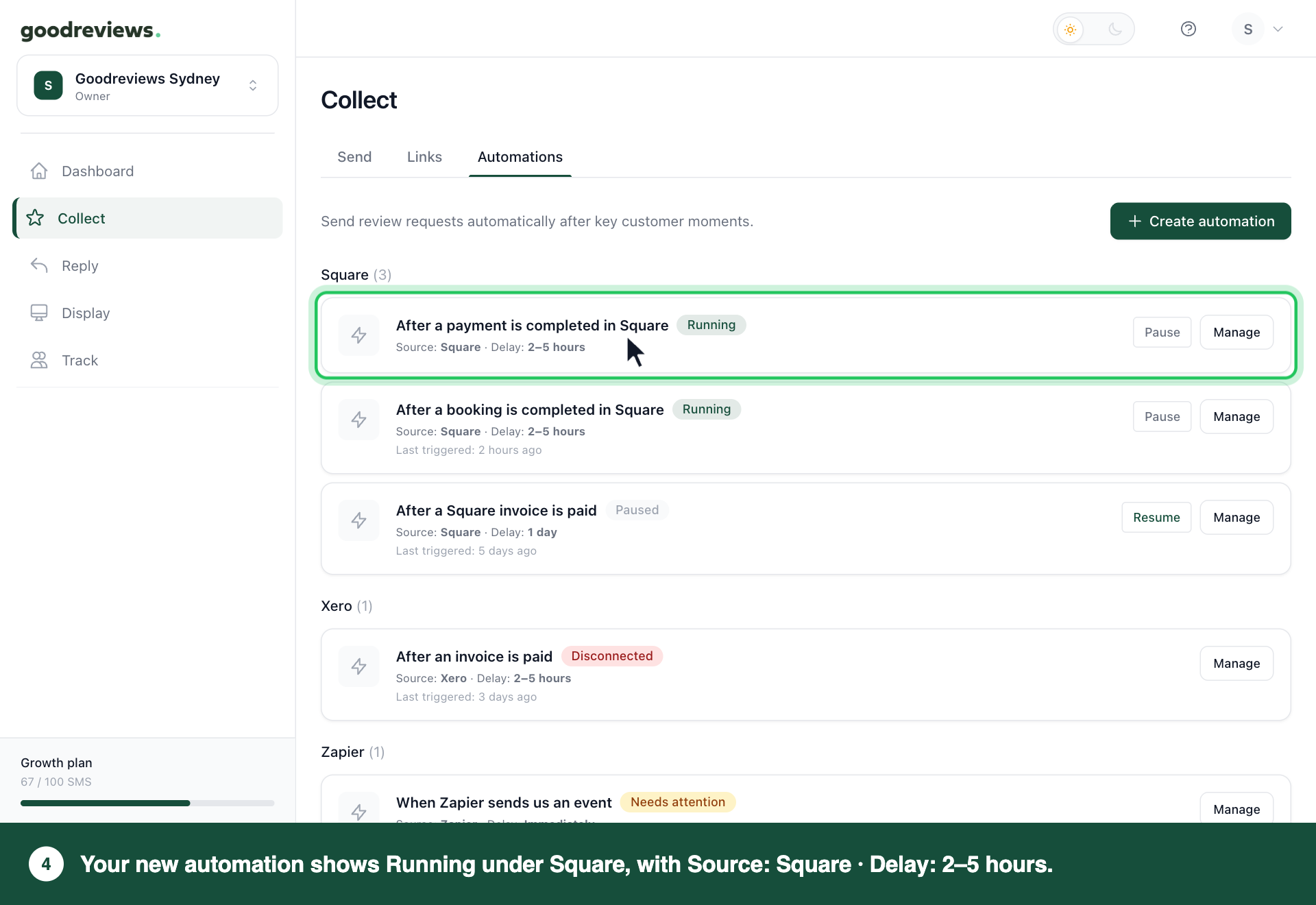
A new automation has no Last triggered: line until your moment first happens. Click Track in the sidebar to see the requests. Each one shows its source, like Xero (auto).
| Status | What it means | What to do |
|---|---|---|
| Running | Requests are going out. | Nothing. |
| Paused | Nothing is being sent. | If you paused it, click Resume. If its tool is disconnected, connect it again. It starts again by itself. See Fix an automation that needs attention. |
| Needs attention | Something is stopping requests. | Click Manage and follow the message. See Fix an automation that needs attention. |
| Disconnected | Your tool is no longer connected. | Connect it again. Its automations start again by themselves. See Fix an automation that needs attention. |
Common questions
Why can't I choose my tool? It isn't connected. Tools that aren't connected show Disconnected and are greyed out on the Choose a source step. Follow Part 1, then create your automation.
Why is a moment greyed out? It says Already in use because another automation already uses that moment. Each moment can have one automation. To change its delay, click Manage next to that automation.
Will a customer get two requests if two automations match? We send one request per customer per transaction. After that, your rest period stops repeats. See Change your review settings.
Can I change the tool or the moment? No. The Manage window says This cannot be changed. Create a new automation with the tool and moment you want, then delete the old one.
How do I delete an automation? Click Collect in the sidebar, then click Automations. Click Manage next to the automation, click Delete, then click Delete automation to confirm. This cannot be undone.
Still stuck? Email success@goodreviews.io.